How to create a prospect list using sales navigator?
If you have access to LinkedIn Sales Navigator, you can use its advanced search filters to build highly targeted prospect lists for your Flowkon campaigns. Filters such as company size, seniority level, years in position, and many others make it easier to find the right prospects.
A LinkedIn Premium account with an active Sales Navigator subscription is required to use this prospect source.
Import limits
Flowkon can import up to 2,000 profiles per Sales Navigator prospect list. This limit is determined by LinkedIn, not Flowkon.
If your search contains more than 2,000 results, we recommend splitting it into multiple smaller searches using filters like location, industry, company size, or job title. This also helps create more focused outreach campaigns.
Follow the steps below to create a prospect list using a Sales Navigator search:
- Open LinkedIn Sales Navigator.
- Either create a new prospect list or open one of your saved prospect lists.
- Apply the filters that best match your ideal customer profile until you're satisfied with the results.
-
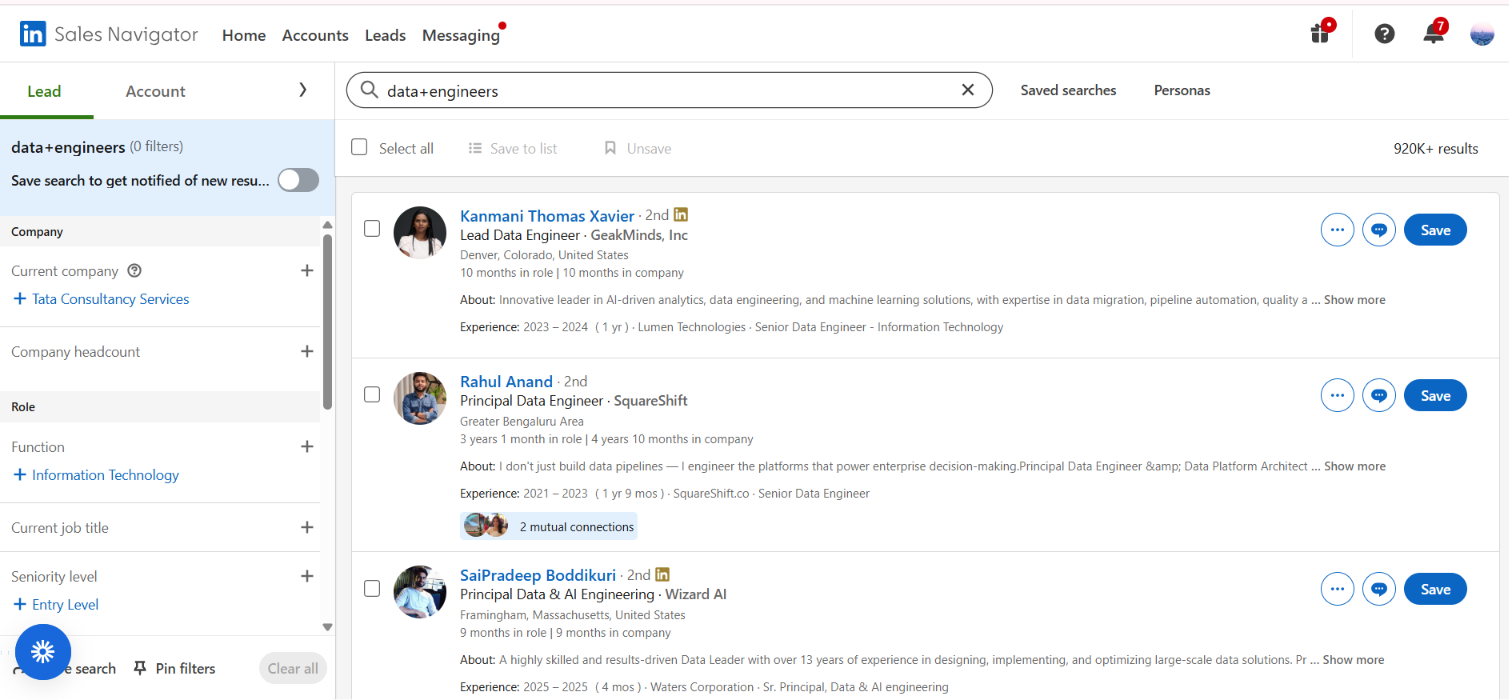
- Copy the Sales Navigator prospect URL from your browser.

- In Flowkon, navigate to the Prospect Lists page and click the Find Prospects button.

- Select Sales Navigator URL from the available import options and click Next.

- Paste the Sales Navigator search URL into the input field, give your Prospect list a name. You will get the option to extract prospects, enter a specific prospect count to extract and then click on Finish button.

- After that Flowkon will begin retrieving the profiles from your LinkedIn search.
- Now the prospect list will start retrieving results, and once it's done the status will update as Completed. You can use that prospect list in the campaign.
Flowkon will begin retrieving the profiles from your Sales Navigator search and add them to your account once the import is complete.