How do I connect HubSpot to Flowkon?
The HubSpot integration allows you to connect your HubSpot workspace with Flowkon, making it easier to keep your sales pipeline up to date without manually exporting or importing prospects.
Once connected, Flowkon can automatically create or update contacts in HubSpot whenever new prospects are added or important campaign activities occur. With customizable field mapping, you can ensure your Flowkon data is stored in the correct HubSpot properties.
Purpose and Goal
The HubSpot integration is designed to help you:
- Keep your HubSpot CRM synchronized with your Flowkon workspace.
- Reduce manual data entry and CSV exports.
- Automatically create or update contact records.
- Map Flowkon fields to your HubSpot properties.
- Maintain a single source of truth for your sales pipeline.
Before You Connect
Before setting up the integration, make sure that:
- You have an active HubSpot account.
- You have permission to install apps or connect integrations in your HubSpot workspace.
- You have access to the Flowkon workspace where you want to enable the integration.
Follow the steps below to connect HubSpot to Flowkon:
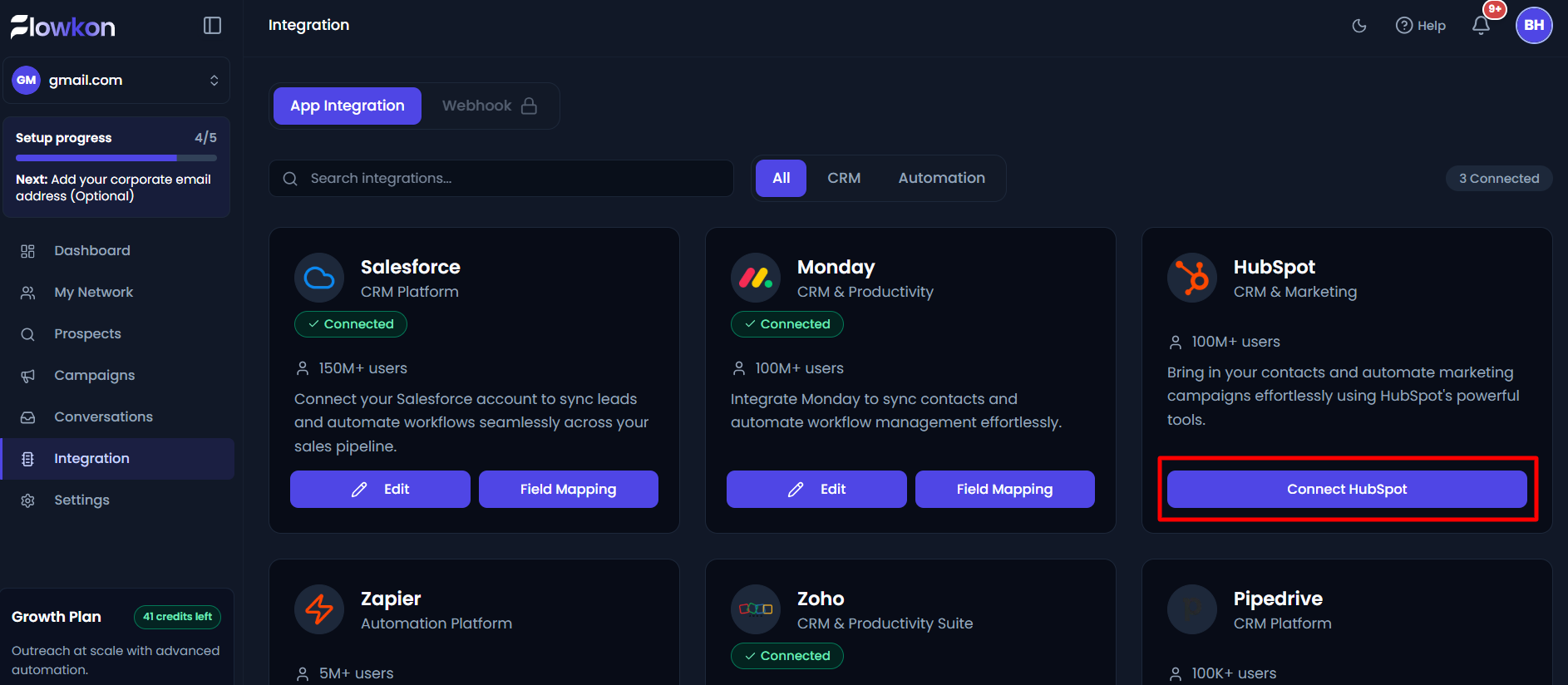
- Open Integrations Page in Flowkon. Locate the HubSpot integration card and click on Connect Hubspot button.
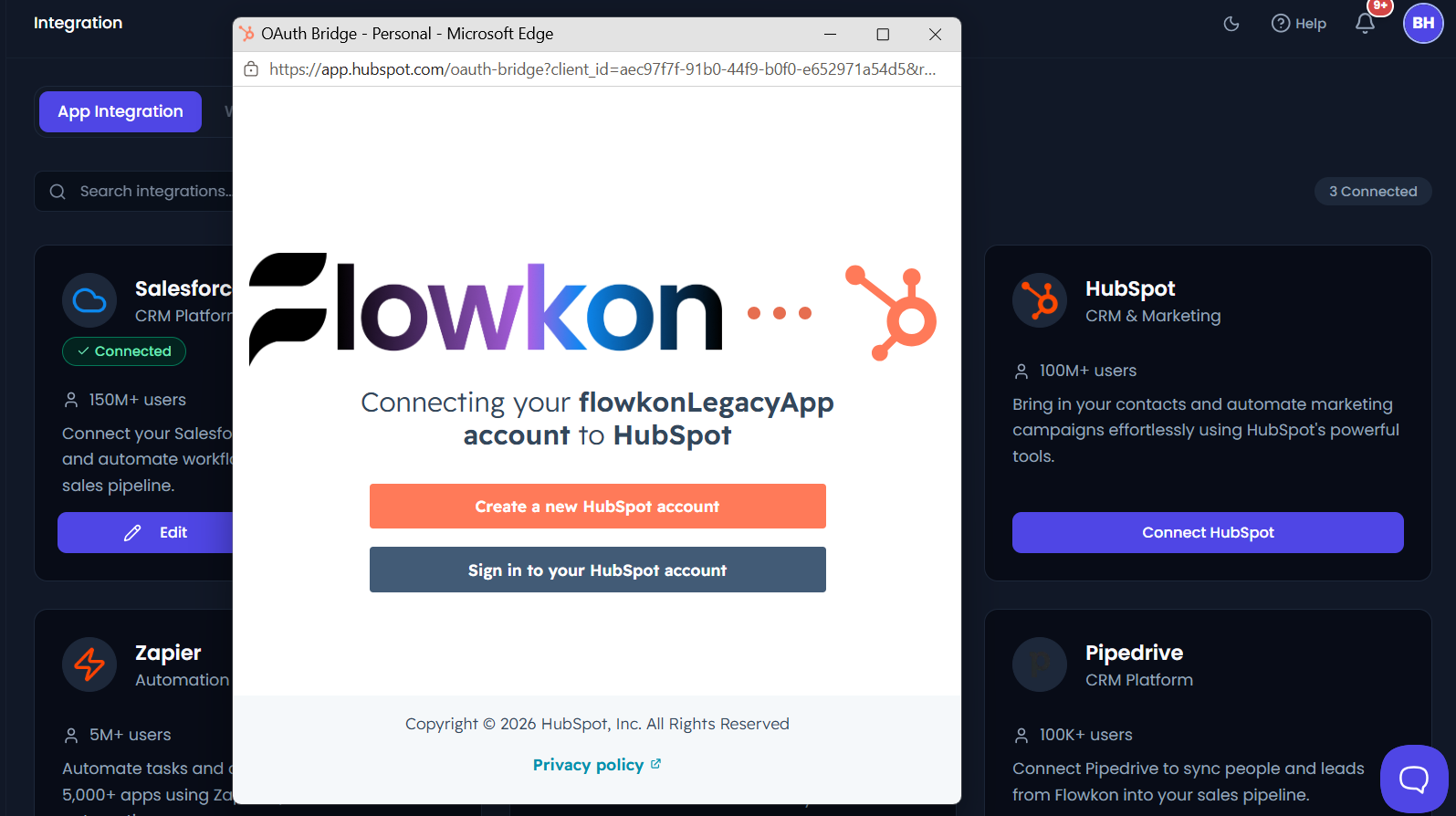
- A HubSpot authorization window will open. Sign in with your HubSpot account and grant the requested permissions.
- Once authorization is complete, you'll be redirected back to Flowkon, and the integration will appear as Connected.
Field Mapping
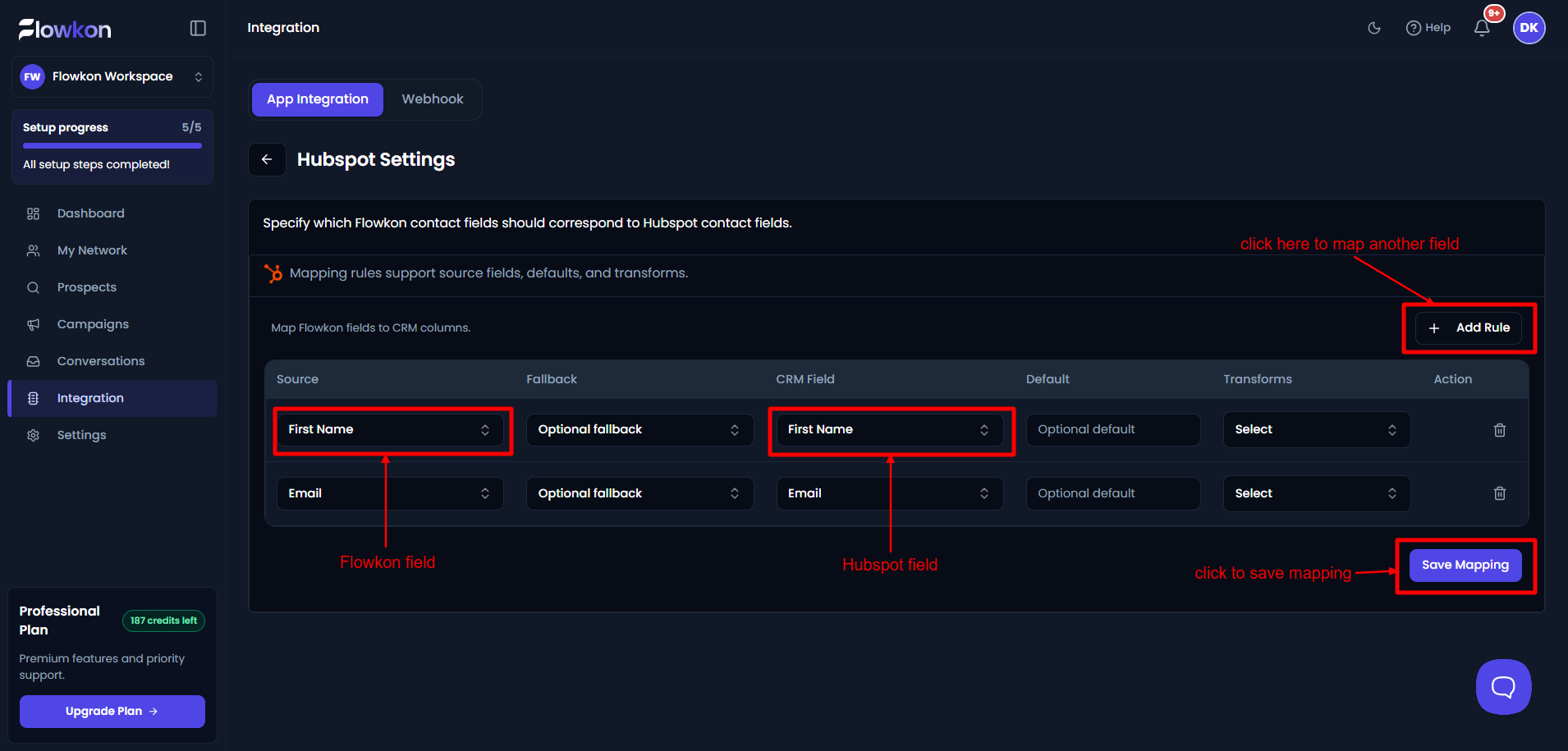
After connecting HubSpot, you can configure Field Mapping to control how data is synchronized.
Field Mapping allows you to match Flowkon fields with their corresponding Hubspot fields. This ensures that whenever prospect data is synced to Hubspot , the information is stored in the correct Hubspot fields based on the mappings you have configured.
For example, you can map a Flowkon field such as Company Name to the appropriate Hubspot field, ensuring data is transferred accurately and consistently during synchronization.
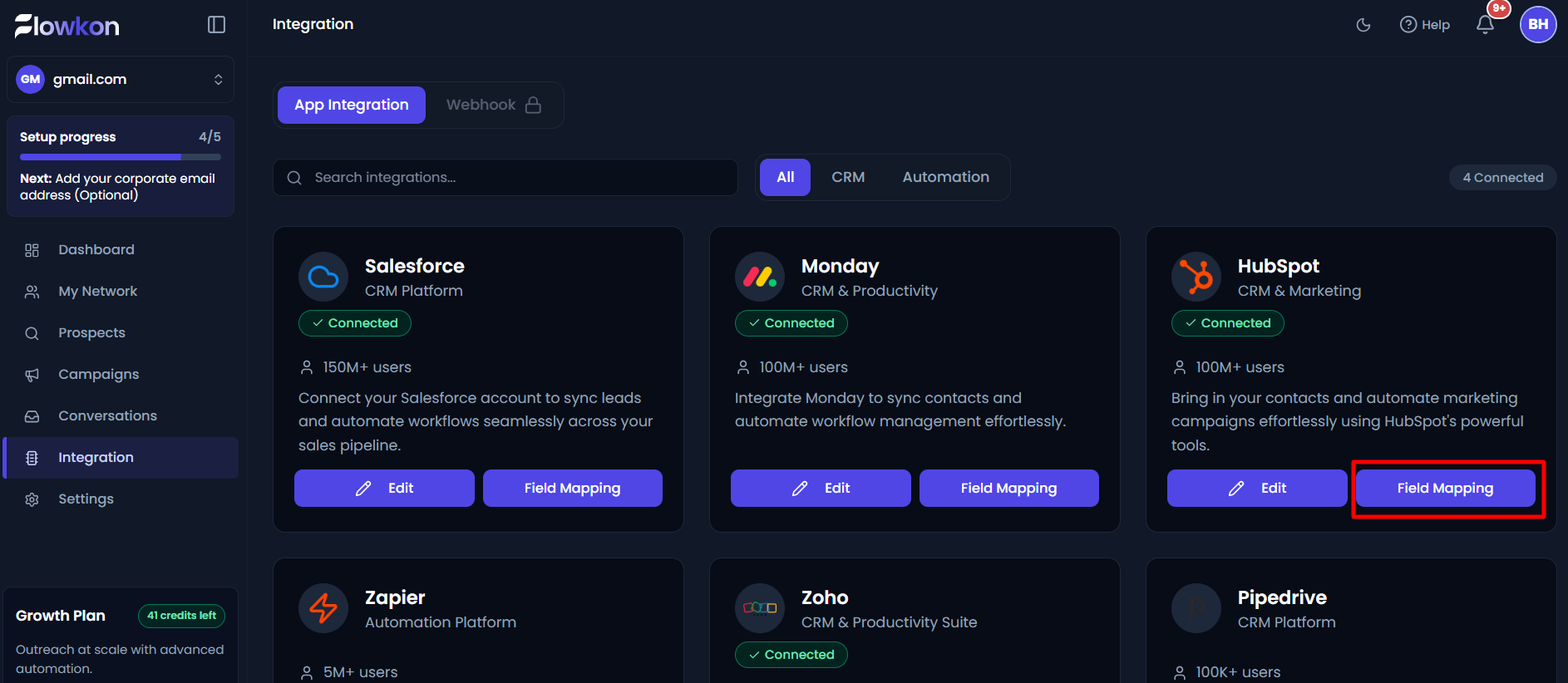
Field Mapping allows you to match Flowkon fields with HubSpot properties, ensuring that your contact information is stored exactly where you want it.
For example, you can map:
- First Name
- Last Name
- Job Title
- Company Name
- LinkedIn Profile URL
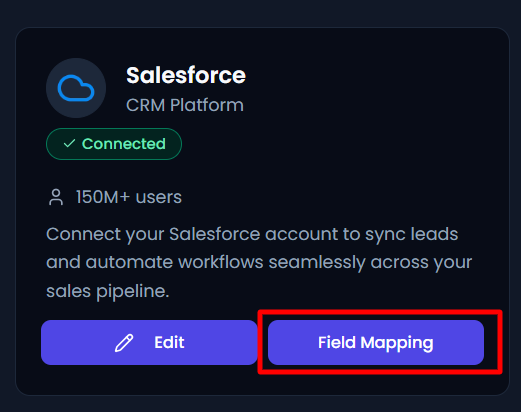
You can update these mappings at any time by opening the HubSpot integration and selecting Field Mapping.
Managing Your Integration
Once connected, the HubSpot integration card provides several management options.
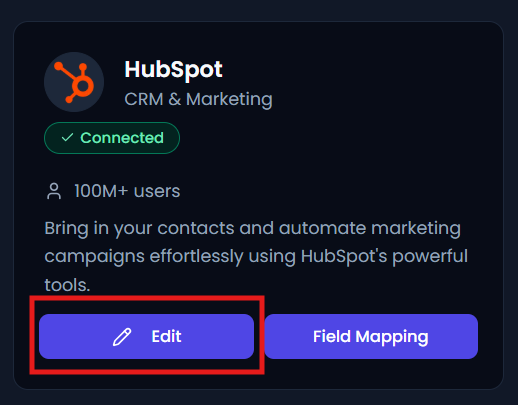
Edit
Click Edit on the HubSpot integration card to manage your connection.
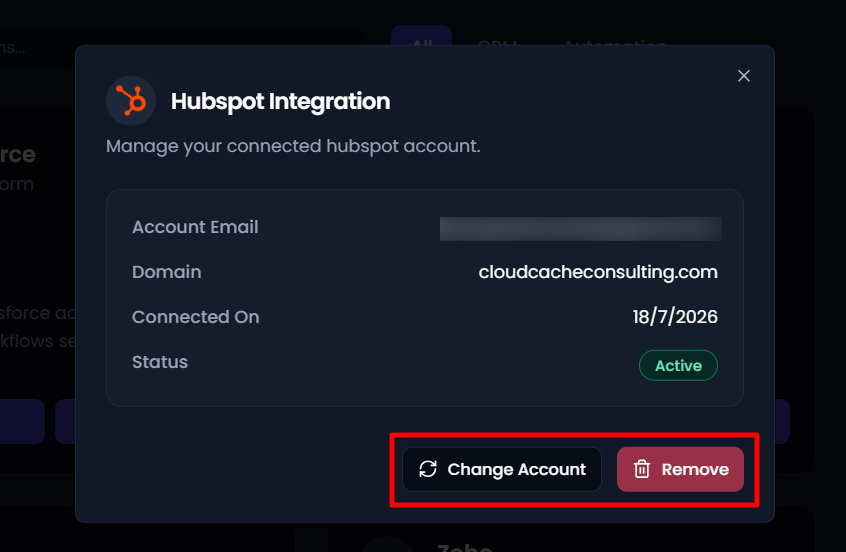
From here, you can:
- Reconnect your HubSpot account
- Refresh authorization permissions
- Disconnect the integration
Disconnect
If you no longer wish to use the integration, you can disconnect it from the Integrations page.
Important:
Disconnecting HubSpot will:
- Stop future synchronization between Flowkon and HubSpot.
- Prevent new contacts from being created or updated through Flowkon.
- Leave all existing HubSpot records unchanged.
No previously synchronized records will be deleted from HubSpot.
📷 Insert screenshot of Disconnect option.
Why Use the HubSpot Integration?
Connecting HubSpot with Flowkon helps you:
- Eliminate repetitive manual work.
- Keep your CRM data accurate and up to date.
- Centralize your prospect management process.
- Improve collaboration between marketing and sales teams.
- Focus more on building relationships instead of managing spreadsheets.
By keeping your Flowkon workspace and HubSpot CRM connected, your team always has access to the latest prospect information and can work more efficiently.