How do I manage integrations in Flowkon?
The Integrations page allows you to connect Flowkon with your favorite CRM and business tools, helping you centralize your sales workflow and reduce manual data management.
From a single dashboard, you can connect new services, manage existing integrations, configure field mappings, and monitor all active connections within your workspace.
Why Use Integrations?
Integrations help you:
- Connect Flowkon with your existing CRM and business tools
- Synchronize prospect and contact data across platforms
- Reduce manual imports and exports
- Keep your sales pipeline organized and up to date
- Manage all connected services from one place
Available Integrations
Salesforce
Connect your Salesforce organization to synchronize prospects and contacts between Salesforce and Flowkon.
Features:
- Secure OAuth authentication
- CRM field mapping support
- Edit or reconnect your integration at any time
- Disconnect when no longer needed
HubSpot
Connect your HubSpot workspace and keep prospect data synchronized across both platforms.
Features:
- Secure account connection
- CRM field mapping
- Manage, reconnect, or disconnect your integration
Monday.com
Integrate Flowkon with Monday.com to streamline sales and operational workflows.
Features:
- Connect your Monday.com workspace
- Configure custom field mappings
- Manage or remove connections anytime
Zoho CRM
Keep your customer database organized by syncing prospects between Flowkon and Zoho CRM.
Features:
- Secure OAuth authentication
- Custom field mapping support
- Edit, reconnect, or disconnect the integration
Pipedrive (Coming Soon)
The Pipedrive integration is currently under development and will be available in a future release.
Once launched, it will allow you to synchronize Flowkon prospects directly with your Pipedrive sales pipeline.
Zapier (Coming Soon)
Zapier support will enable you to connect Flowkon with thousands of third-party applications through automated workflows.
This integration is currently marked as Coming Soon.
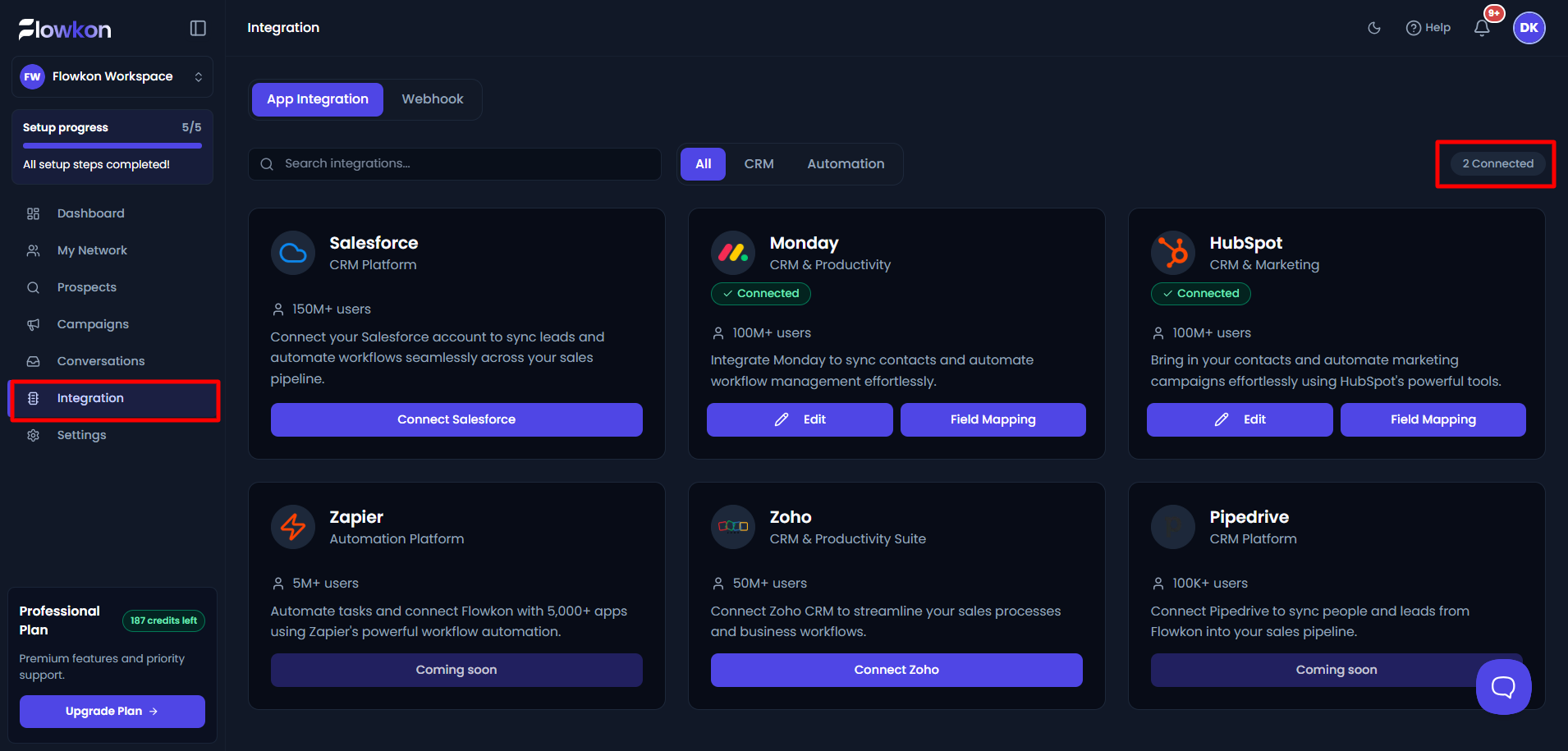
Open the Integrations Page
- From the left navigation menu, click Integrations.
- At the top of the page, you'll see a Connected badge displaying the number of active integrations in your workspace.
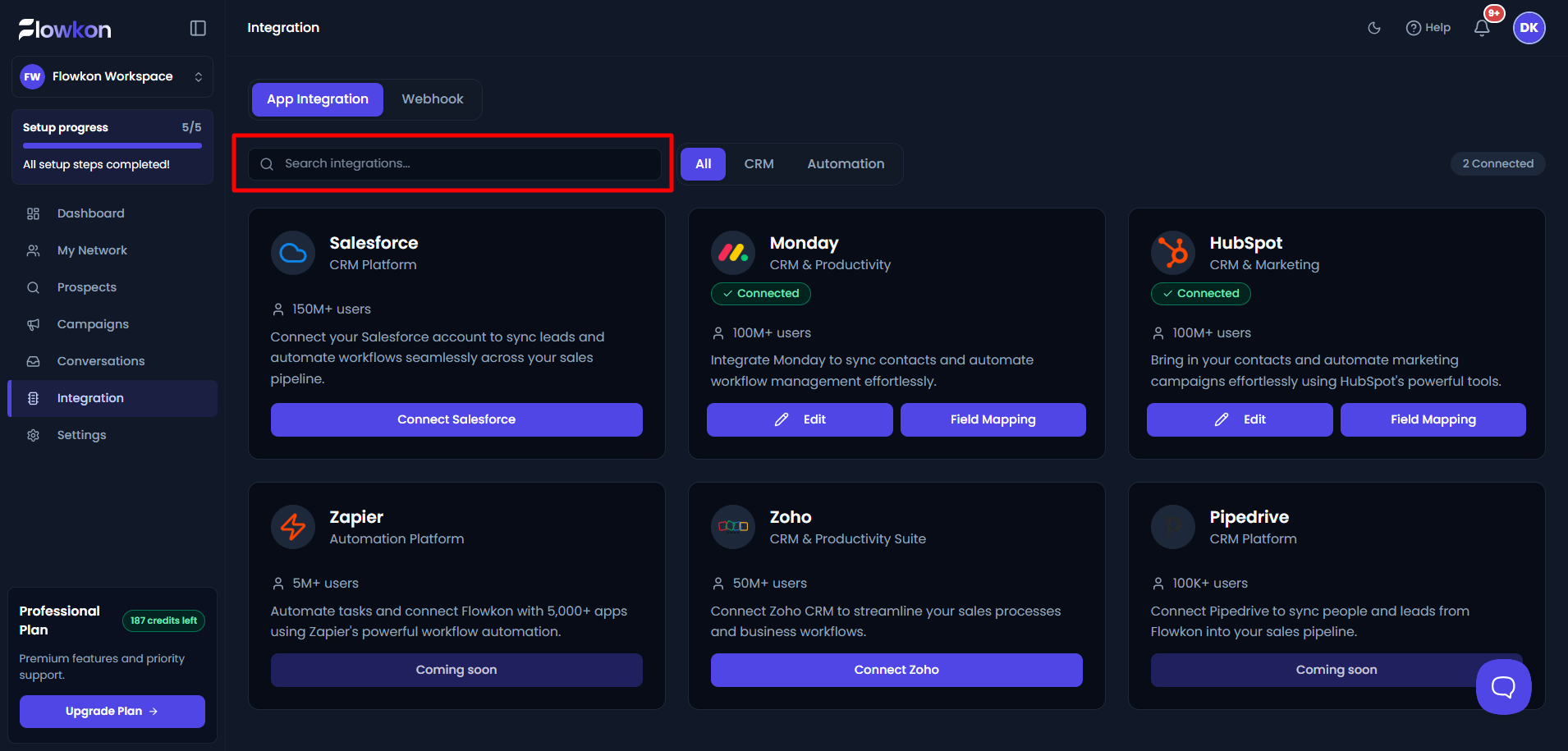
Search for an Integration
Use the search bar to quickly find an integration by name.
Simply start typing, and the integration list will update automatically.
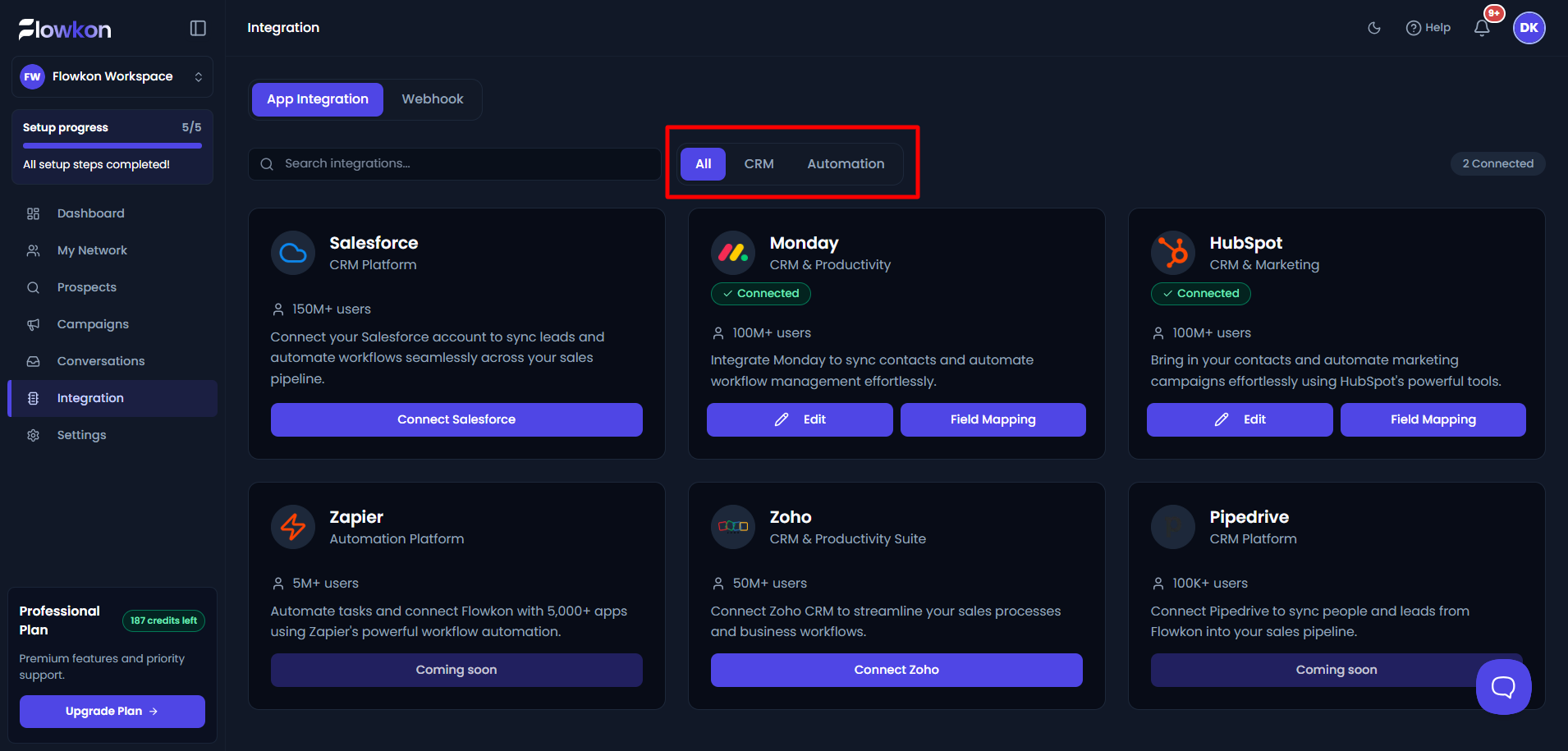
Filter Integrations by Category
Use category filters to browse integrations more efficiently.
Selecting a category displays only the integrations that belong to that group.
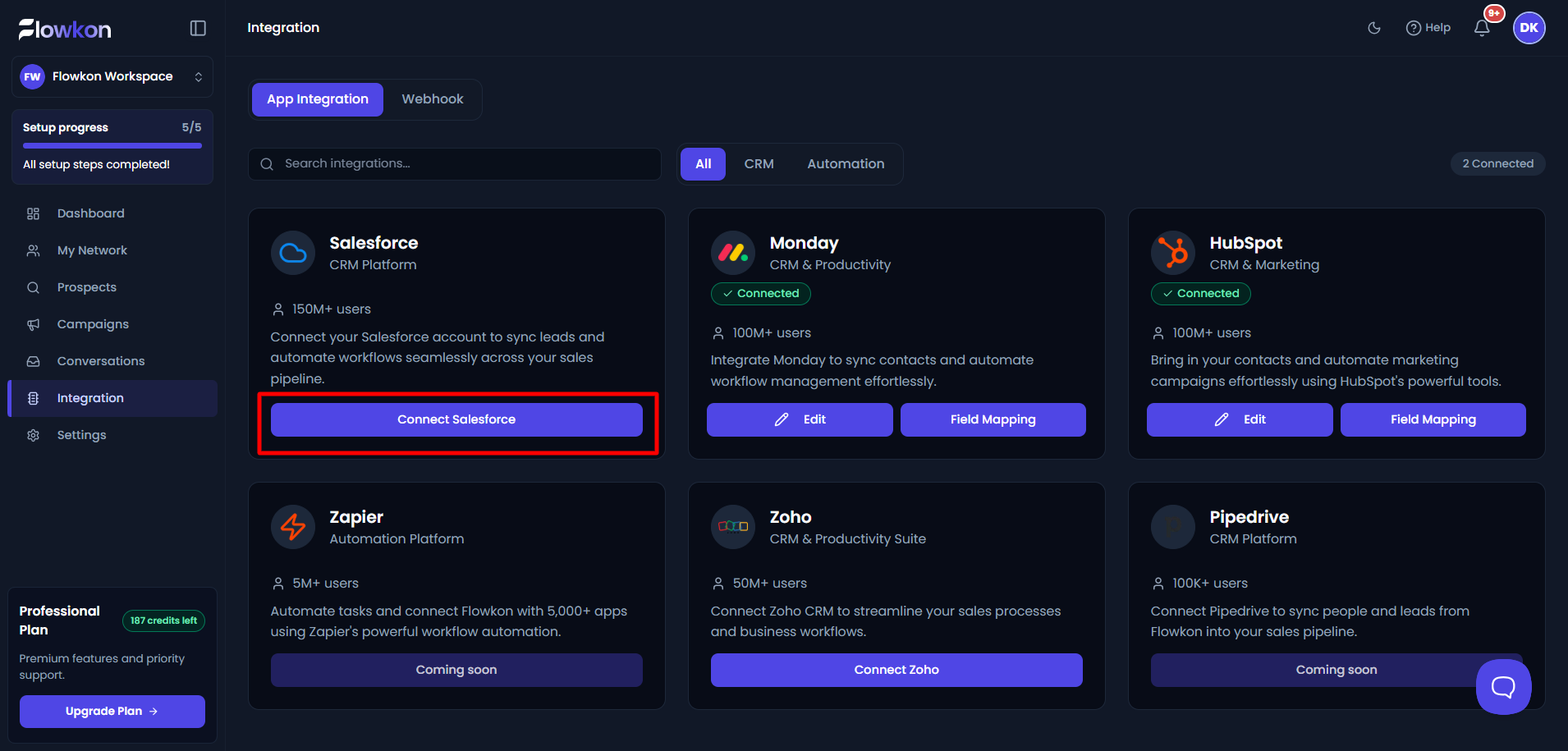
Managing Integrations
Each integration card displays its current status and available actions.
Connect an Integration
If an integration is not yet connected:
- Click Connect.
- Complete the authorization process.
- Follow any additional setup steps if required.
Note: Some integrations may require additional permissions before they can be connected.
Connected Status
Successfully connected integrations display a Connected badge, making it easy to identify active services.
Edit an Integration
For connected integrations, click Edit to:
- Update connection settings
- Reauthorize the account
- Reconnect the integration if necessary
Configure Field Mapping
Supported CRM integrations include a Field Mapping option.
Field Mapping allows you to match Flowkon fields with fields in your CRM, ensuring data is synchronized accurately.
Currently supported for:
- Salesforce
- HubSpot
- Monday.com
- Zoho CRM
How Field Mapping Works ?
When contact information is sent from Flowkon to Selected CRM:
- Flowkon checks your configured field mappings.
- Data is matched to the corresponding CRM properties.
- CRM records are created or updated accordingly.
- Future synchronization actions continue to follow your configured mappings.
This process helps ensure that your CRM remains accurate and consistent while reducing the need for manual updates.
Disconnect an Integration
To remove an integration:
- Click Disconnect.
- Confirm the action when prompted.
Important: Disconnecting an integration will stop all future synchronization between Flowkon and that platform.
Permissions and Access
Integration management may depend on your workspace role and subscription plan.
If you do not have permission to manage integrations:
- The Connect button will be disabled.
- A message will explain why the integration cannot be modified.
Keeping Your Workspace Connected
The Integrations page serves as the central hub for all external services connected to your Flowkon workspace.
As new integrations become available, they will automatically appear here, allowing you to expand your workflow without leaving the platform.