-p-2000.png)
Subscription Changes
You can change your Flowkon subscription at any time by upgrading to a higher plan or scheduling a downgrade to a lower plan.
Flowkon allows you to compare plans, adjust the number of LinkedIn seats, and choose between monthly or yearly billing directly from the Subscription page.
How do I change my subscription plan?
- Open the Billing/Subscription page from your Profile Menu.
- Browse the available plans.
- Choose your preferred billing cycle (Monthly or Yearly).
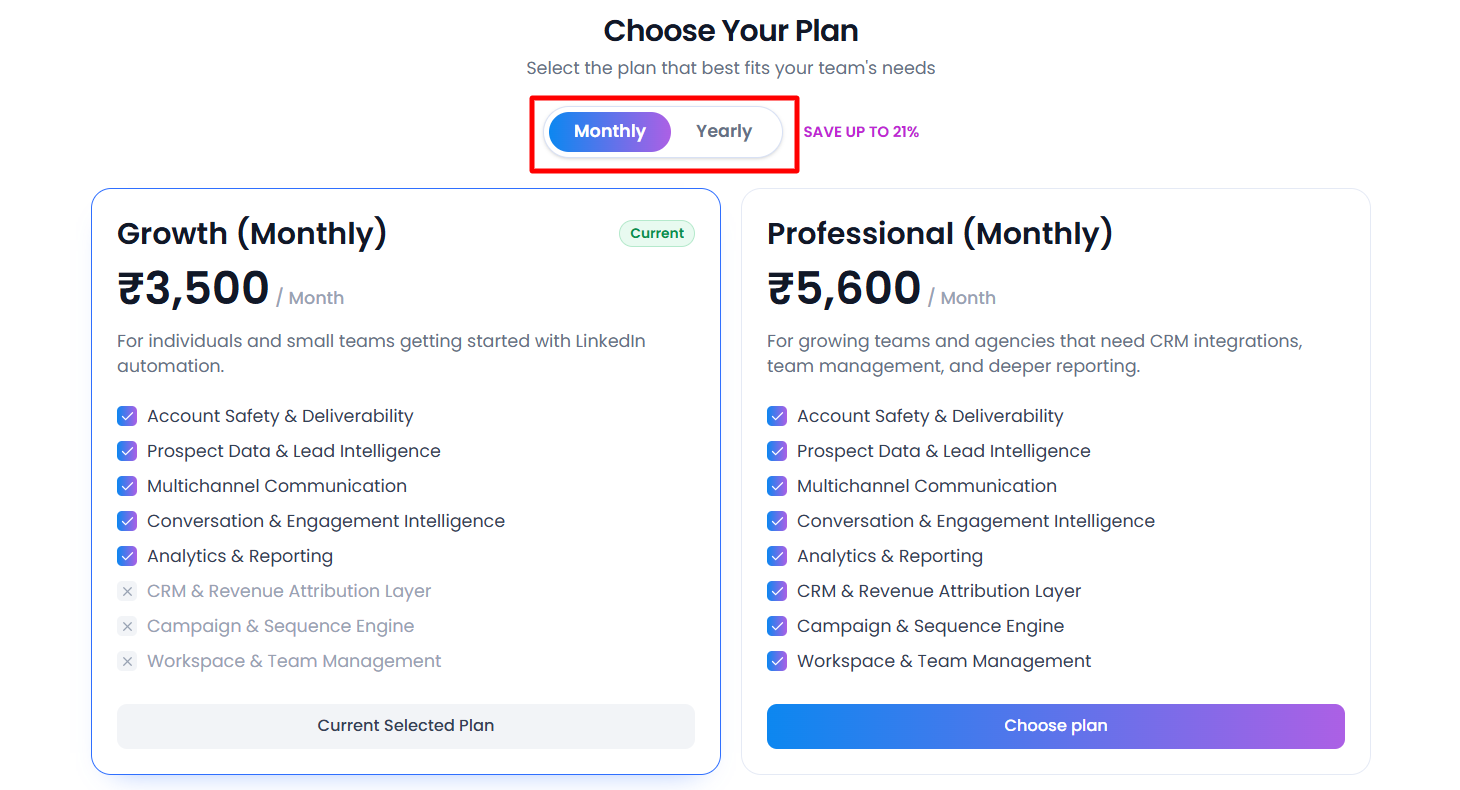
- Select the plan you'd like to switch to.
- Adjust the number of seats if needed.
- Click Schedule change.
Flowkon will display a confirmation window summarizing the upcoming change before it is applied.
How does a scheduled plan change work?
Subscription changes are scheduled to take effect at the end of your current billing period.
For example, if you're currently on:
- Professional (Monthly)
- and switch to Growth (Monthly)
Flowkon will show a confirmation similar to:
- Current plan: Professional (Monthly)
- New plan: Growth (Monthly)
- This change will replace any existing scheduled change and apply at period end.
No immediate plan interruption occurs, and your current subscription remains active until renewal.
How do I know if a change is already scheduled?
If you already have a pending subscription update, Flowkon displays a notification banner on your Subscription page showing:
- The future plan
- Billing cycle
- Number of seats
- Effective date
Example:
Scheduled update: Pro (Yearly), 6 seats effective on 28 May 2027. Current plan: Professional (Monthly).
Scheduling a new change will replace any previously scheduled update.
Does changing my plan charge me immediately?
It depends on the type of plan change:
Upgrading your plan: Yes, payment is required immediately when you upgrade to a higher plan. The upgraded features will become available right away after successful payment.
Downgrading: These changes are scheduled and will take effect on your next renewal date.
Frequently Asked Questions
Can I upgrade my plan at any time?
Yes. You can schedule an upgrade whenever you need additional features or higher limits.
Can I downgrade my subscription?
Yes. Downgrades can also be scheduled and will take effect at the end of your current billing period.
What happens if I already have a scheduled change?
Creating a new scheduled change automatically replaces the previous pending update.
Will my current plan stop working immediately?
No. Your existing subscription remains fully active until the scheduled change becomes effective.
Can I change both the plan and seat count together?
Yes. You can select a new plan, change the billing cycle, and adjust the number of LinkedIn seats in a single scheduled update.
Can I change from Monthly to Yearly billing?
Yes.
You can switch between Monthly and Yearly billing at any time from the plan selector at the top of the Subscription page.
After selecting the new billing cycle:
- Choose your desired plan.
- Select the number of seats.
- Click Schedule change.
The updated billing cycle will begin when your current subscription period ends.
Yearly plans may offer discounted pricing compared to monthly billing.
Can I change the number of LinkedIn seats?
Yes.
When selecting a plan, you can increase or decrease the number of seats assigned to your subscription using the seat selector.
The updated seat count will become active together with your scheduled plan change.