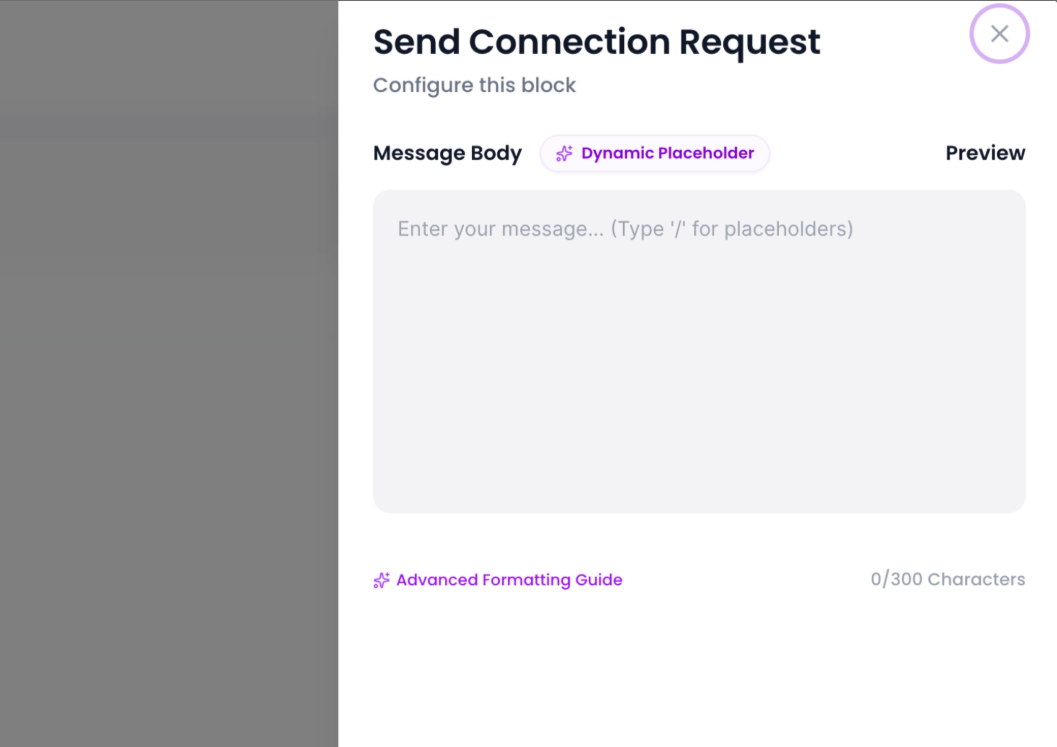
-p-2000.png)
Variable overview
Personalization helps your outreach feel more natural and increases the chances of getting replies.Previously, outreach templates could only use a fixed set of system placeholders such as First Name, Last Name, Company Name, Job Title, and other built-in prospect fields.
With Custom & Dynamic Placeholders, you can create your own personalization variables, assign unique values for each prospect, and use them across emails, LinkedIn messages, and connection requests.
This gives you complete control over how outreach is personalized without creating multiple versions of the same campaign.
What Are Custom Placeholders?
Custom Placeholders allow you to define your own variables that can be reused throughout your outreach templates.
For example:
- Pain Point
- Value Prop
- Booking Link
- Tech Stack
- Profile Note
Each placeholder becomes available across your workspace and can be populated with prospect-specific values.
How Custom Placeholders Work
Custom placeholders help you personalize outreach messages for every prospect without creating multiple versions of the same campaign.
The process works in three simple steps:
- Create placeholder definitions
- Assign values to individual prospects
- Use the placeholders inside your outreach templates
When a campaign runs, the system automatically replaces each placeholder with the value assigned to that specific prospect.
Step 1: Create Placeholder Definitions
Navigate to Custom & Dynamic Placeholders then click Placeholders
Here, you can create workspace-level placeholder definitions that can be reused across campaigns and templates.
Each placeholder includes the following fields:
Display Label
The name displayed throughout the platform.
Examples:
- Pain Point
- Value Prop
- Booking Link
Variable Key (Slug)
The unique identifier used inside templates.
Examples:
pain_point
value_prop
booking_link
The variable key is used with double curly braces:
{{pain_point}} {{value_prop}} {{booking_link}}
Fallback Value
An optional default value used when no lead-specific value has been assigned.
Once the placeholder is created, it becomes available across all supported outreach templates.
Step 2: Assign Lead-Specific Values
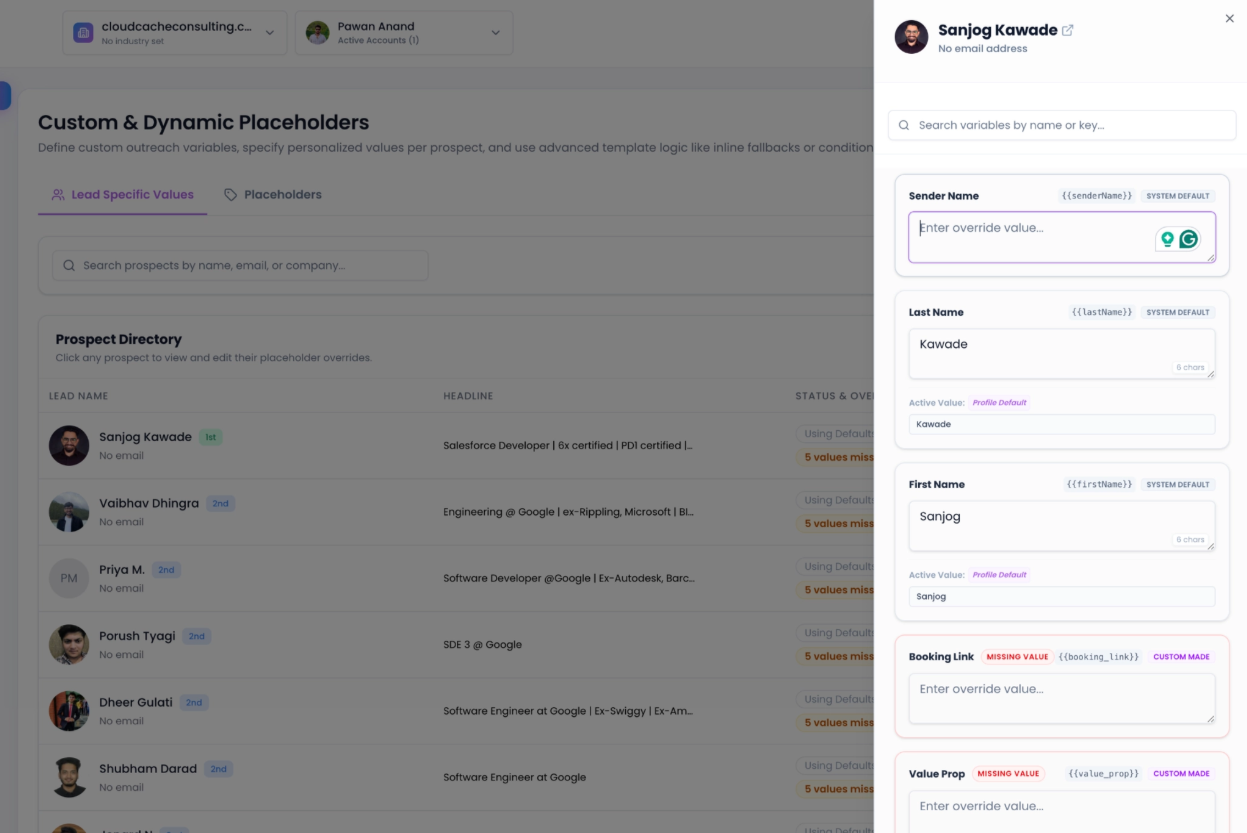
Creating a placeholder only defines the variable.
To personalize outreach, you must assign values for individual prospects.
Navigate to Custom & Dynamic Placeholders then click Placeholders
Select a prospect from the directory and enter values for the placeholders you created.
Example:
| Placeholder | Prospect Value |
|---|---|
| Pain Point | Manual lead qualification |
| Value Prop | Automated prospect enrichment |
| Booking Link | Personal scheduling URL |
| Profile Note | Shared experience in SaaS |
| Tech Stack | Salesforce, HubSpot |
Each prospect can have completely different values.
This allows a single outreach template to generate personalized messages for hundreds or even thousands of prospects automatically.
Step 3: Use Custom Placeholders in Templates
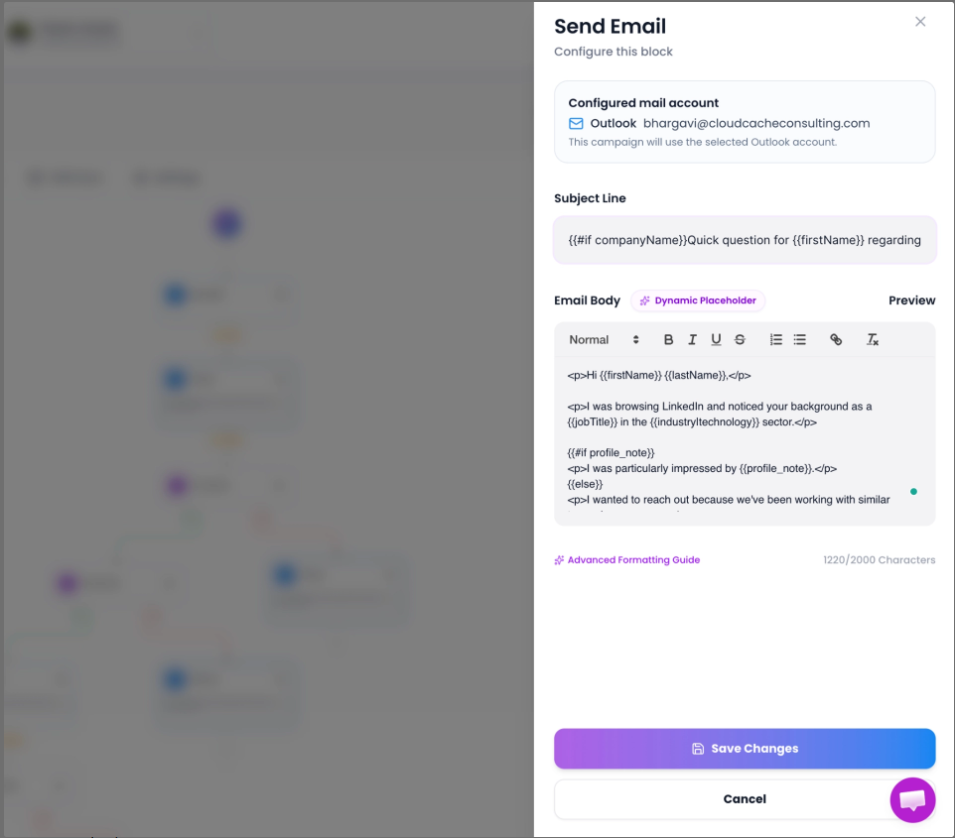
Once placeholders and lead-specific values are configured, you can use them anywhere placeholders are supported.
Supported locations include:
- Email Subject Lines
- Email Body
- LinkedIn Messages
- LinkedIn Connection Requests
Use the placeholder syntax:
{{placeholder_name}}
Example:
Hi {{firstName}}, I noticed your team is currently dealing with {{pain_point}}. We've helped similar companies through {{value_prop}}. You can learn more here: {{booking_link}}
During campaign execution, each placeholder is automatically replaced with the corresponding value assigned to that prospect, making every outreach message feel more personalized and relevant.
Dynamic Placeholder Picker
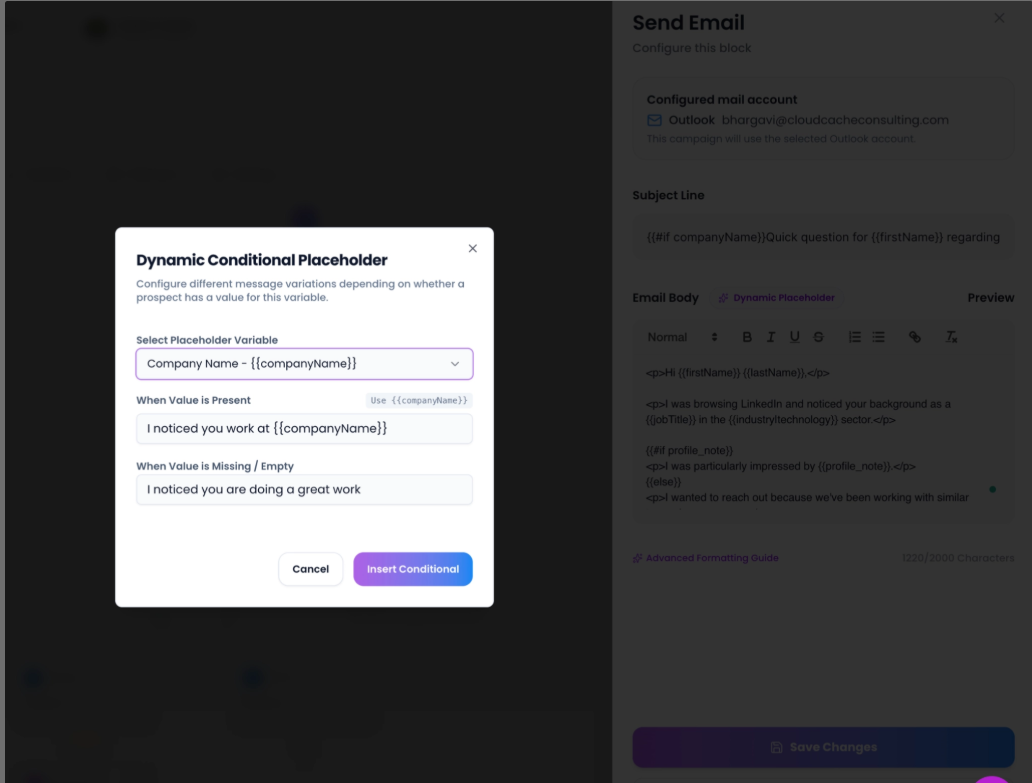
When drafting outreach content, you can insert placeholders directly from the Dynamic Placeholder menu.
The picker includes:
System Placeholders
Examples include:
- First Name
- Last Name
- Company Name
- Job Title
- Sender Name
- Profile URL
Custom Placeholders
Any placeholders created in the Placeholder Definitions section automatically appear in the picker and can be inserted directly into your templates.
This eliminates the need to manually remember placeholder names.
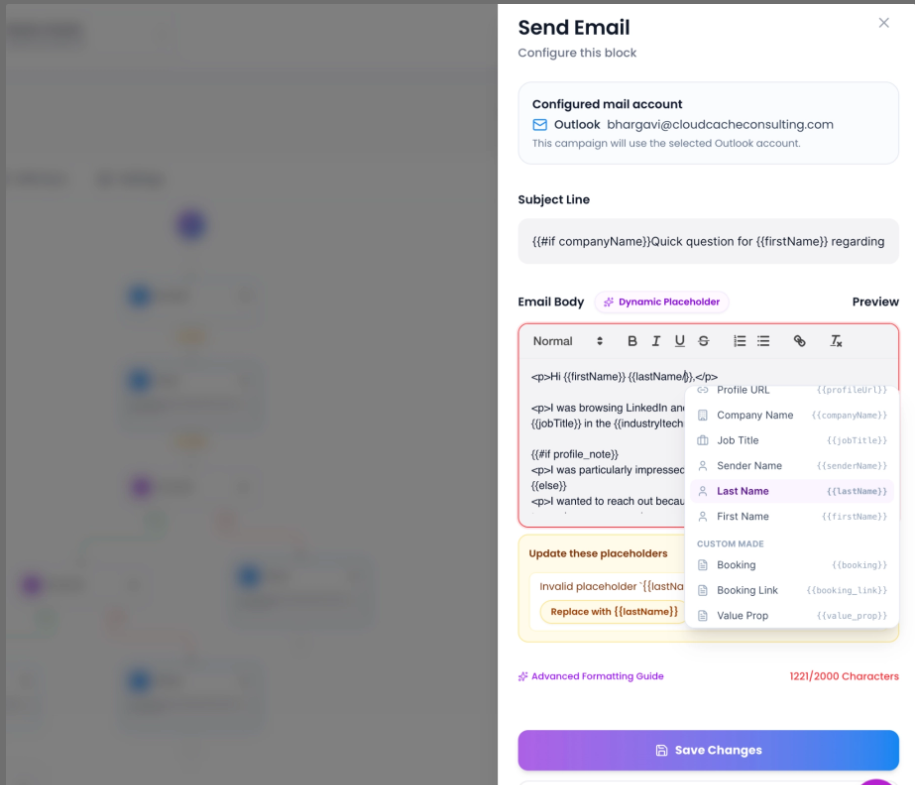
Placeholder Validation
When editing outreach content, the platform validates placeholders used in the template.
If an invalid placeholder is detected:
- The placeholder is highlighted.
- Available placeholders are suggested.
- You can replace the invalid placeholder directly from the suggestion menu.
This helps prevent personalization errors before campaigns are launched.
Conditional Content
Not every prospect record contains complete information.
Dynamic conditional placeholders allow templates to display different content depending on whether a value exists.
This helps maintain natural, personalized messaging even when some prospect fields are missing.
Conditional Structure
{{#if variable}}
Content shown when a value exists
{{else}}
Content shown when the value is missing
{{/if}}
Example:
{{#if profile_note}}
I was particularly impressed by {{profile_note}}.
{{else}}
I enjoyed reviewing your professional background.
{{/if}}
Result
When a value exists:
I was particularly impressed by your experience scaling SDR teams.
When no value exists:
I enjoyed reviewing your professional background.
Inline Fallback Values
You can define fallback text directly inside a placeholder.
Syntax:
{{field|fallback text}}
Example:
{{companyName|your company}}
If a company name exists:
Acme Inc.
If no company name exists:
your company
This is useful when only a small portion of a sentence requires an alternative value.
Text Formatting Filters
Placeholders support simple formatting filters.
Capitalize
{{firstName|capitalize}}
Uppercase
{{companyName|uppercase}}
Lowercase
{{companyName|lowercase}}
These filters help maintain consistent formatting throughout your outreach content.
Rich Text Email Personalization
Email templates support:
- Rich text formatting
- System placeholders
- Custom placeholders
- Conditional content
- Fallback values
This allows you to build highly personalized email sequences while maintaining professional formatting.
LinkedIn Message Personalization
LinkedIn messages and connection requests support the same placeholder system.
Simply insert placeholders into your message body and the platform automatically resolves the correct value for each prospect during campaign execution.