What is a variable?
Write one message and let Flowkon personalize it for every prospect automatically.
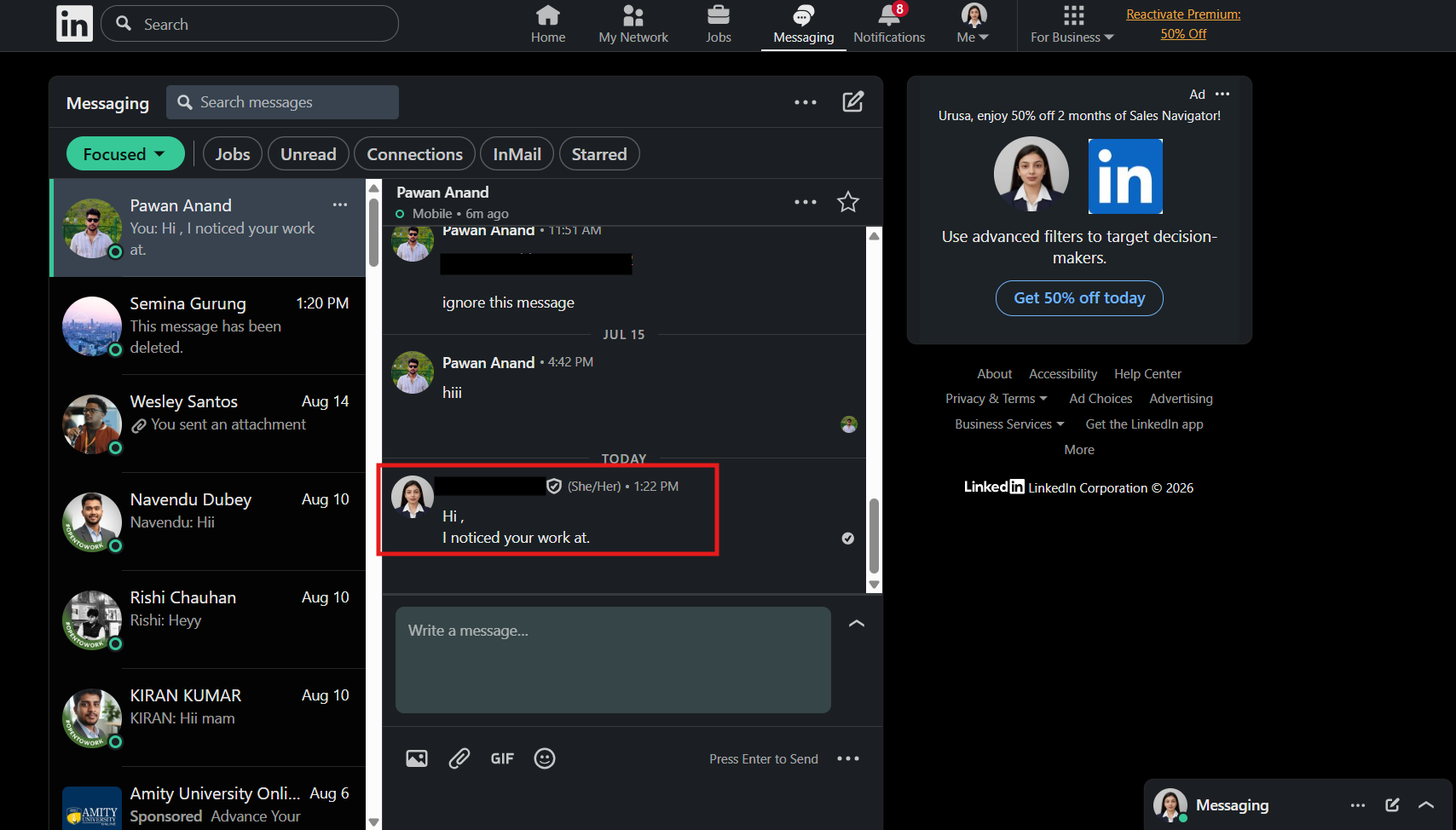
Imagine you are writing to 200 prospects. You do not want to create 200 versions of the same message. You also do not want someone to receive a message with missing details such as Hi , or I noticed your work at .
Variables solve this by giving you small, reusable slots in your message. You write the message once, and Flowkon fills each slot with the right information when the message is sent.
This article covers everything from simple variables such as a first name to custom values, fallbacks, conditional messages, and formatting.
A quick story
Alex runs outbound for a recruiting tool. He wants to send the same connection message to a large group of prospects.
Without variables, he might write:
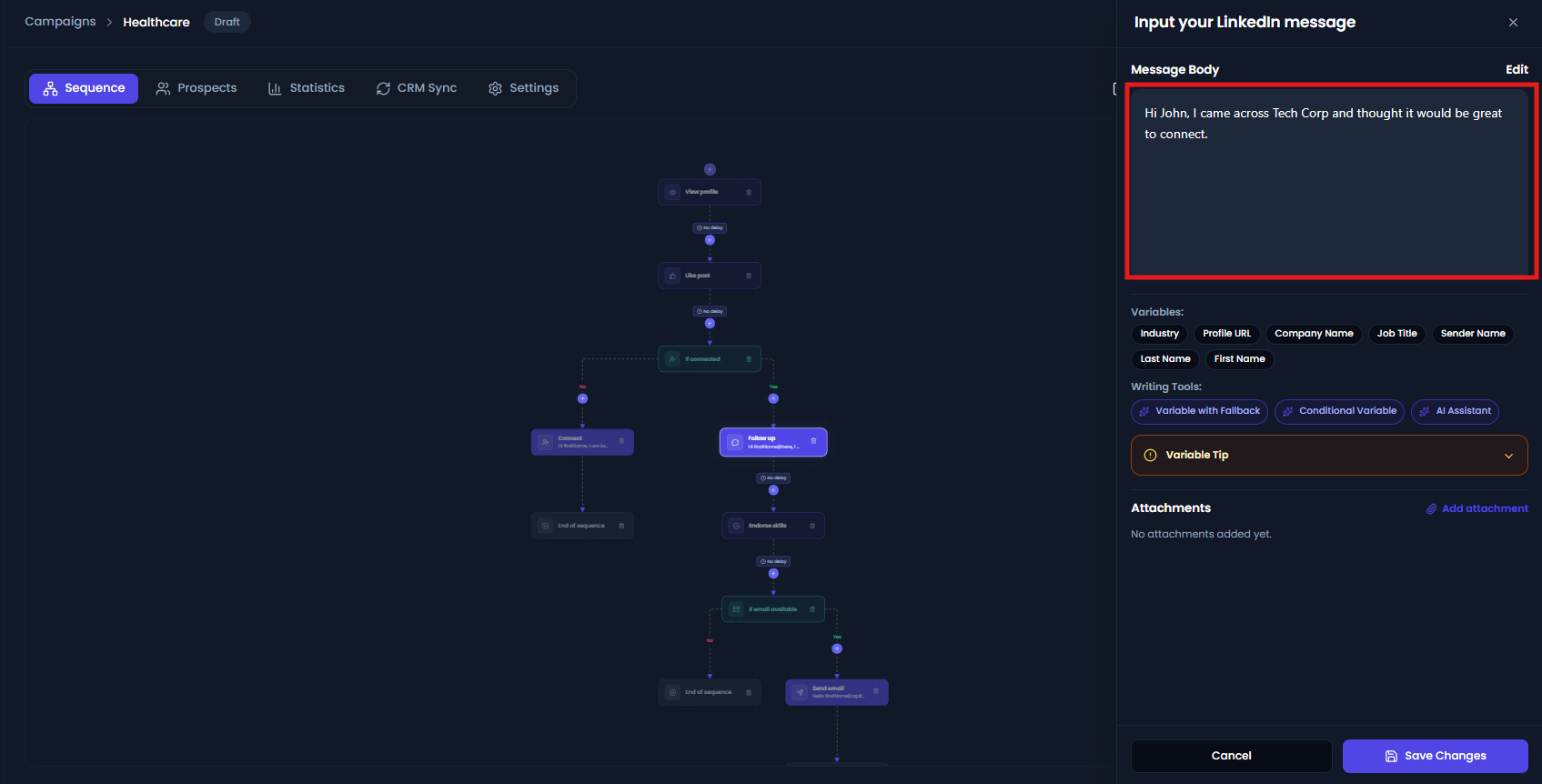
Hi John, I noticed your work at Tech Corp and thought we should connect.
That works for John at Tech Corp. But what happens when a prospect's name or company is missing?
Hi , I noticed your work at and thought we should connect.
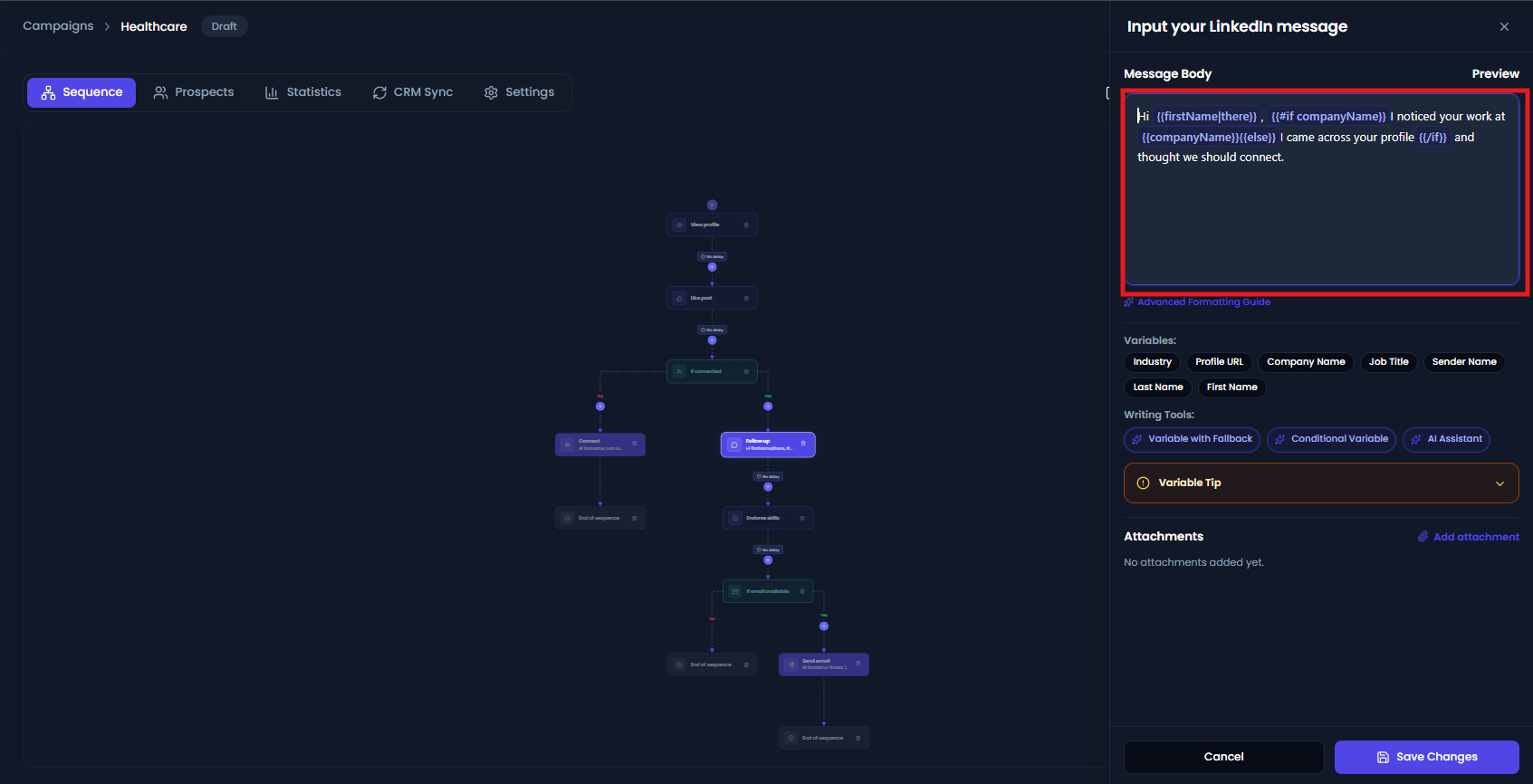
Alex can avoid this by writing one template:
Hi {{firstName|there}}, {{#if companyName}}I noticed your work at {{companyName}}{{else}}I came across your profile{{/if}} and thought we should connect.
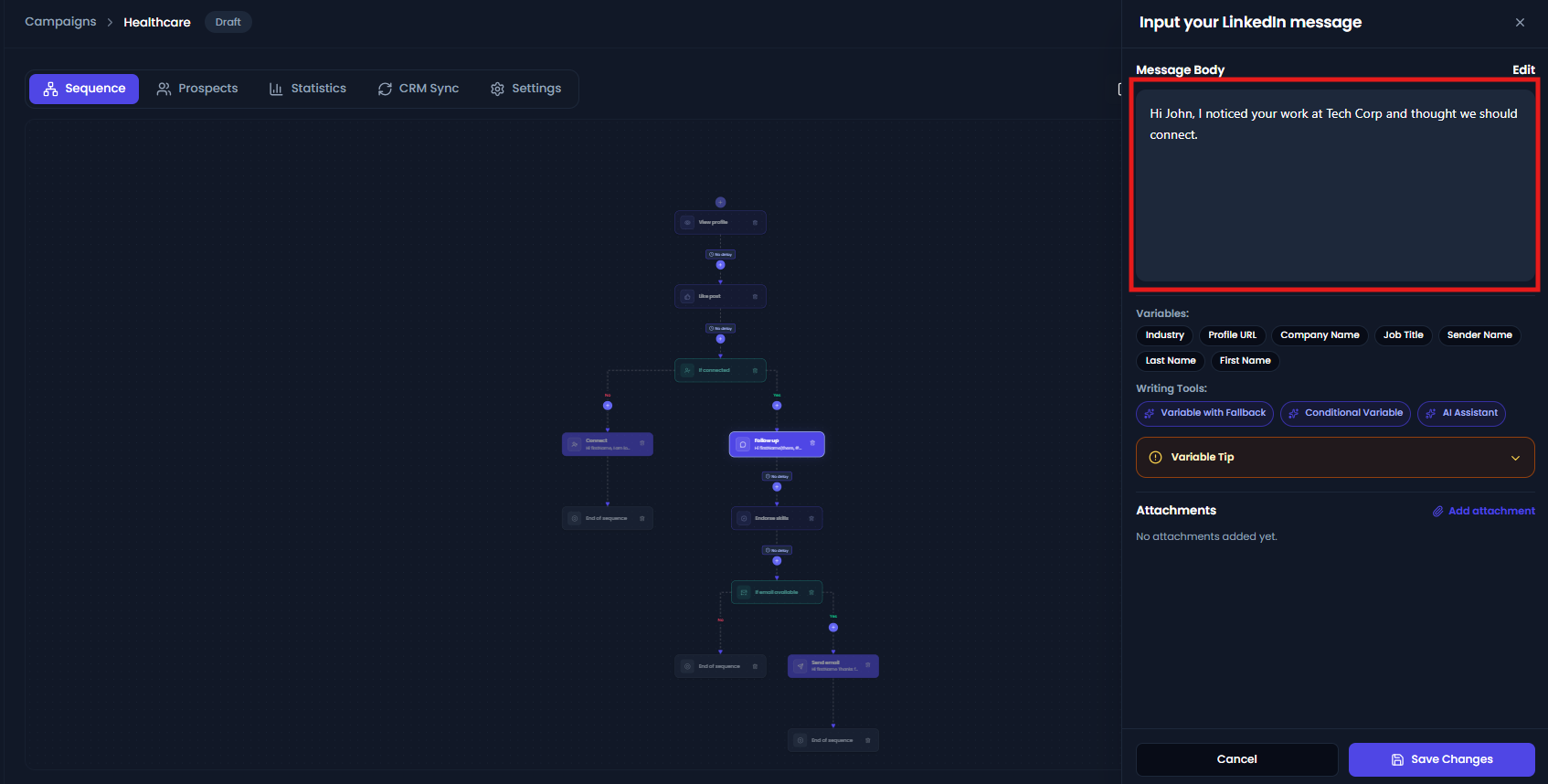
John at Tech Corp receives:
Hi John, I noticed your work at Tech Corp and thought we should connect.
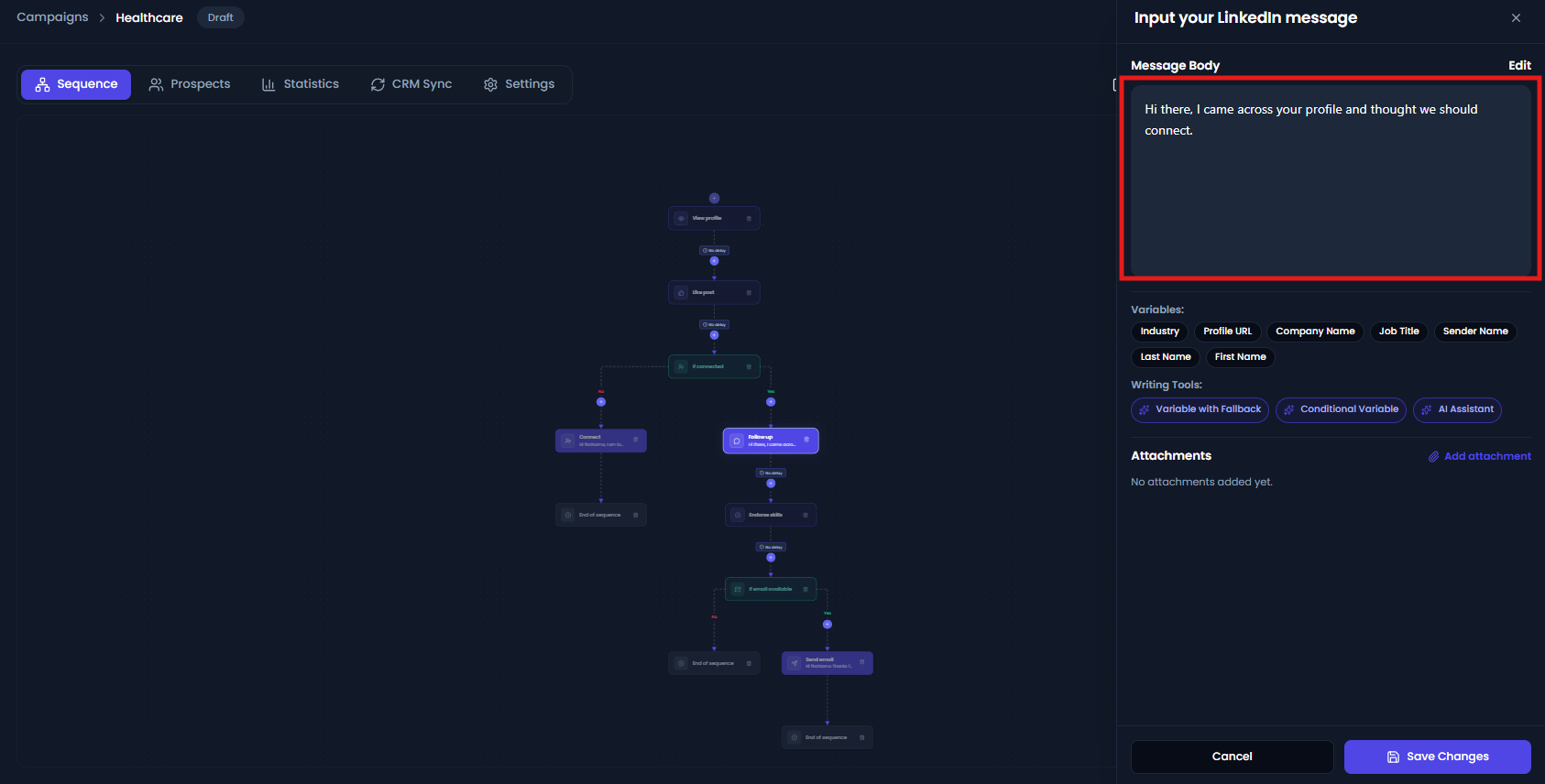
A prospect without a name or company receives:
Hi there, I came across your profile and thought we should connect.
Same setup, better outcome.
That is the idea behind variables: write your message once, and let Flowkon adapt it for each prospect.
The one syntax rule
Always use double curly brackets when adding a variable.
Correct
{{firstName}}
{{companyName|your company}}
{{firstName|capitalize}}
{{#if companyName}}...{{else}}...{{/if}}
Will not work
[firstName]
(firstName)
<firstName>
{firstName}
These formats are not treated as variables.
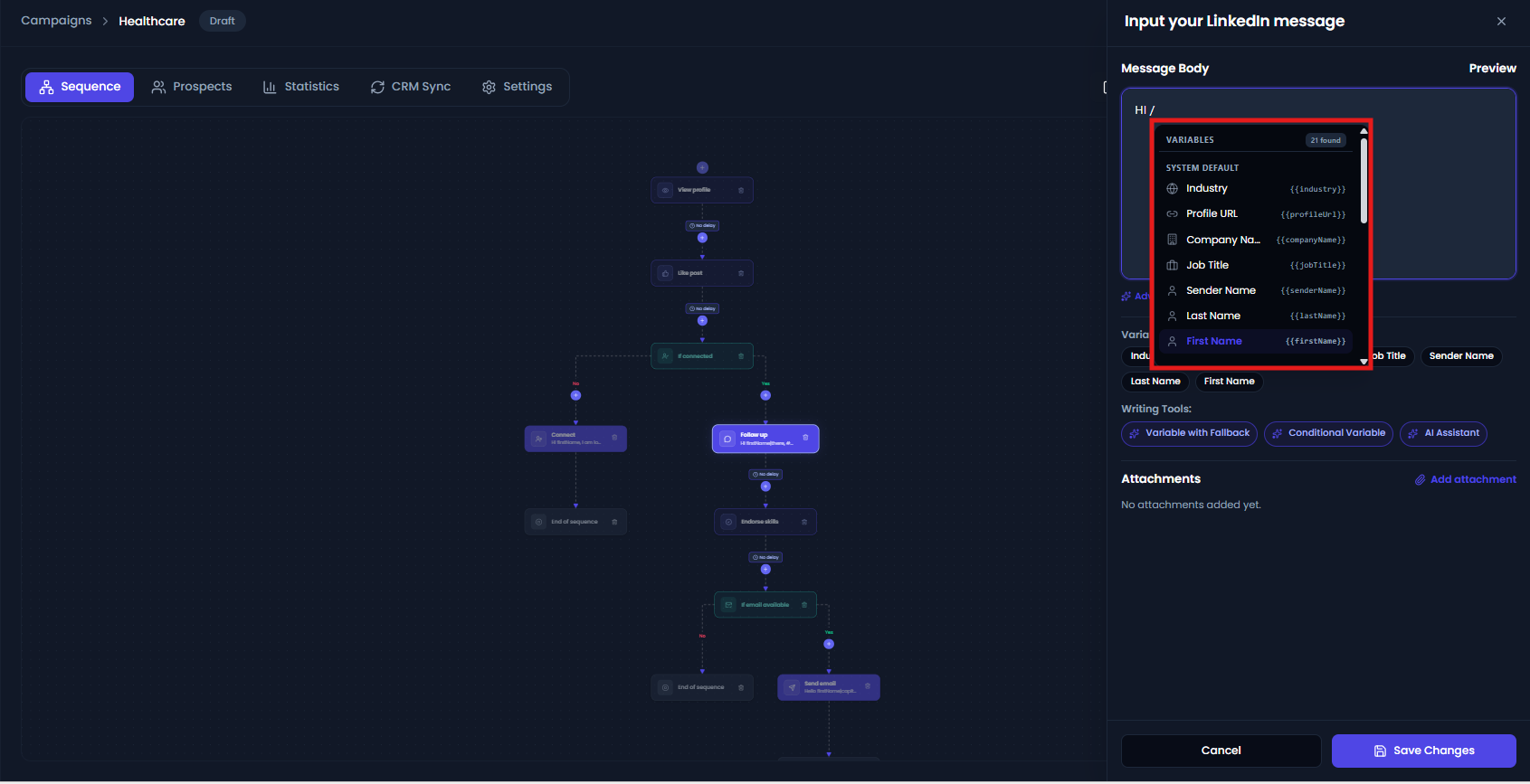
The easiest way to avoid syntax mistakes is to type / in the message box and choose a variable from the picker. Flowkon inserts the correct syntax for you.
Tip: Use the variable name shown in the picker instead of typing it from memory.
The big picture: how Flowkon fills a variable
When a message is sent, Flowkon uses the available information for that prospect to decide what to insert.
Depending on the variable and how you configured it, Flowkon can use:
- A value saved for that prospect.
- Information already available in the prospect's profile.
- A fallback value configured for a custom variable.
- A fallback written directly in the message.
- A different sentence when you use a conditional variable.
- Nothing, if you use a regular variable and no value is available.
You do not need to use all of these at once.
Most campaigns can start with a system default variable such as {{firstName}} , then add a fallback when a field may be missing. Custom variables and conditional messages are useful when you need more control.
Two types of variables
Flowkon provides System Default variables and Custom Made variables.
System Default variables
System Default variables are already available in Flowkon. You do not need to create them.
They use information already available for the prospect or sender.
| Variable | What it inserts |
|---|---|
| {{firstName}} | Prospect's first name |
| {{lastName}} | Prospect's last name |
| {{companyName}} | Company name |
| {{jobTitle}} | Job title |
| {{industry}} | Industry |
| {{profileUrl}} | LinkedIn profile URL |
| {{senderName}} | Your name as the sender |
Remember the difference between {{firstName}} and {{senderName}} :
- {{firstName}} refers to the prospect.
- {{senderName}} refers to you, the sender.
For example:
Hi {{firstName}},

I am {{senderName}}. I help teams like {{companyName}} with outbound.

Would you be open to a short chat?
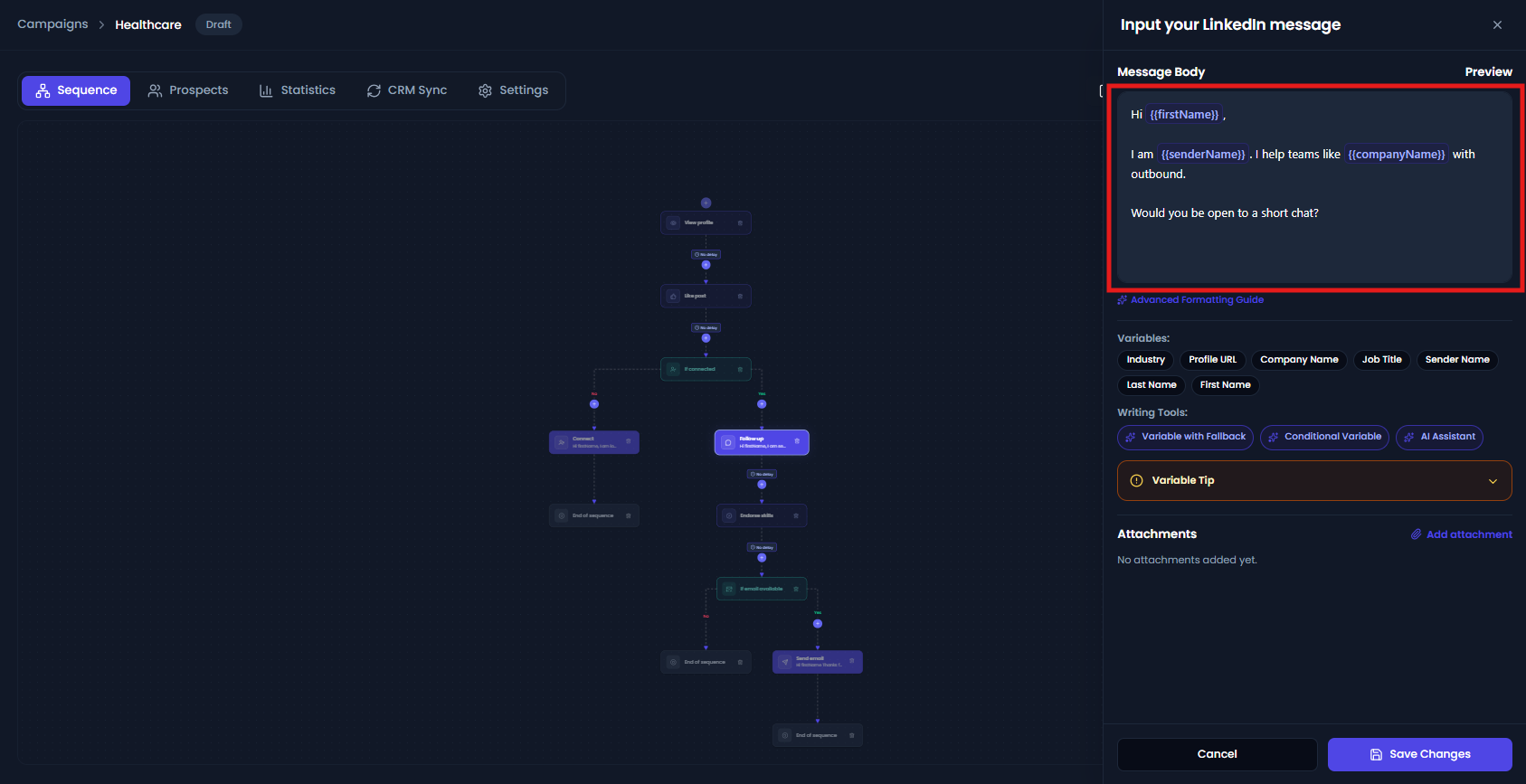
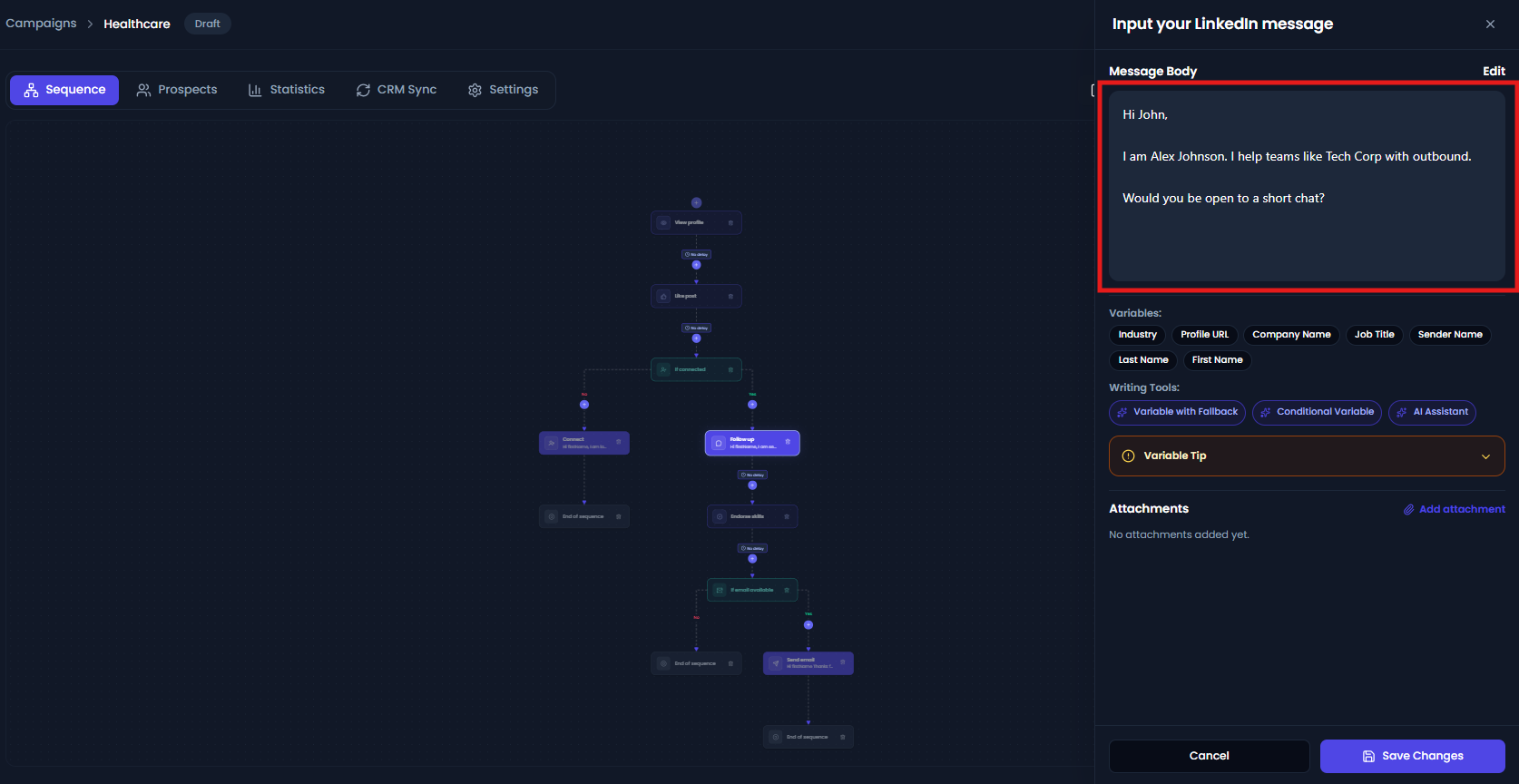
If John works at Tech Corp and Alex is sending the message, John receives:
Hi John,
I am Alex Johnson. I help teams like Tech Corp with outbound.
Would you be open to a short chat?
When to use System Default variables
Use them when the information you need is already part of the prospect's available information.
For example:
| You need | Use |
|---|---|
| Prospect's first name | {{firstName}} |
| Prospect's company | {{companyName}} |
| Prospect's job title | {{jobTitle}} |
| Your name | {{senderName}} |
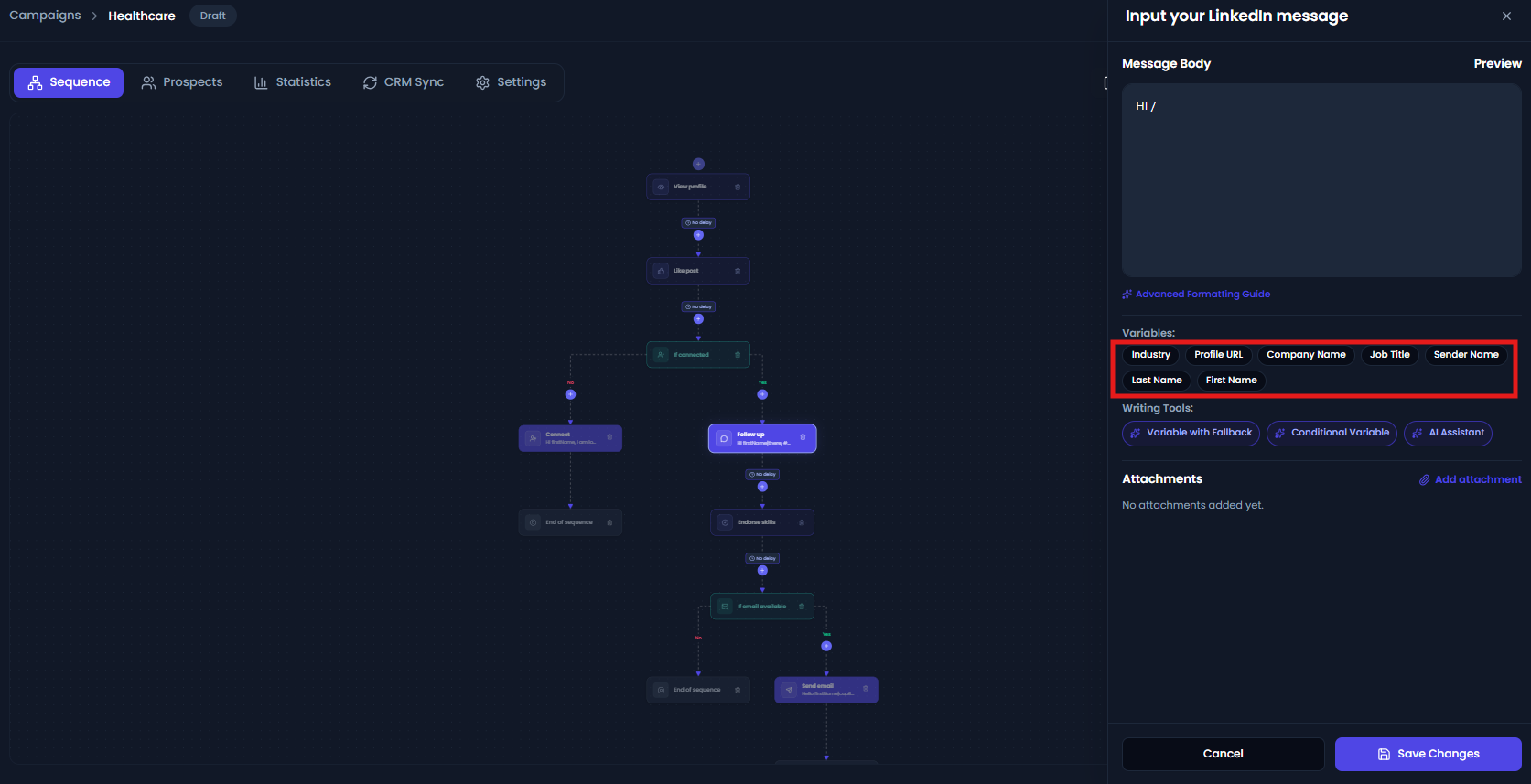
You can add the variables by typing slash / or by clicking on the variables from variable picker.
Custom variables
Sometimes you want to personalize a message with information that Flowkon does not already have.
For example:
- Pain point
- Event name
- Product interest
- Assigned representative
- Discount code
You can create these as Custom Made variables.
Find them in:
Settings → Variables
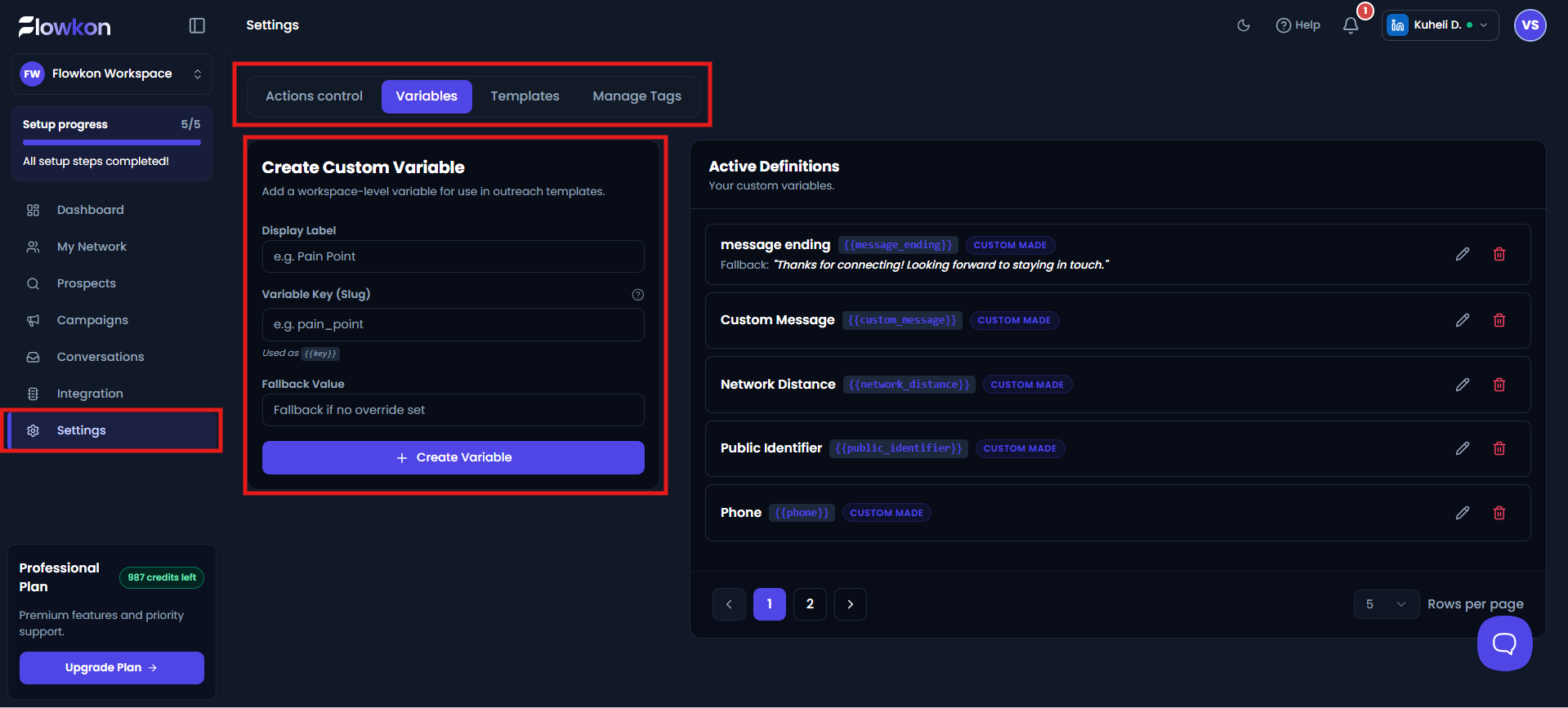
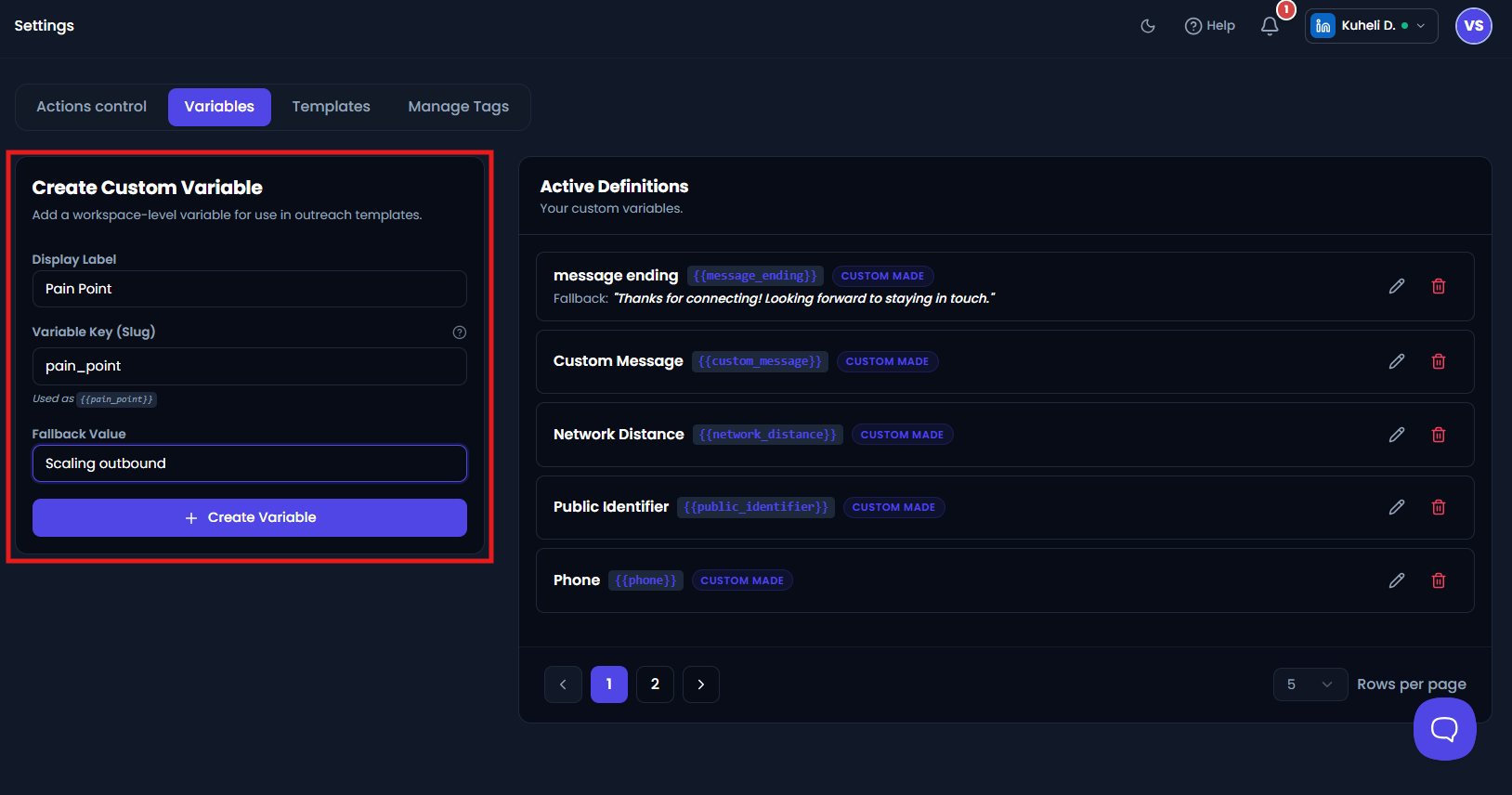
For a custom variable, you can define:
| Field | What it is | Example |
|---|---|---|
| Display label | The name you see in Flowkon | Pain Point |
| Variable key | The name used in your message | pain_point |
| Fallback value | The default value when a prospect has no value | scaling outbound |
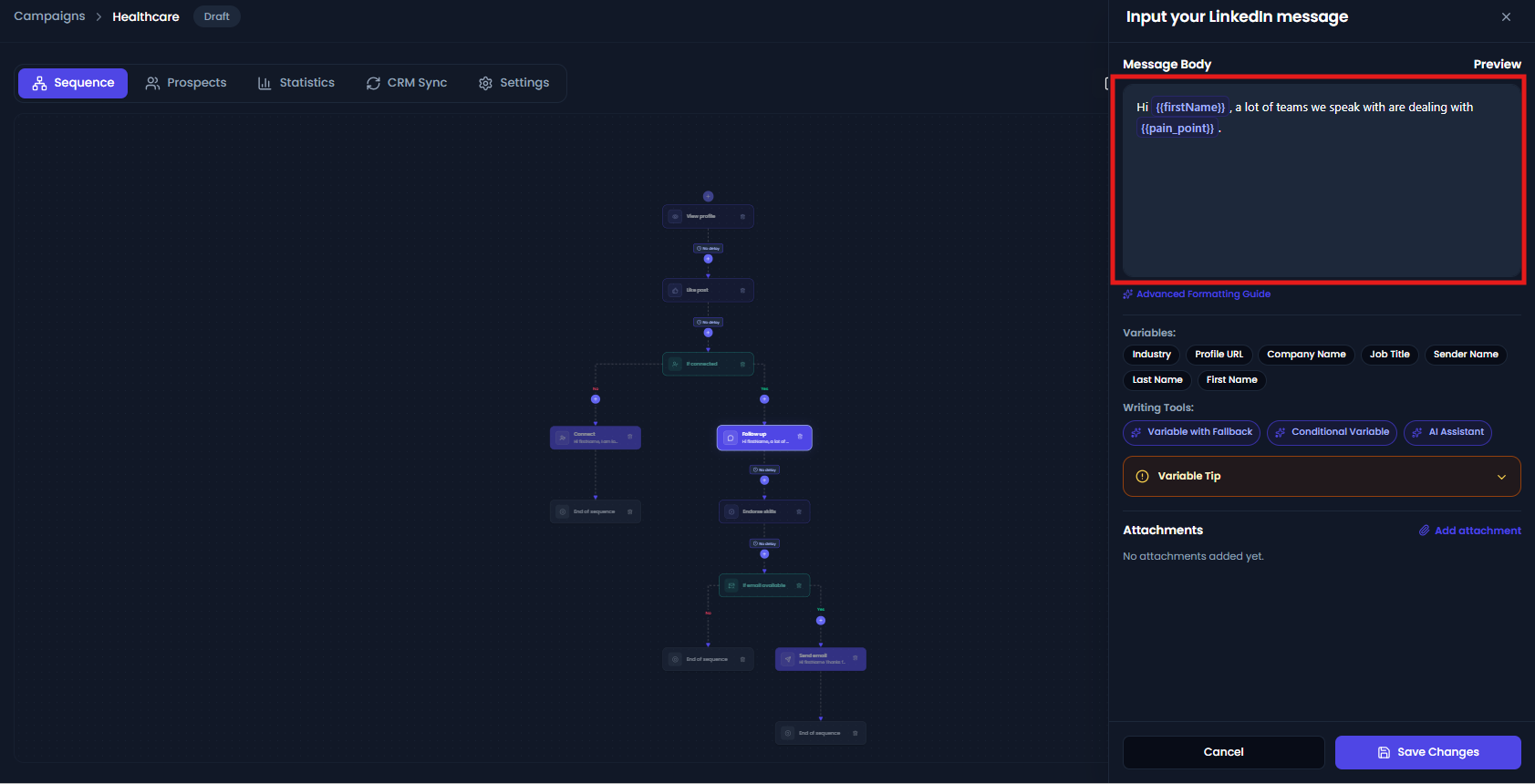
You can then use the variable in your campaign message:
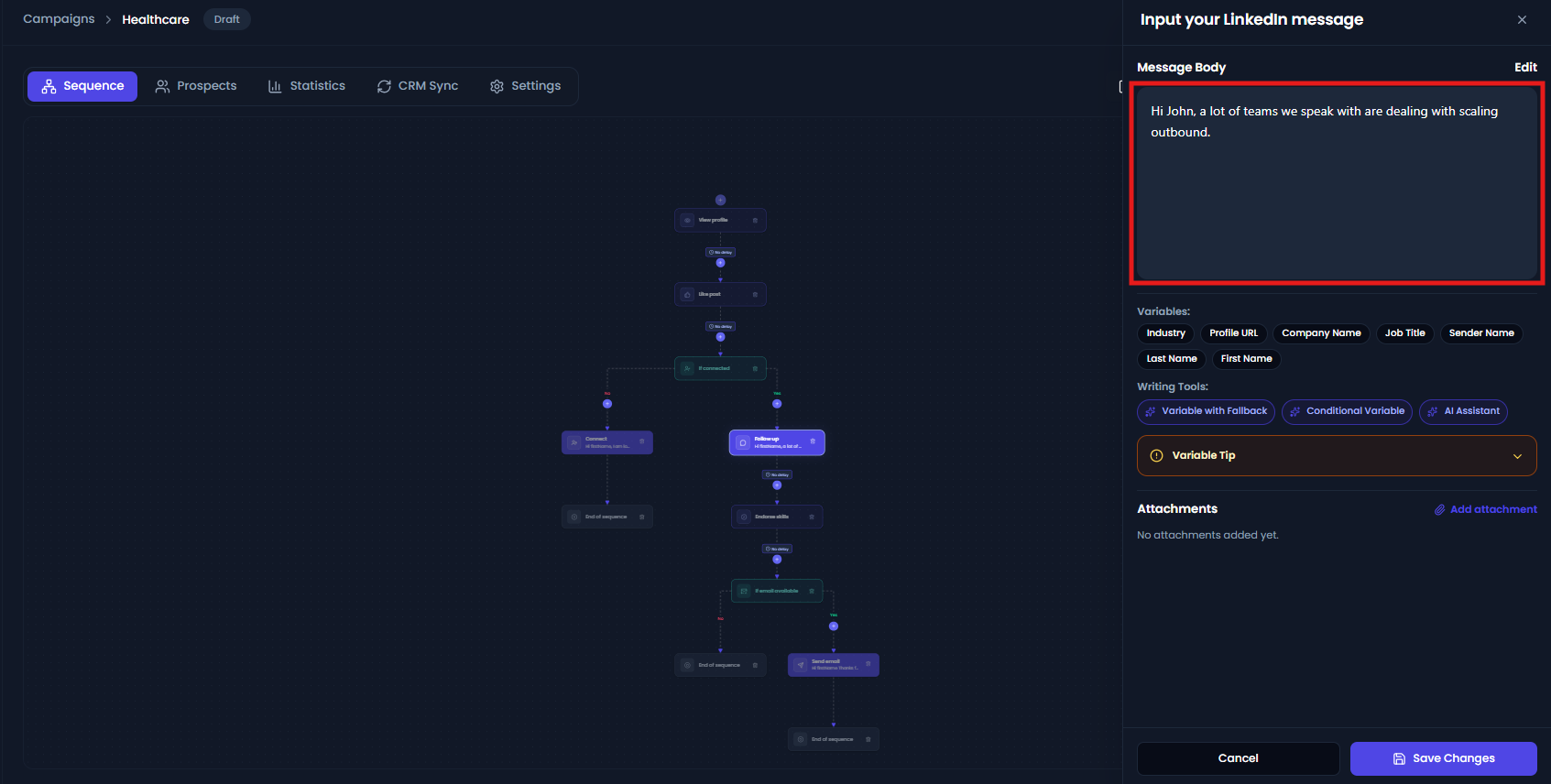
Hi {{firstName}}, a lot of teams we speak with are dealing with {{pain_point}}.
Suppose Alex creates pain_point with a fallback of scaling outbound .
For Evan, he saves:
hiring SDRs too slowly
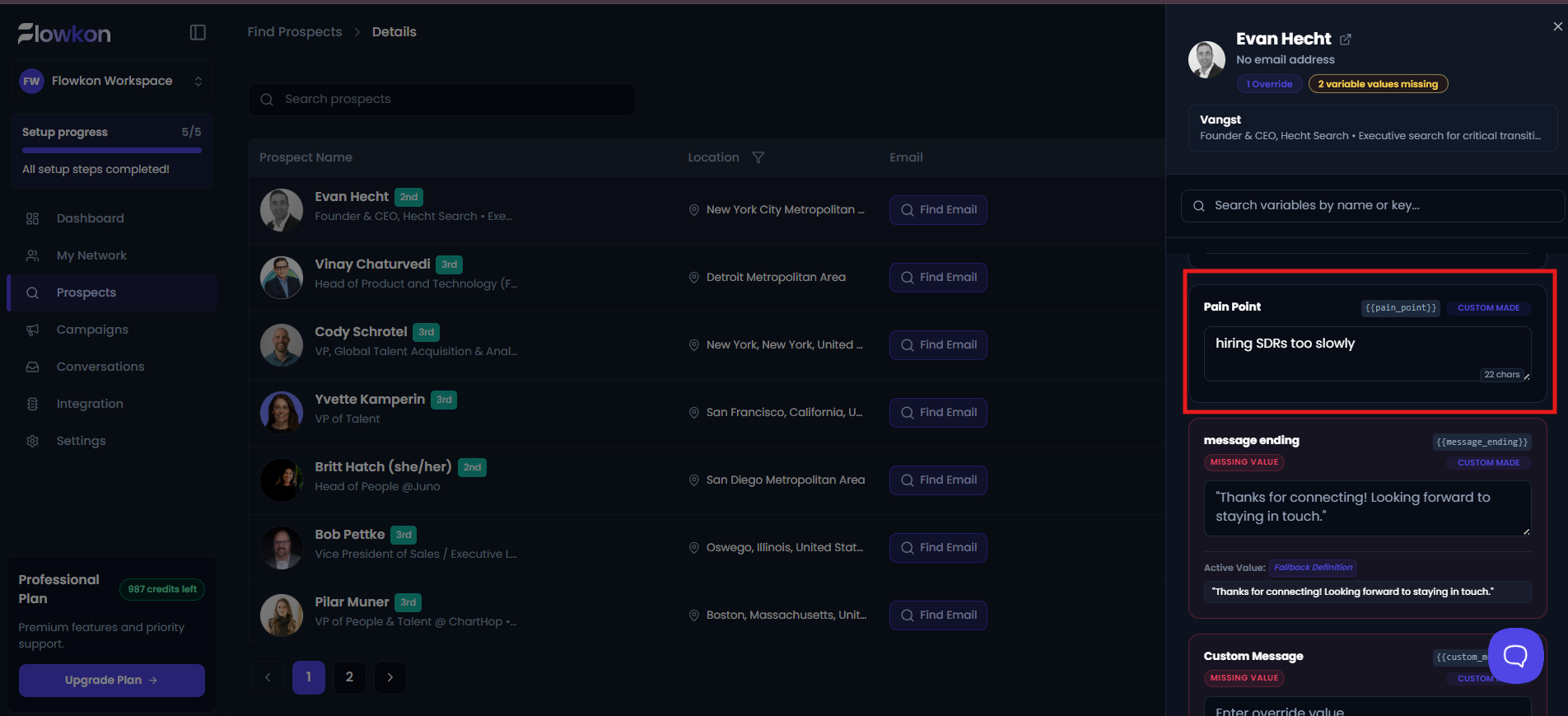
Evan receives:
Hi Evan, a lot of teams we speak with are dealing with hiring SDRs too slowly.
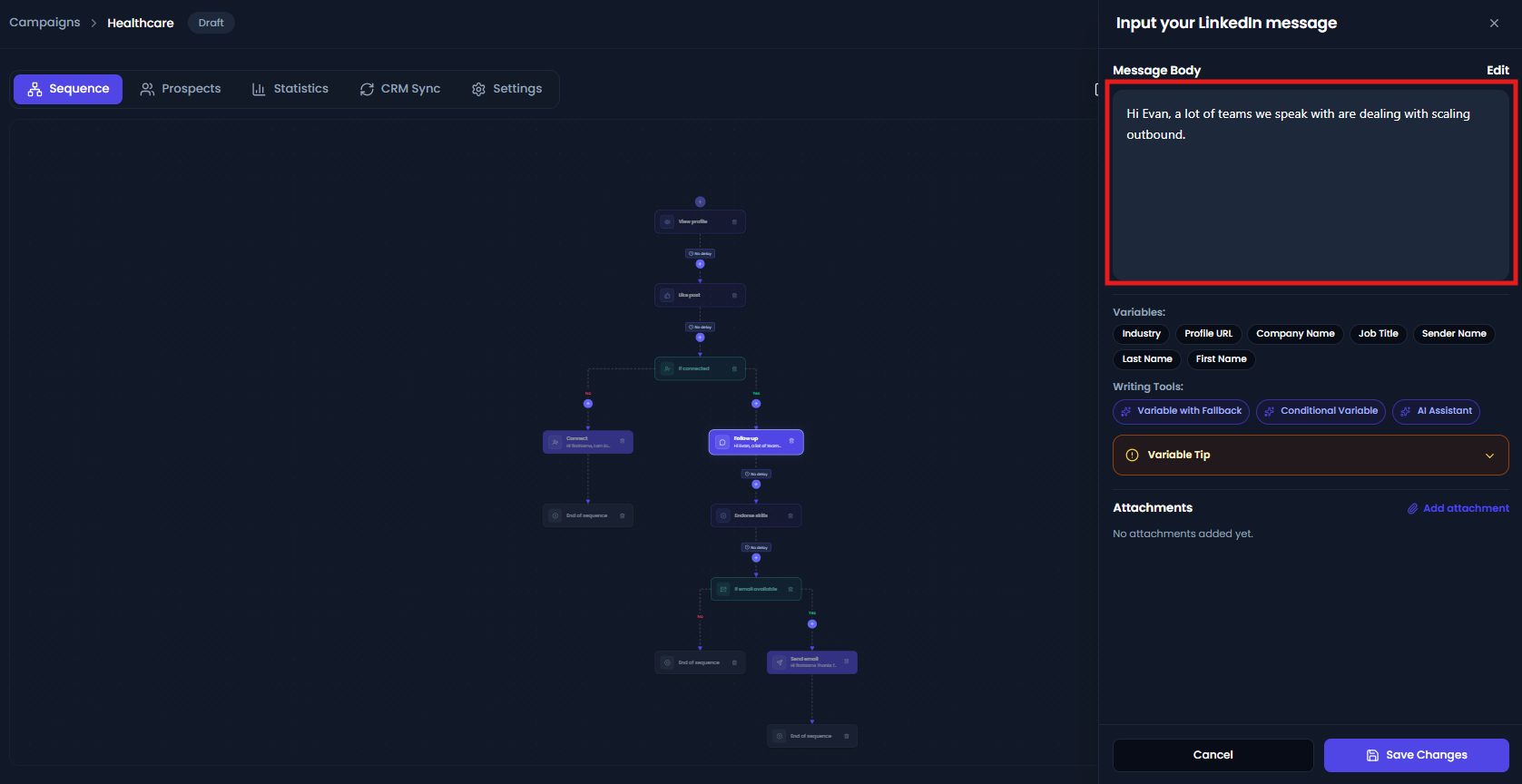
For John, Alex does not save a value. Flowkon uses the fallback:
Hi John, a lot of teams we speak with are dealing with scaling outbound.
When to use a Custom variable
Use a Custom variable when the information is important to your campaign but is not already available as a System Default variable.
Note: To know more about how to add assign specific custom value to a prospect read article - https://help.flowkon.io/article/95-how-can-i-personalize-using-variables
Three ways to use variables in a message
Variables can do more than simply insert a value.
You can use them in three ways:
- Variable without a fallback
- Variable with a fallback
- Conditional variable
1. Variable without a fallback
Use the variable by itself:
{{companyName}}
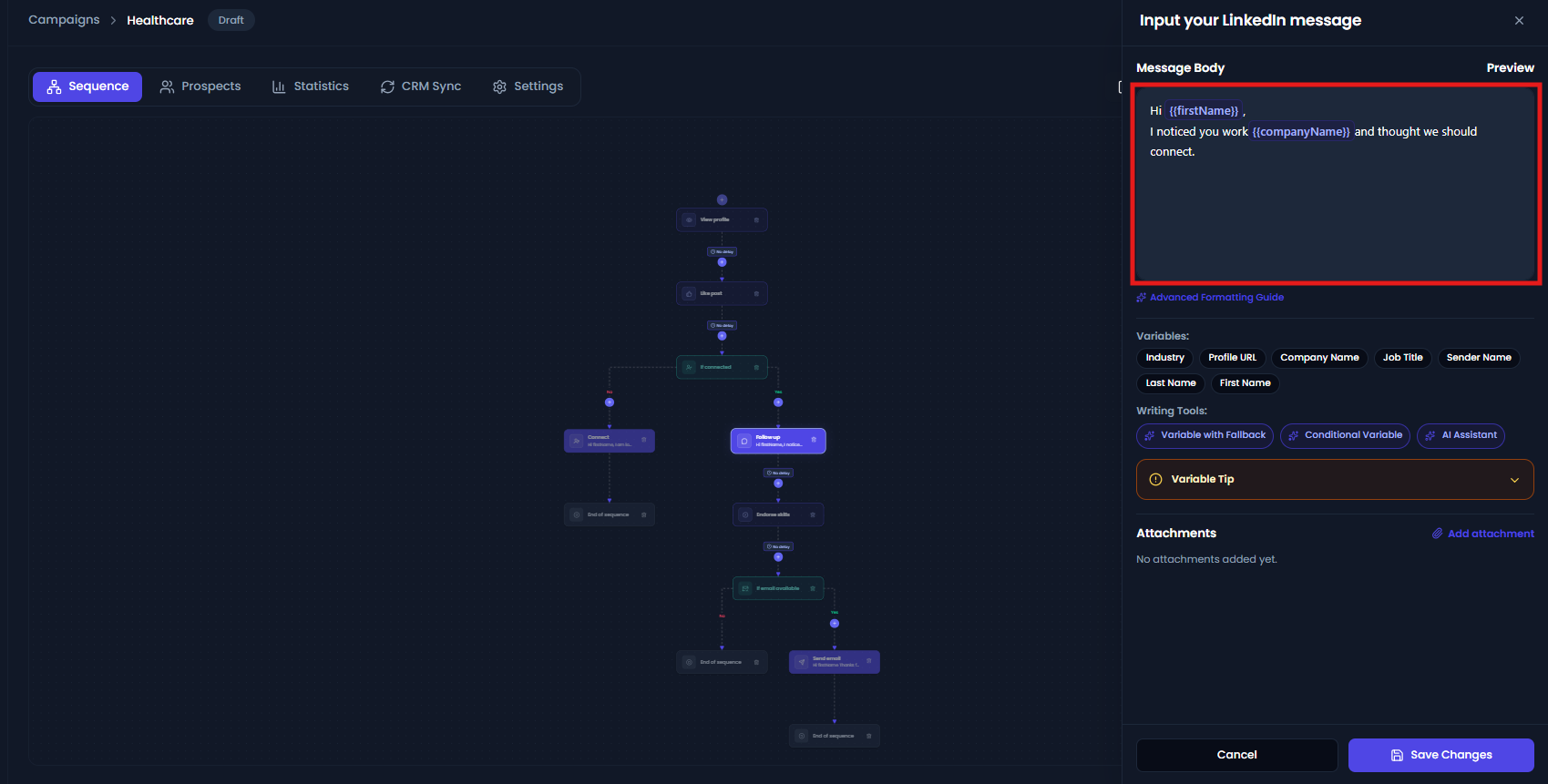
If the prospect has a company name, Flowkon inserts it.
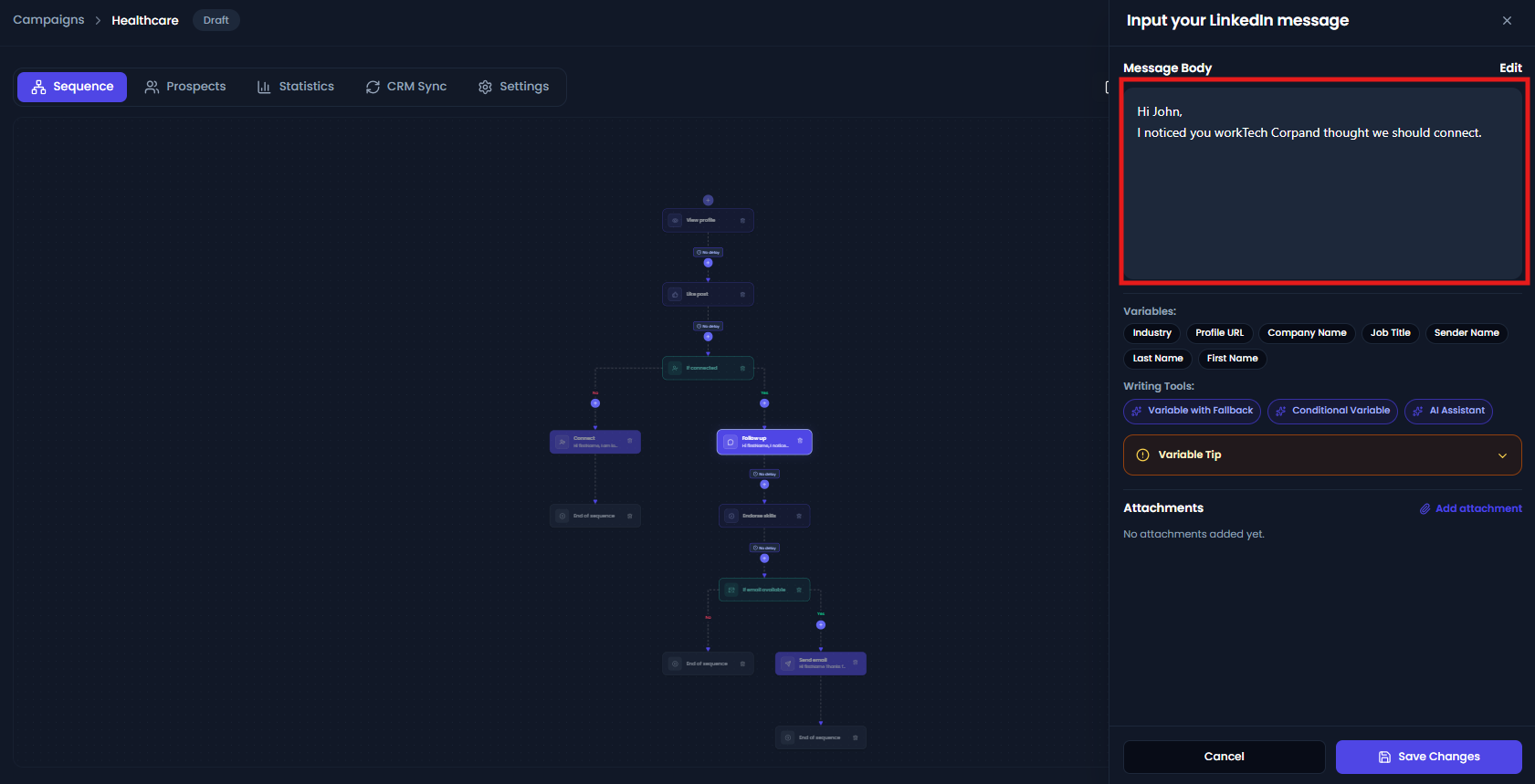
If there is no company name, nothing is inserted.
| Situation | What the prospect receives |
|---|---|
| Company is Tech Corp | Company: Tech Corp |
| Company is missing | Company: |
This works well when the information is optional.
Be careful when using it in a sentence or greeting.
For example:
Hi {{firstName}},
I noticed your work at {{companyName}} and thought we should connect.
could become:
Hi ,
I noticed your work at and thought we should connect.
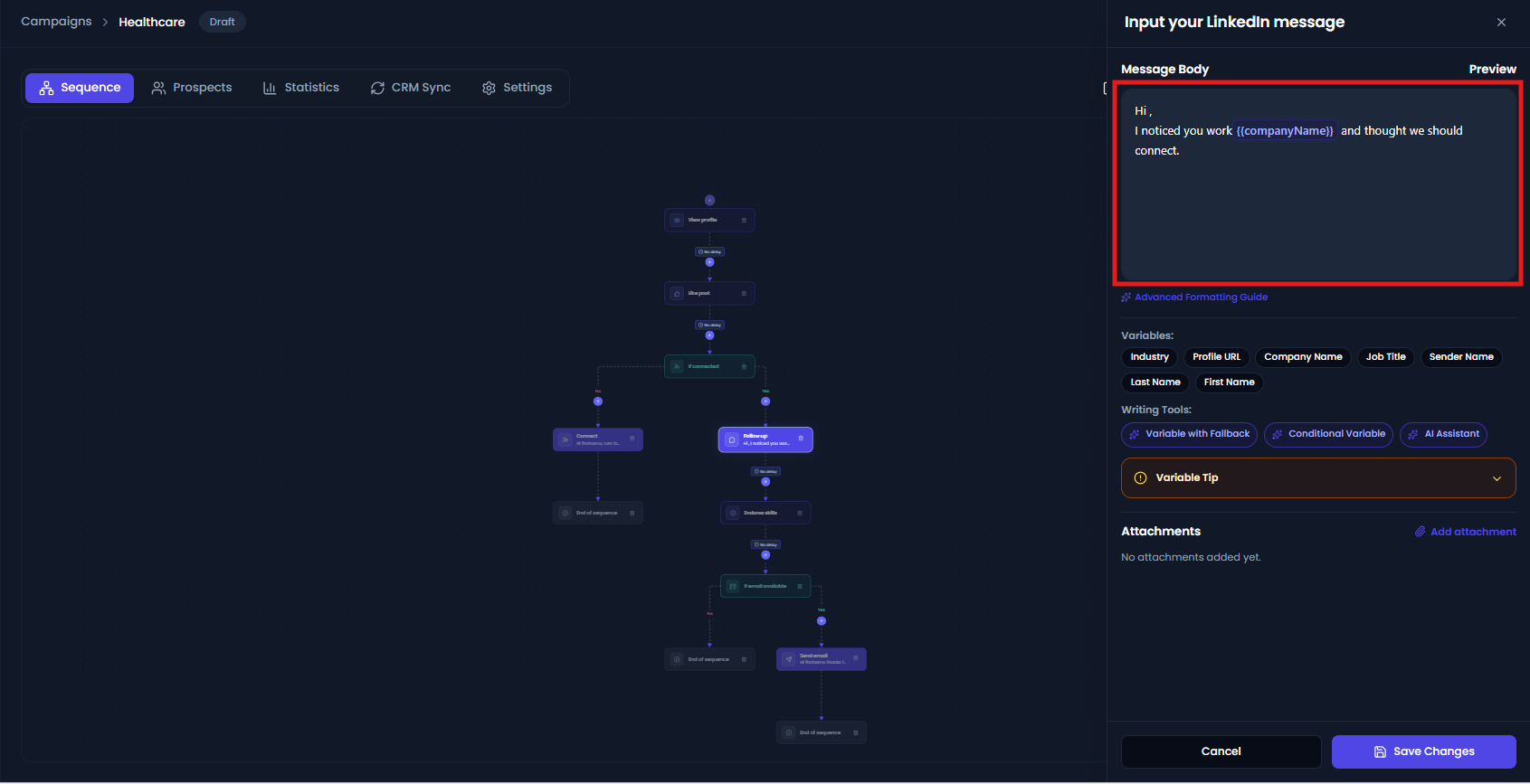
If a missing value would make your message look incomplete, use a fallback.
What is a fallback value?
A fallback value is the default text Flowkon uses when a variable does not have a value.
You can configure a fallback for a custom variable in Settings → Variables.
For example, Alex creates a custom variable called Greeting and gives it the fallback value Hi .
He uses:
{{Greeting}} {{firstName}}, thanks for connecting!
If a prospect has the value Hello saved for Greeting , they receive:
Hello John, thanks for connecting!
If no value is available, Flowkon uses the configured fallback:
Hi John, thanks for connecting!
You can also add a fallback directly in your message:
{{Greeting|Hi}}
This gives you an additional way to control what appears in a particular message.
2. Variable with a fallback
A fallback gives Flowkon replacement text when the variable has no value. Click on variable with fallback.
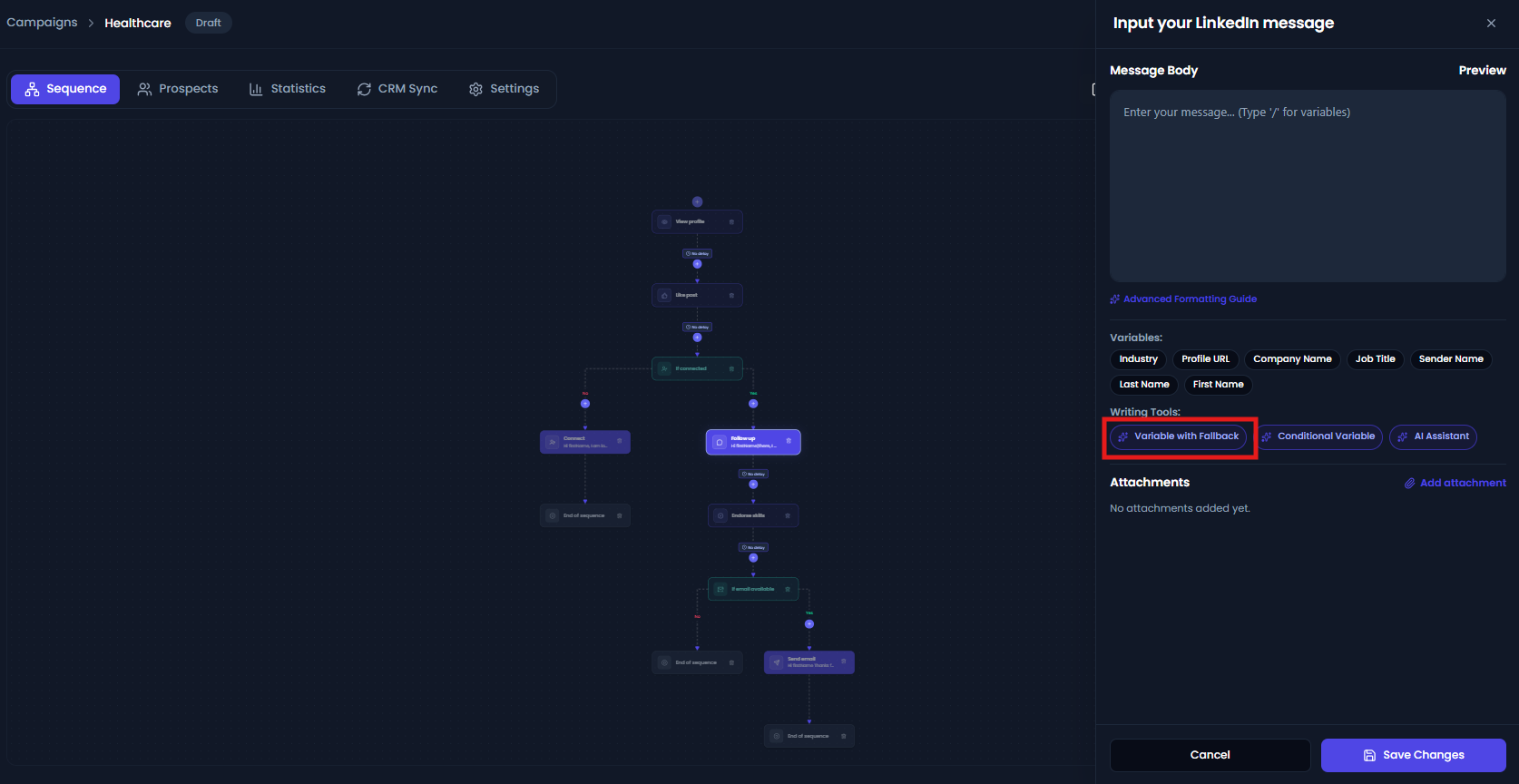
Add a | after the variable name, followed by the text you want to use:
{{variableName|fallback value}}
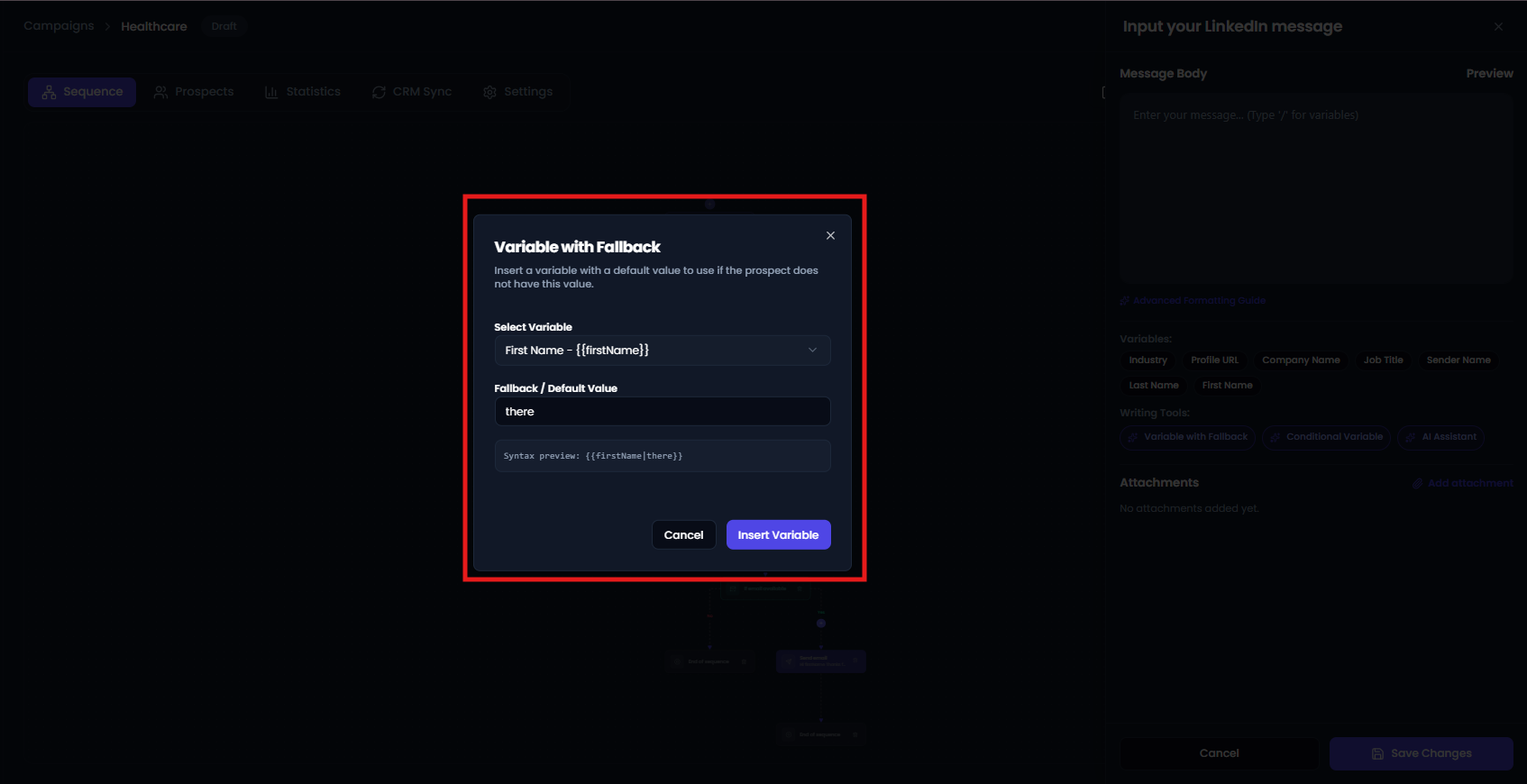
For example:
Hi {{firstName|there}}, I came across {{companyName|your company}} and thought it would be great to connect.
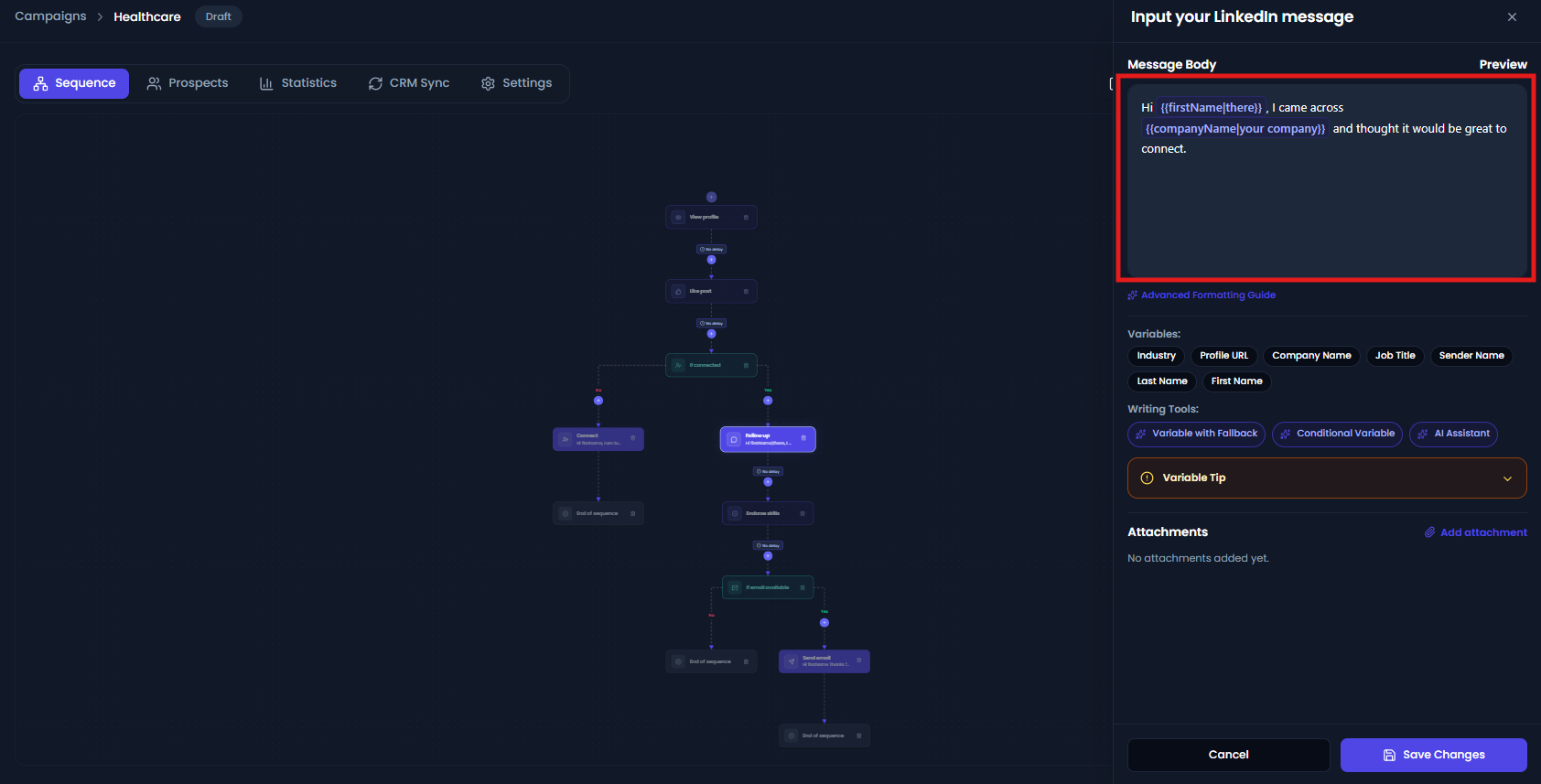
If the prospect is John from Google:
Hi John, I came across Google and thought it would be great to connect.
If the prospect has no first name or company:
Hi there, I came across your company and thought it would be great to connect.
When to use a fallback
Use a fallback when you always want something to appear in the message.
It is especially useful for:
- Greetings
- Company names
- Short descriptions
- Optional personalization
3. Conditional variables
A fallback changes a value.
A conditional variable can change an entire sentence or section of your message.
Use a conditional variable when the message should be different depending on whether information is available.
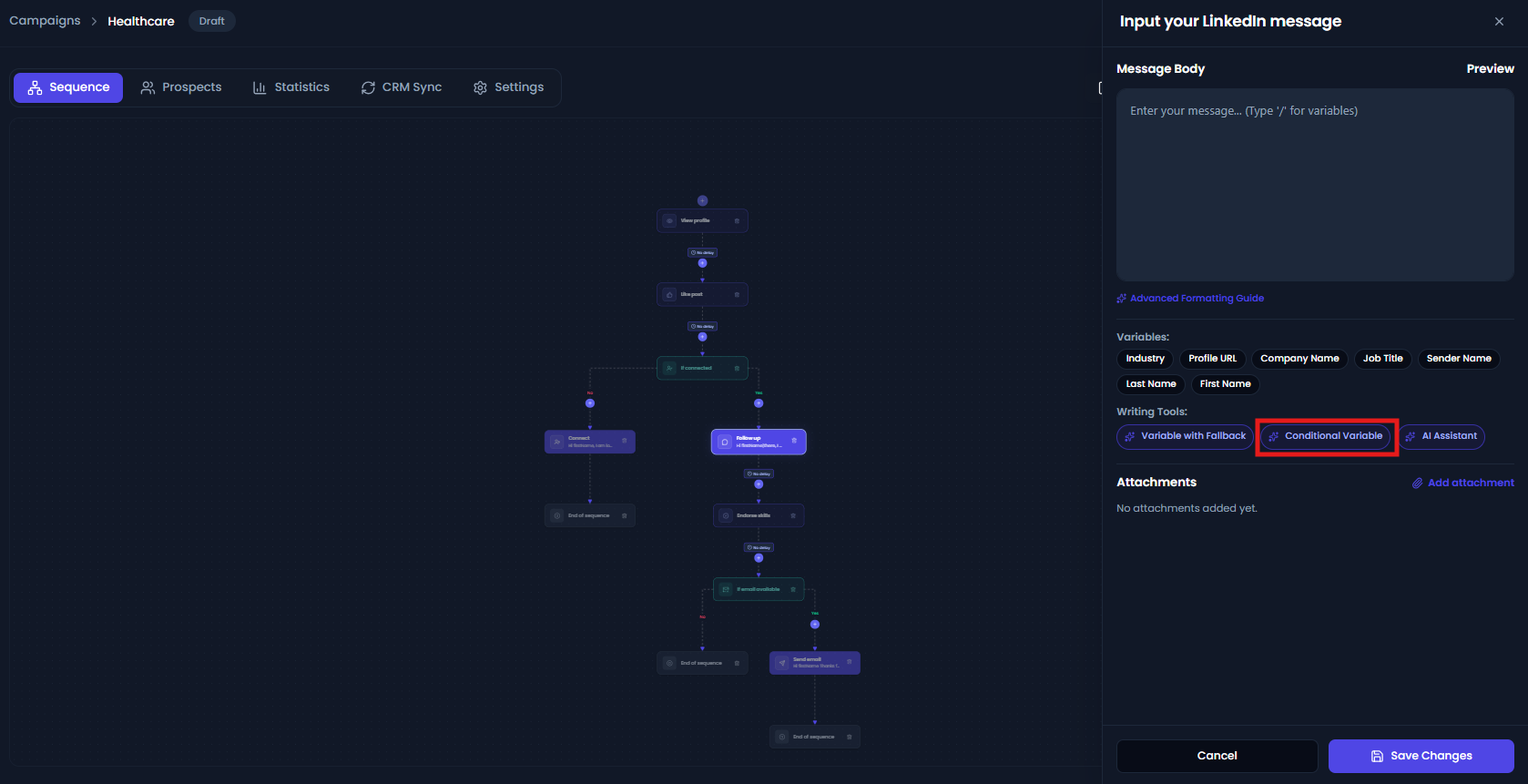
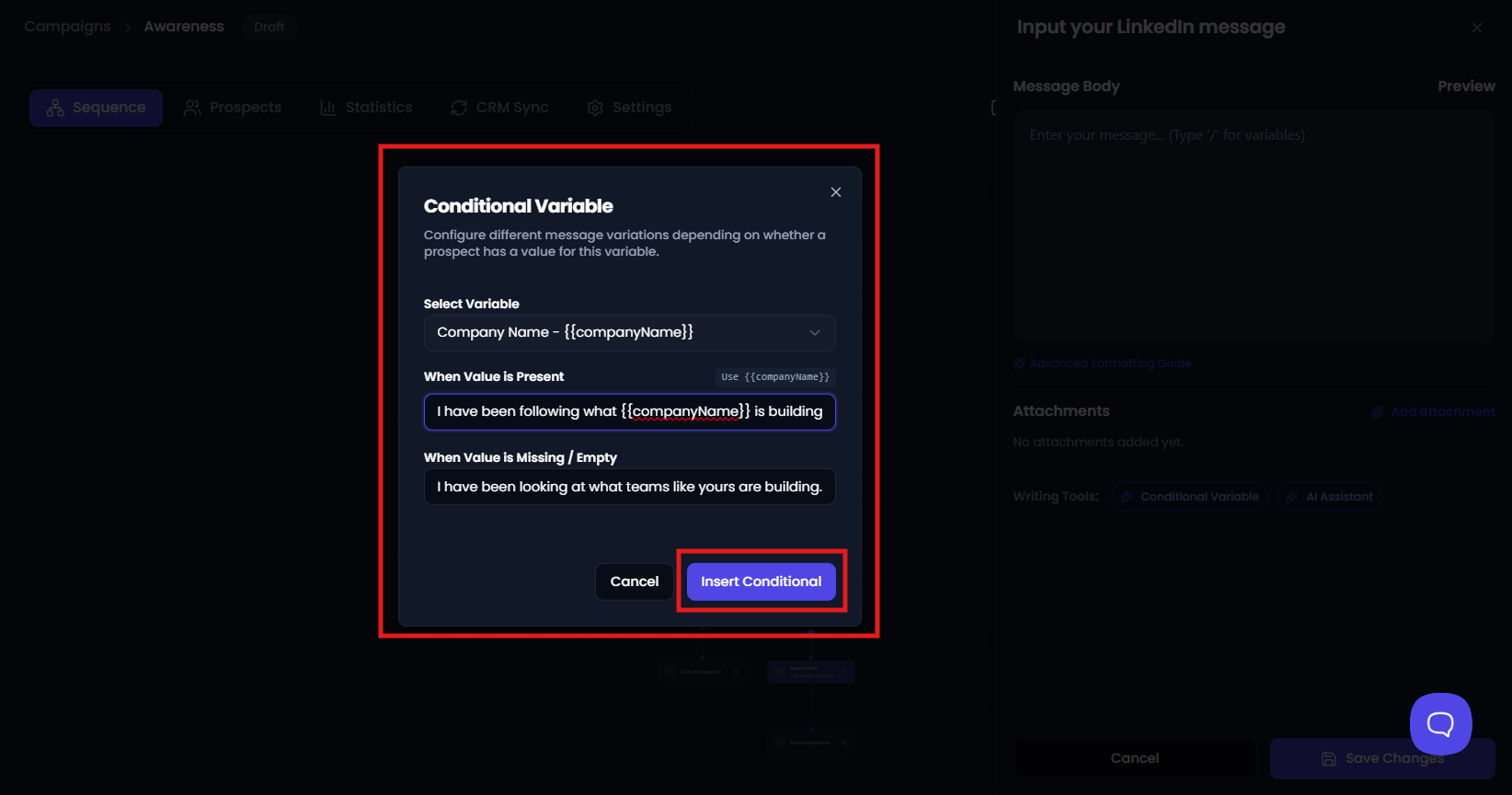
For example:
{{#if companyName}}I have been following what {{companyName}} is building.{{else}}I have been looking at what teams like yours are building.{{/if}} Would you be open to a quick chat?
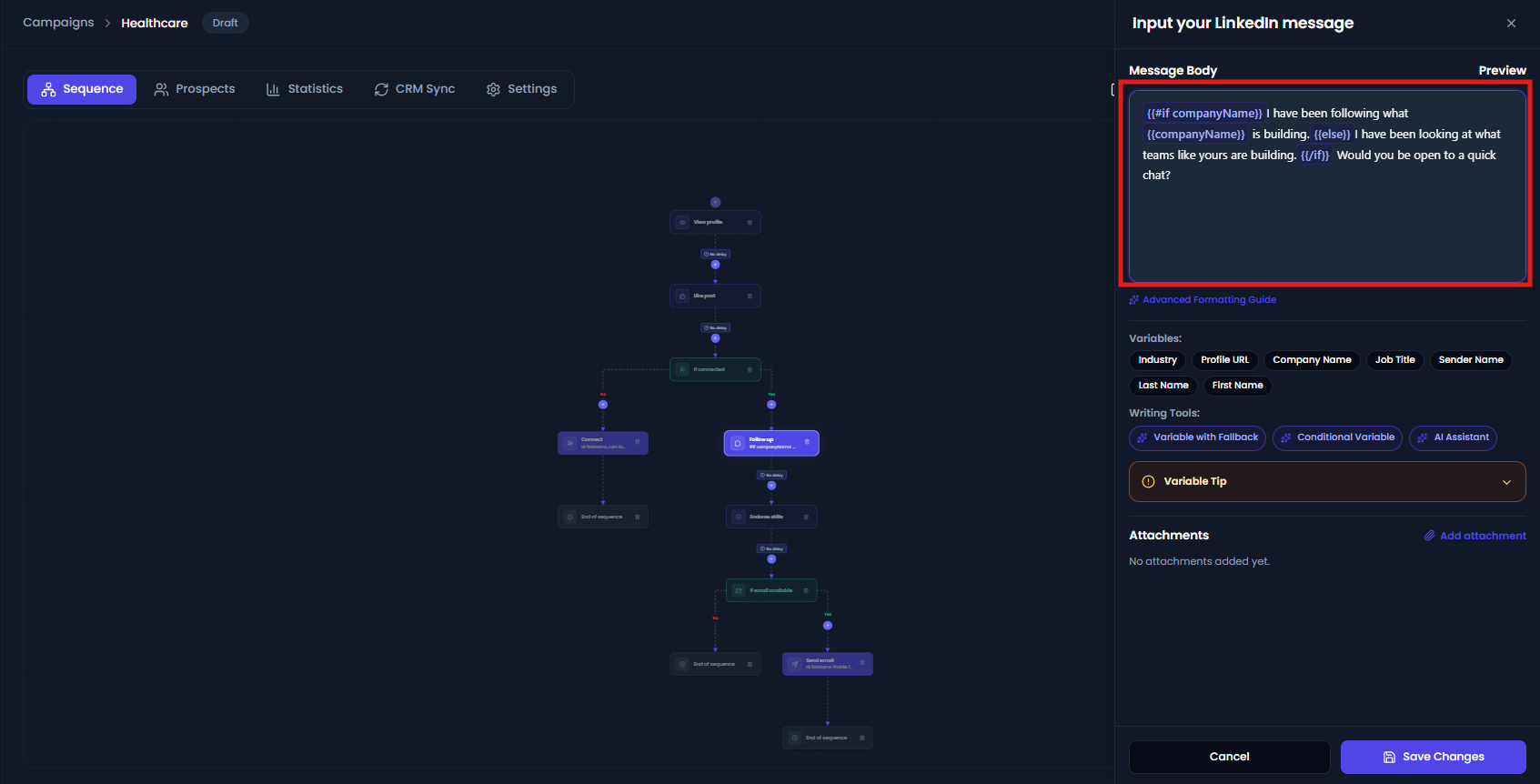
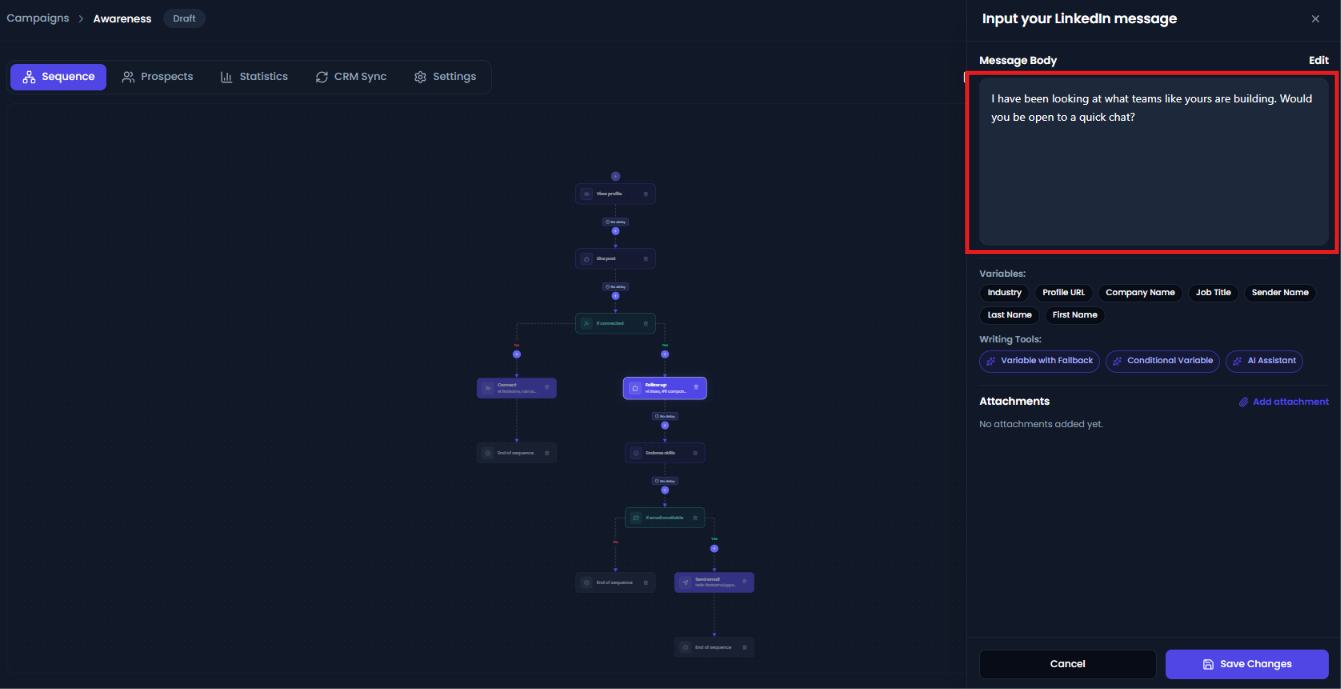
A prospect without a company name receives:
I have been looking at what teams like yours are building. Would you be open to a quick chat?
You can also leave out the else section when you simply want a sentence to disappear if the information is missing:
{{#if companyName}}I have been following what {{companyName}} is building.{{/if}} Would you be open to a quick chat?
A prospect with a company receives:
I have been following what Tech Corp is building. Would you be open to a quick chat?
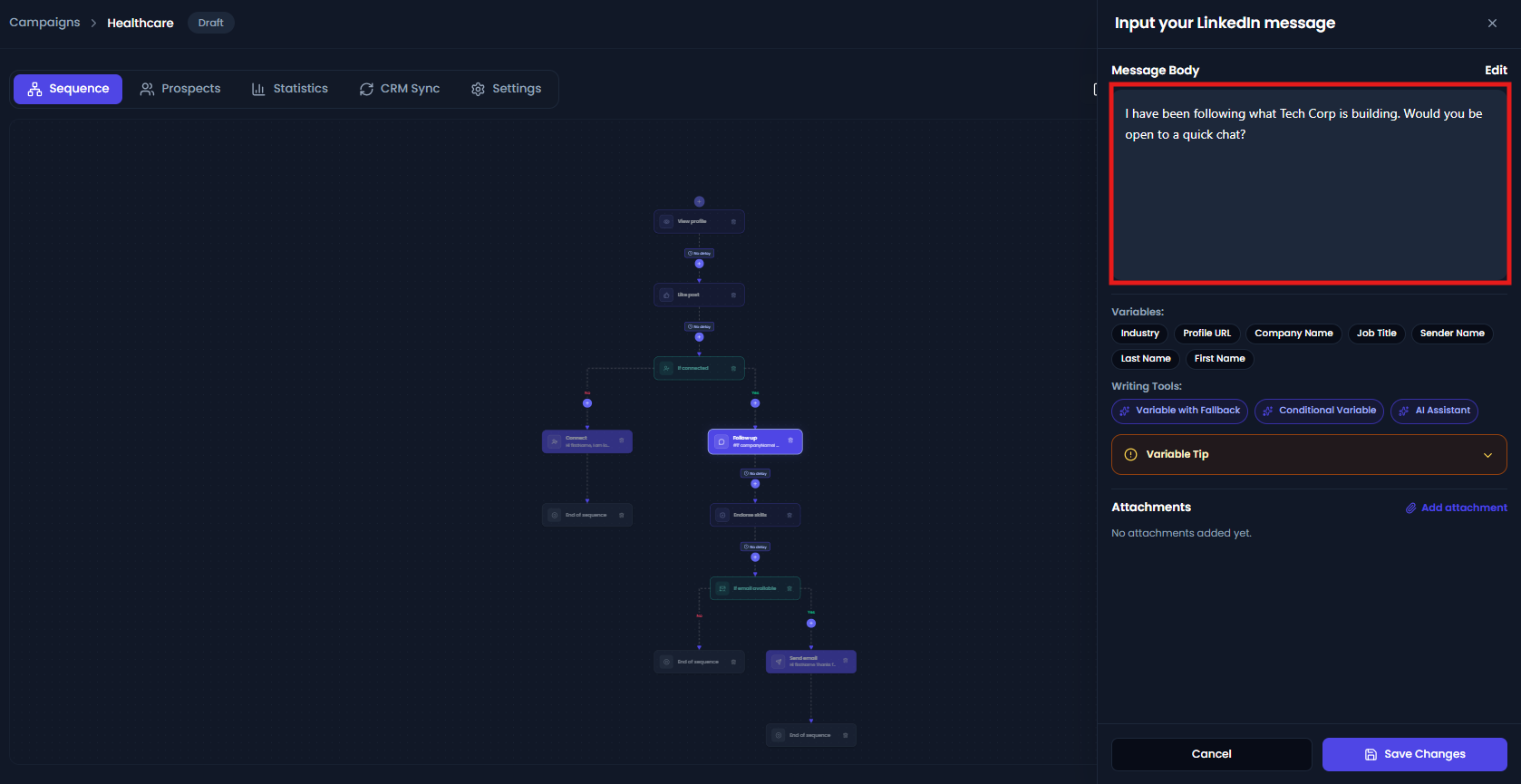
Fallback vs conditional variable
| If you want to... | Use |
|---|---|
| Change the whole sentence | Conditional variable |
| Give a simple backup value | Fallback |
Every conditional block that starts with {{#if ...}} must be closed with {{/if}} .
Formatting variable values
You can also change how a value appears by using formatting options after the | .
Flowkon supports:
| Syntax | What it does |
|---|---|
| capitalize | Capitalizes the value |
| uppercase | Converts the value to uppercase |
| lowercase | Converts the value to lowercase |
For example:
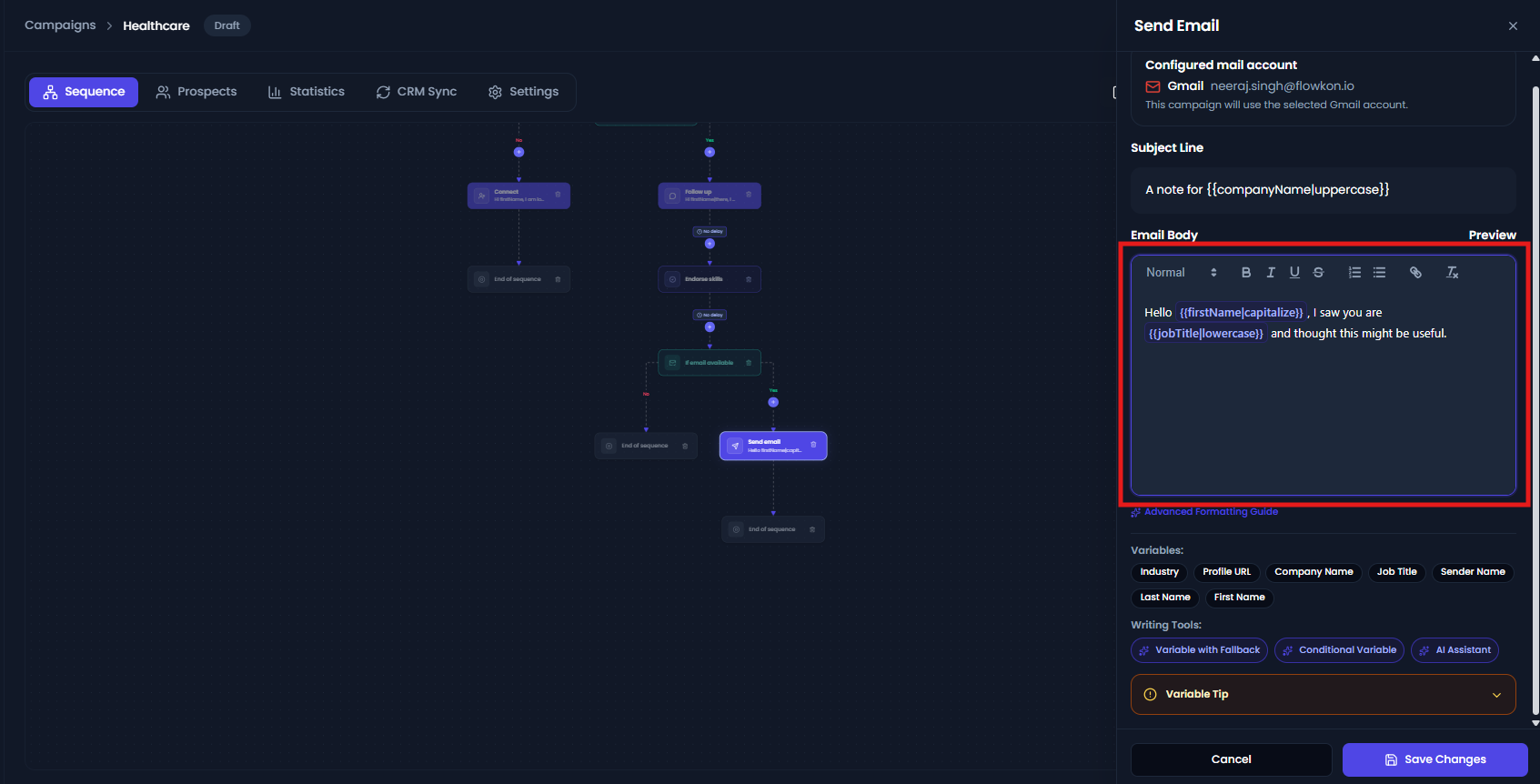
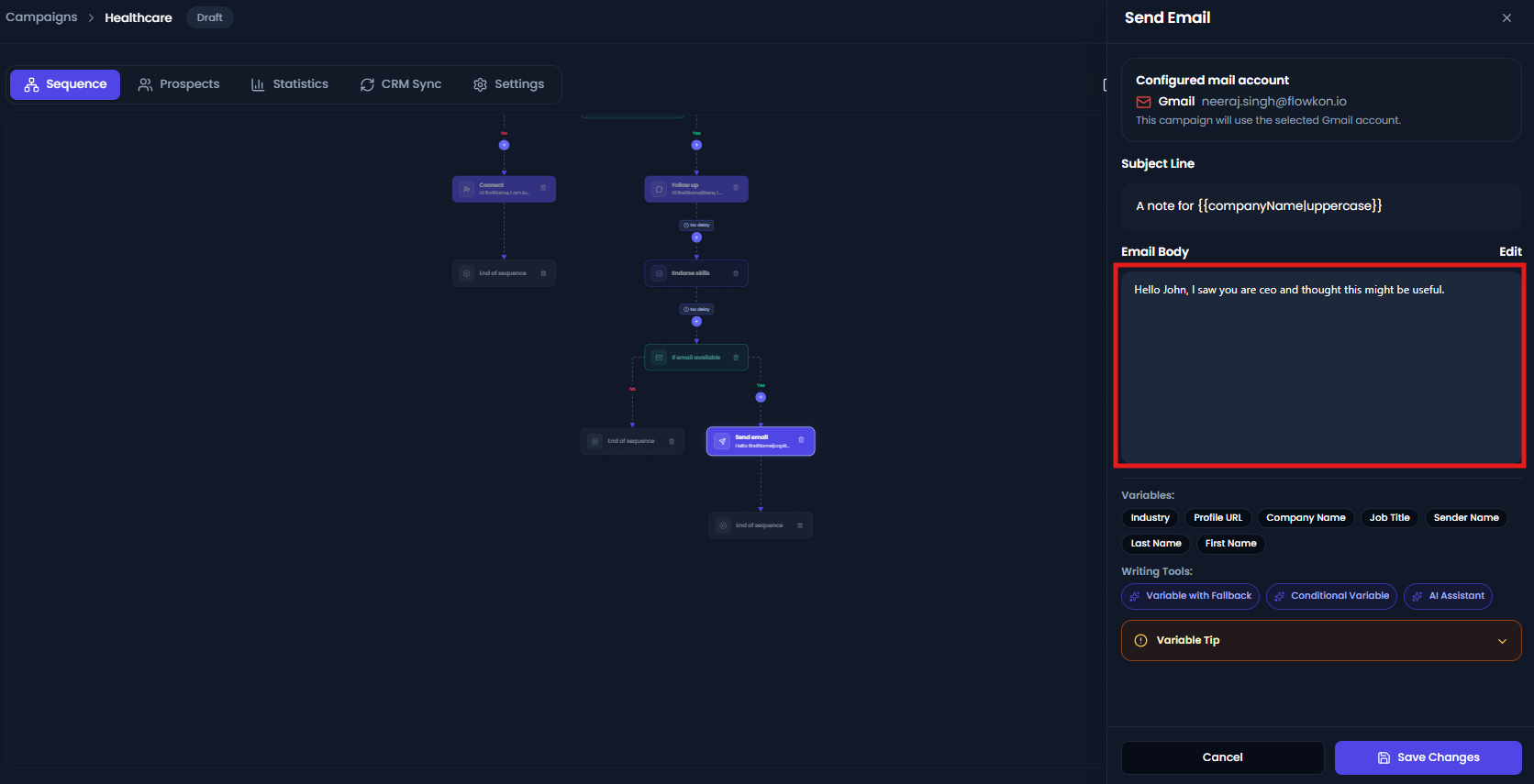
Subject: A note for {{companyName|uppercase}}

Hello {{firstName|capitalize}}, I saw you are {{jobTitle|lowercase}} and thought this might be useful.
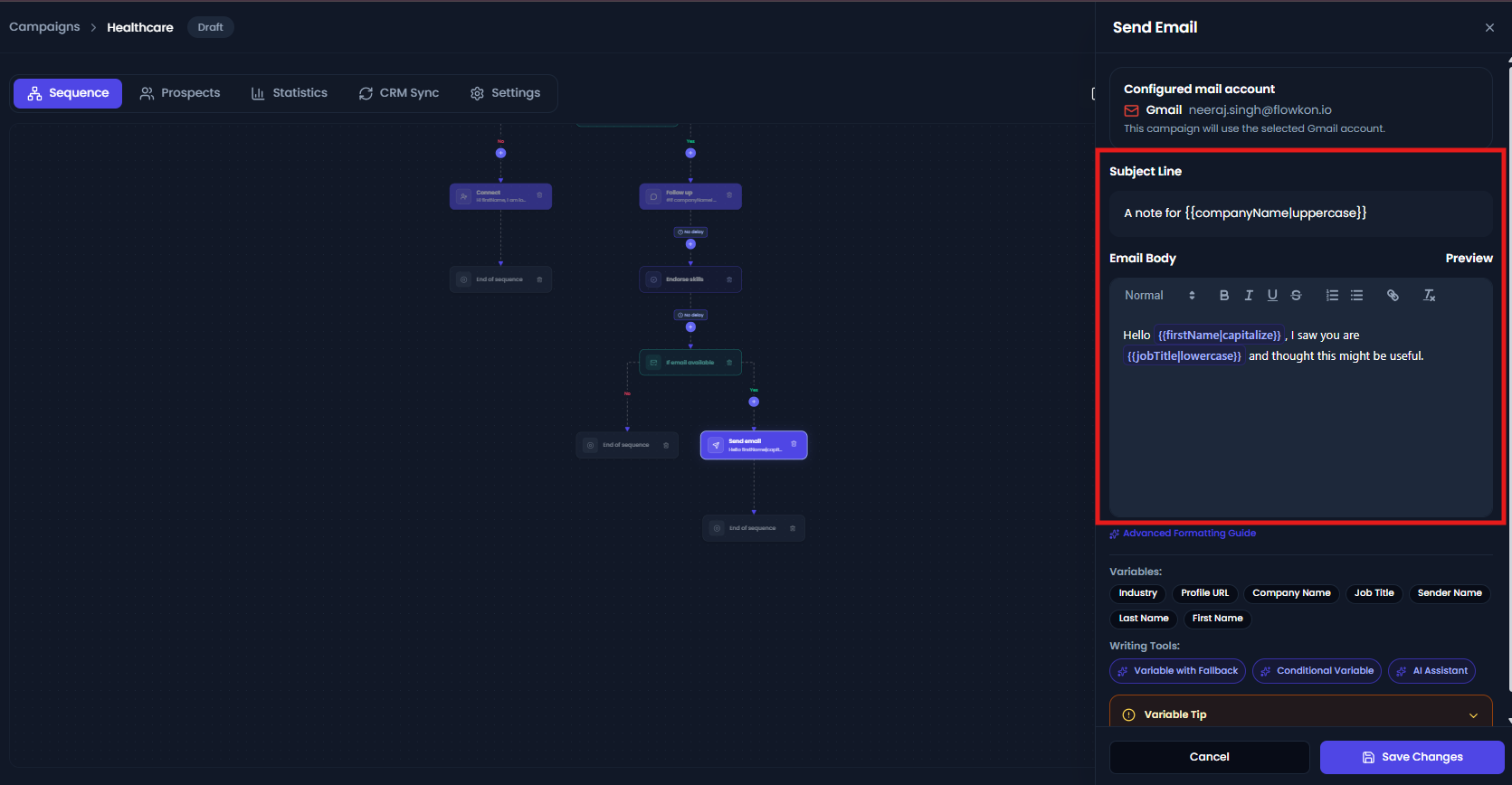
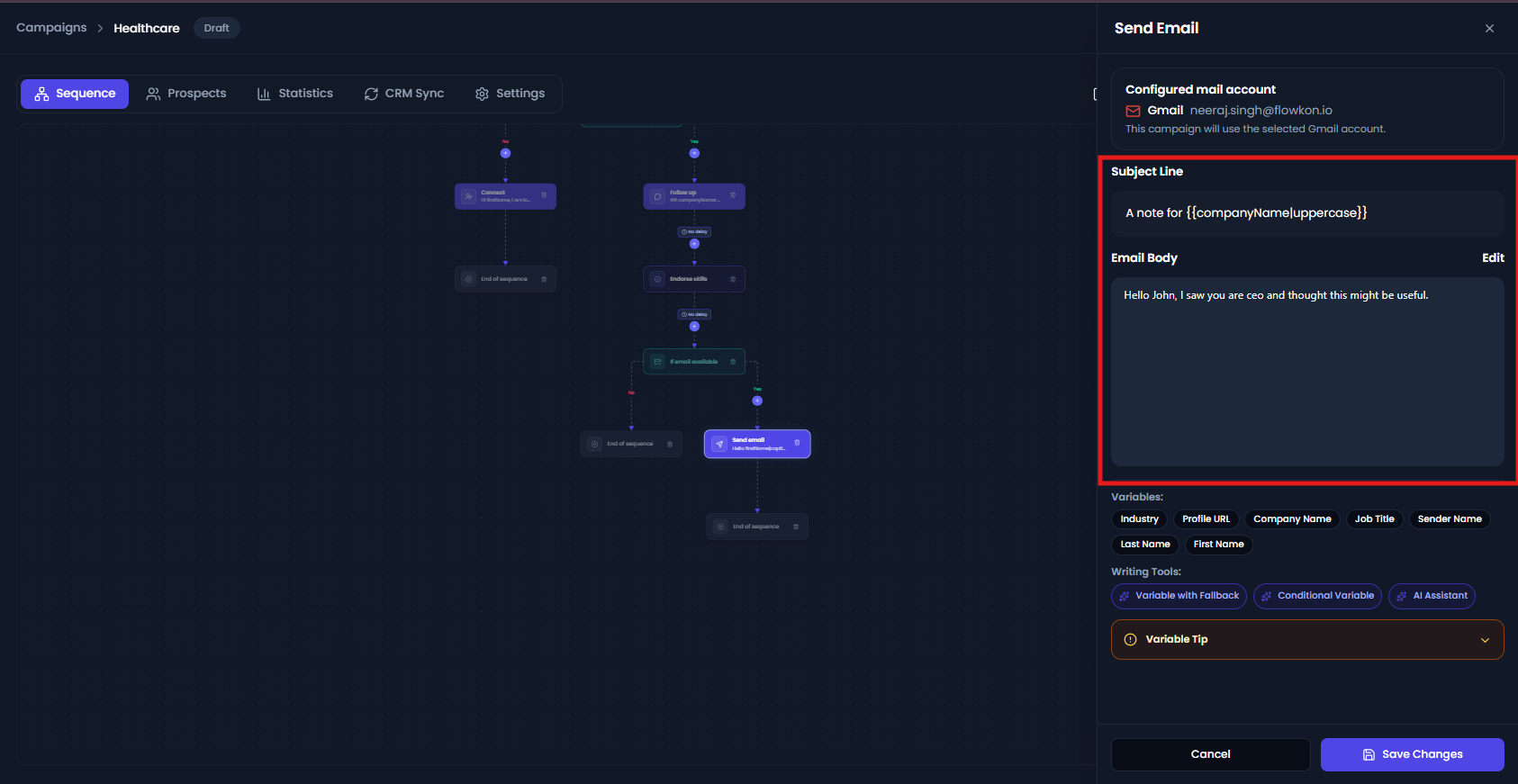
The | has two different uses:
- {{firstName|there}} → there is a fallback.
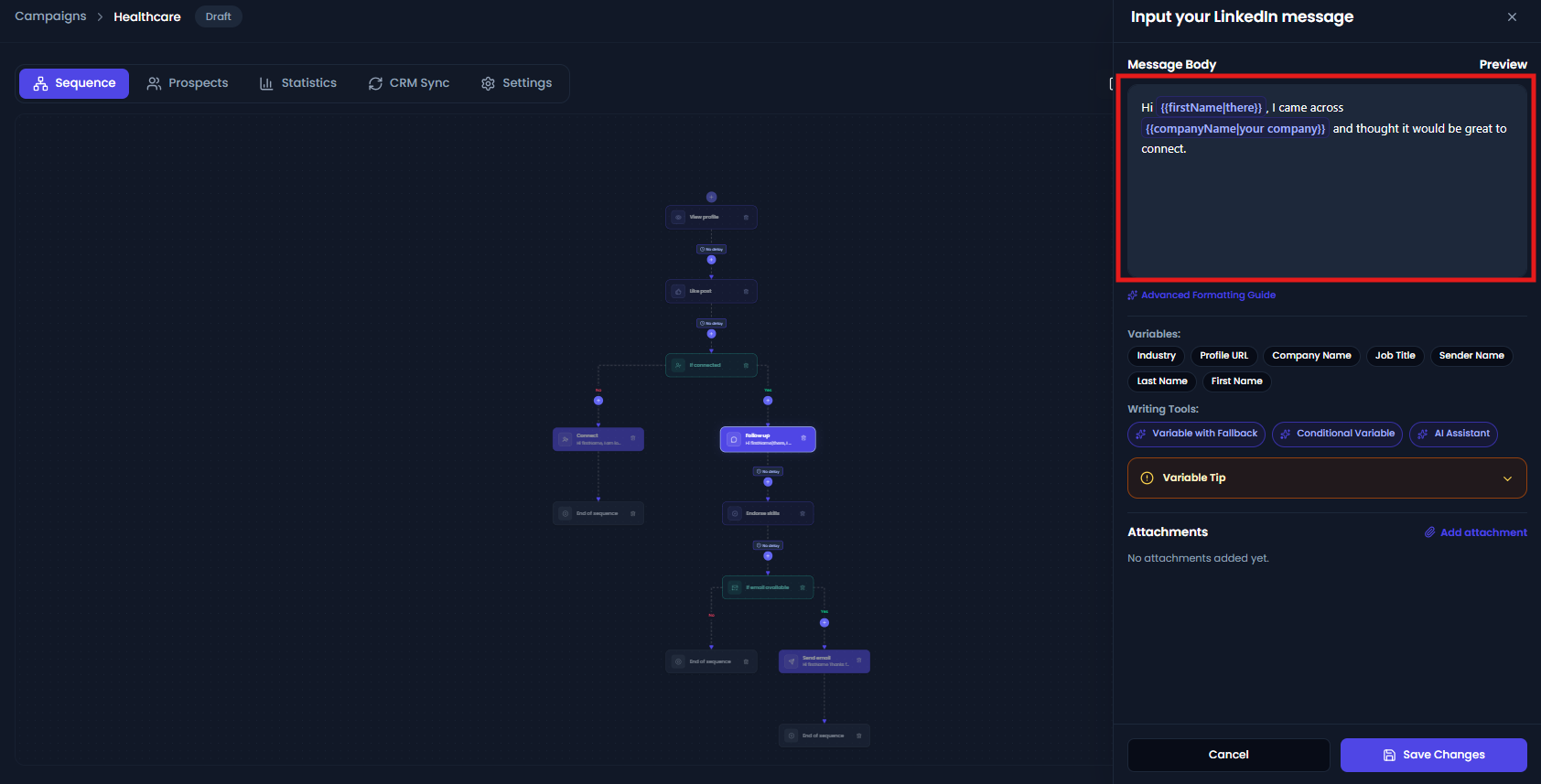
- {{firstName|uppercase}} → uppercase is a formatting option.
Flowkon treats capitalize , uppercase , and lowercase as formatting options.
Putting everything together
You can combine different variable types in the same message.
For example:
Hi {{firstName|there}},

{{#if companyName}}I have been looking at how {{companyName}} runs outbound.{{else}}I have been looking at how teams like yours run outbound.{{/if}}

A lot of {{jobTitle|lowercase}} leaders we speak with are dealing with {{pain_point|scaling pipeline without extra headcount}}.

Would you be open to 15 minutes next week?

{{senderName}}
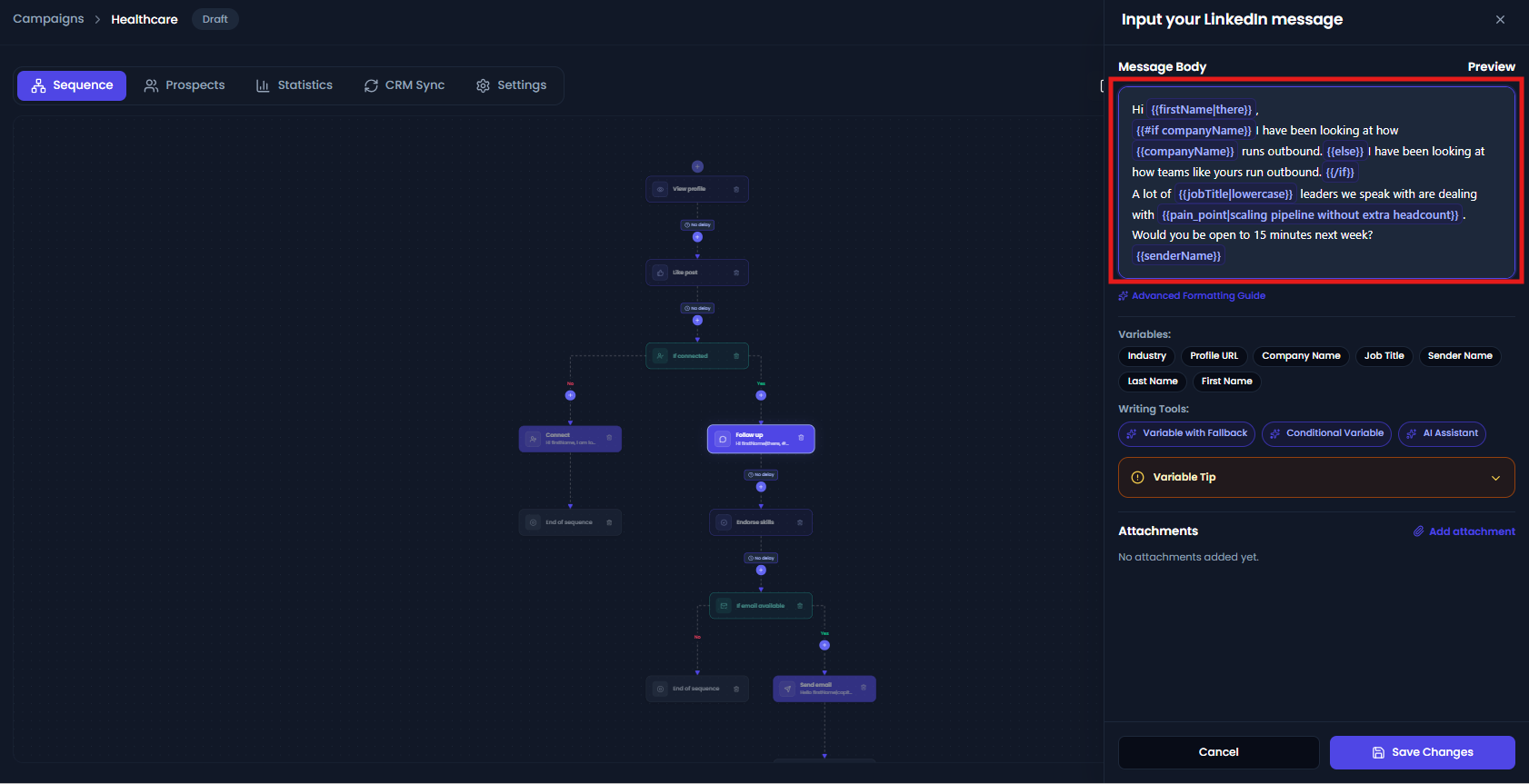
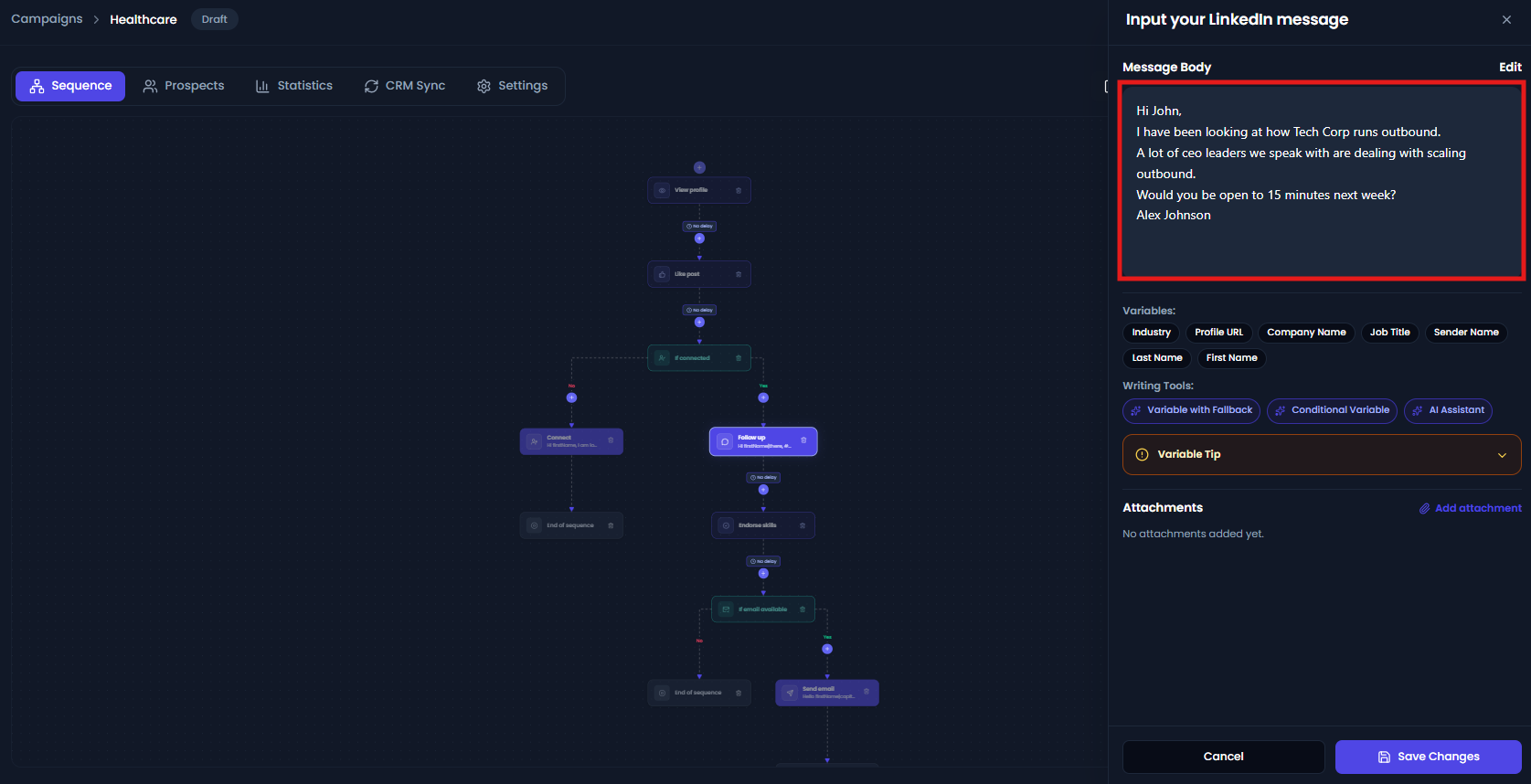
This one message handles several situations:
- Missing first name → uses there
- Missing company → uses a different sentence
- Job title → displayed in lowercase
- Missing custom pain point → uses a fallback
- Sender name → automatically uses the sender's name
You create the message once. Flowkon adapts it for each prospect.
How to add variables while you write
You do not have to remember variable names or type the syntax manually.
Use the / variable picker
While writing a campaign message:
- Click inside the message box.
- Type
/. - Search for the variable you need.
- Select the variable.
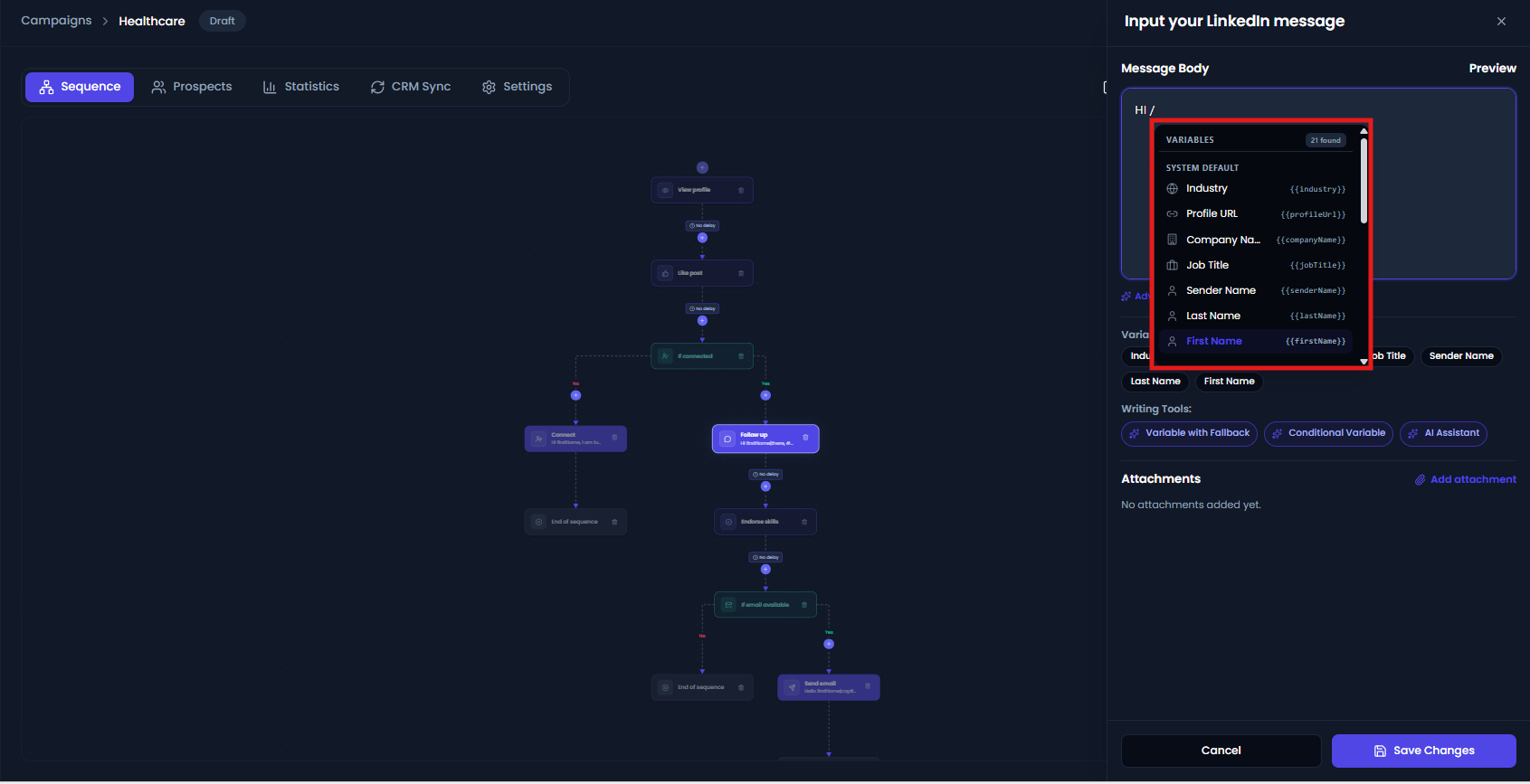
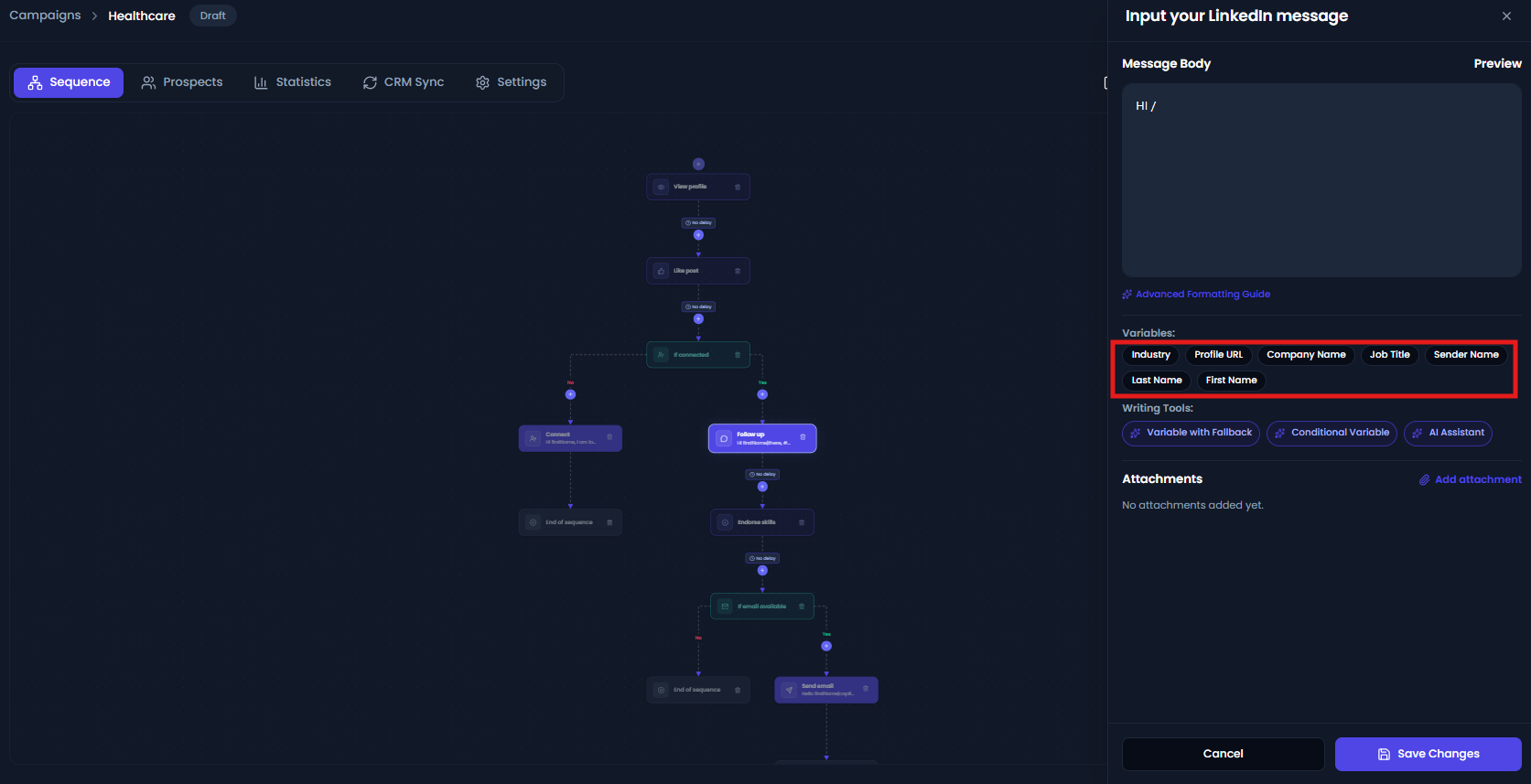
The picker groups variables into:
- System Default
- Custom Made
Flowkon inserts the variable into your message using the correct syntax.
For example, selecting the first-name variable inserts:
{{firstName}}
Use Conditional Variable
When you need to change a sentence based on available information, use:
Writing Tools → Conditional Variable
Choose the variable and enter the content for the available and missing-value cases. Flowkon inserts the conditional structure into your message.
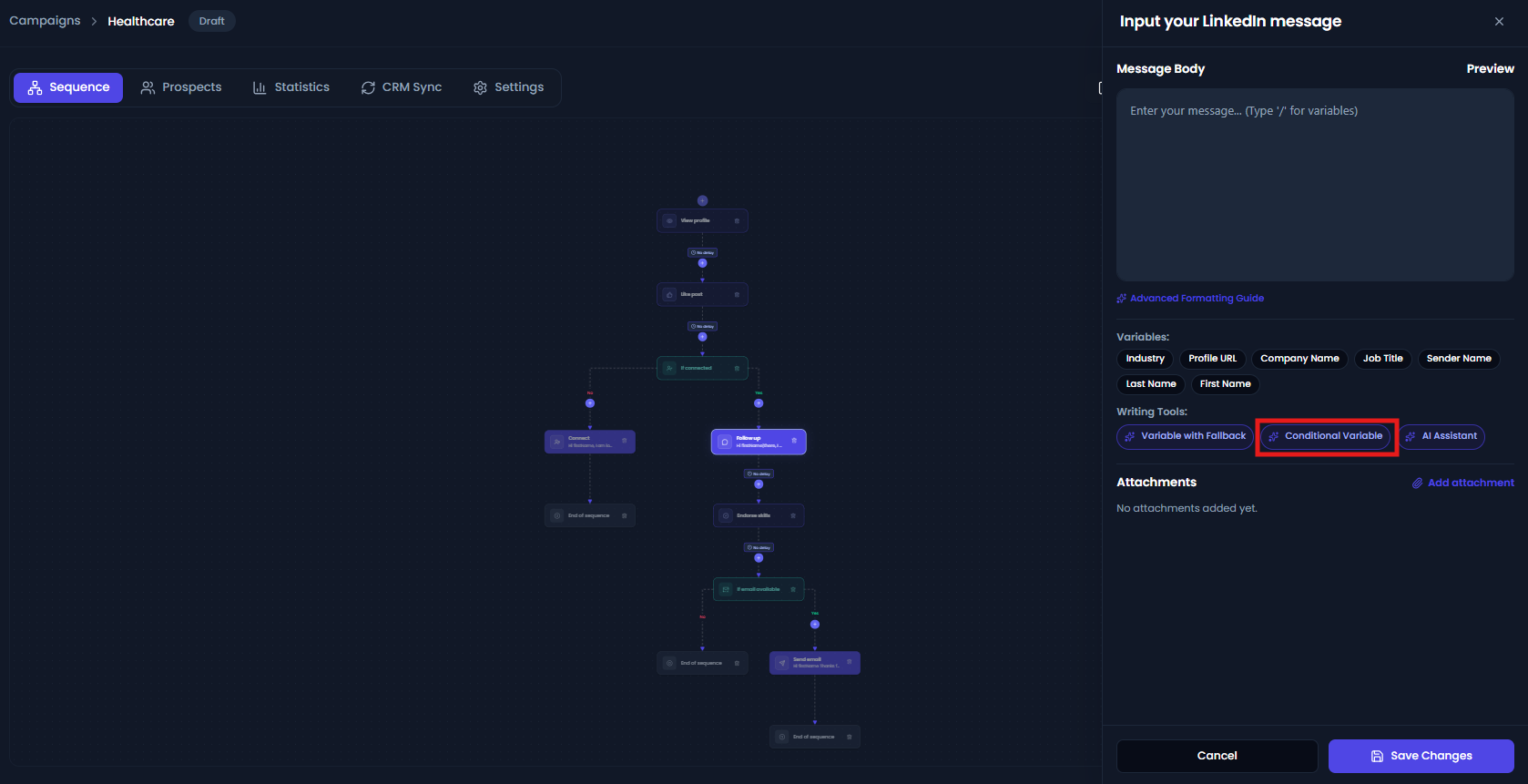
This is useful when you do not want to type conditional syntax manually.
Filling values for a prospect
System Default variables normally use information already available for the prospect.
Custom variables can have a value saved specifically for a prospect.
You can provide custom variable values by:
- Saving a value for the prospect.
- Importing values through a CSV.
- Using the fallback configured for the custom variable.
- Adding a fallback directly in the message.
For example, Alex creates:
pain_point
He can give different prospects different values:
| Prospect | pain_point |
|---|---|
| John | Hiring SDRs too slowly |
| Evan | Scaling outbound |
| Sara | Generating qualified leads |
Then one message can become different for each person:
Hi {{firstName}}, I noticed that {{pain_point}} is a challenge for many teams.
Each prospect receives the version that matches their saved value.
Variable values and fallbacks
A custom variable can have a value for a specific prospect and a fallback for prospects without one.
For example:
Custom variable: pain_point
Fallback: scaling outbound
| Prospect | Saved value | Result |
|---|---|---|
| Evan | hiring SDRs too slowly |
Uses Maya's value |
| John | No value | Uses scaling outbound |
| Sara | generating qualified leads |
Uses Sara's value |
This means you can personalize individual prospects without creating a separate campaign message for each person.
Character length: leave room for variables
A variable can look short while you are writing the message:
{{companyName}}
But the actual value might be much longer:
Acme International Holdings LLC
Because of this, the message can become longer after Flowkon fills the variables.
For messages with tight character limits, Flowkon shows a Variable Tip to remind you to leave room for the final values.
For short LinkedIn connection notes, keep about 50 characters under the limit.
For longer messages and emails, keep about 200 characters under the limit.
This gives longer variable values and links room to expand without making the final message too long.
When Flowkon asks you to fix a variable
If Flowkon finds a variable it cannot recognize or a conditional block that is not complete, the editor shows Update these variables.
Common issues include:
{{First Name}}
instead of:
{{firstName}}
Or:
{{company}}
when the available variable is:
{{companyName}}
Conditional blocks can also cause errors:
{{#if companyName}}I noticed your company...
The block is missing:
{{/if}}
Other common problems include:
- A missing closing
}} {{else}}without an open{{#if}}- An unknown variable name
- A variable name that does not match the one available in the picker
Fix these issues before saving the message.
The safest approach is to use / and select the variable from the picker instead of typing the variable name yourself.
What to use when
| Situation | Best approach |
|---|---|
| You need a prospect's existing information | System Default variable |
| You need extra campaign-specific information | Custom variable |
| A missing value can safely be blank | {{variableName}} |
| You want one backup word or phrase | `{{variableName |
| You want to change the whole sentence | Conditional variable |
| You want a sentence to disappear when data is missing | {{#if variableName}}...{{/if}} |
| You need to change capitalization | capitalize , uppercase , or lowercase |
| You are not sure how to spell a variable | Type / and select it |
| You need different information for individual prospects | Custom variable values |
| Some prospects may not have a custom value | Custom variable + fallback |
Common mistakes
Using the wrong brackets
This will not be replaced:
[firstName]
Use:
{{firstName}}
Using a variable without a fallback in a greeting
This can result in:
Hi ,
Instead, use:
Hi {{firstName|there}},
Using a fallback when you need a different sentence
This:
{{companyName|your company}}
only changes the value.
If the whole sentence needs to change, use a conditional variable.
Confusing fallback text with formatting
These are different:
{{firstName|there}}
uses there as a fallback.
{{firstName|capitalize}}
formats the value.
Mixing up the prospect and sender
Remember:
{{firstName}}
= prospect
{{senderName}}
= you
Forgetting to leave room for long values
Variables can expand when the message is sent. Keep the recommended buffer when working with messages that have tight character limits.
Creating a custom variable without values or a fallback
If a custom variable has no value for a prospect and no fallback, it may leave an empty space in your message.
Add a fallback or provide values for the prospects who need personalized content.
Quick reference
| Pattern | What it does |
|---|---|
{{firstName}} |
Inserts the available value |
| `{{firstName | there}}` |
| `{{firstName | capitalize}}` |
| `{{companyName | uppercase}}` |
| `{{jobTitle | lowercase}}` |
{{#if companyName}}...{{/if}} |
Shows content only when the value is available |
{{#if companyName}}...{{else}}...{{/if}} |
Shows different content depending on whether the value is available |
/ |
Opens the variable picker |
| Writing Tools → Conditional Variable | Helps you create a conditional message |
| Settings → Variables | Create and manage custom variables |
| Prospect variable values | Personalize a custom variable for an individual prospect |
The simple rule: write your message once, use variables where the message should change, and add fallbacks or conditions wherever missing information could make the message look incomplete.