-p-2000.png)
My network page
The My Network page is your central hub for managing all of your LinkedIn 1st-degree connections within Flowkon. It acts as your personal LinkedIn contact database, making it easy to organize, segment, and engage with your network.
From this page, you can:
- Search and manage your LinkedIn connections
- Organize contacts using tags
- Filter your network to find specific prospects quickly
- Add leads directly to outreach campaigns
- Manage and scale your growing LinkedIn network efficiently
Keeping your network organized helps you build more targeted outreach campaigns, improve engagement rates, and streamline your prospecting workflow.
To keep your network organized:
- Use tags to segment prospects by industry, location, or campaign type.
- Filter contacts before creating outreach campaigns.
- Regularly review contacts already enrolled in active campaigns.
- Use bulk tagging to manage large groups of prospects efficiently.
How to access My Network connections in Flowkon?
To open your network:
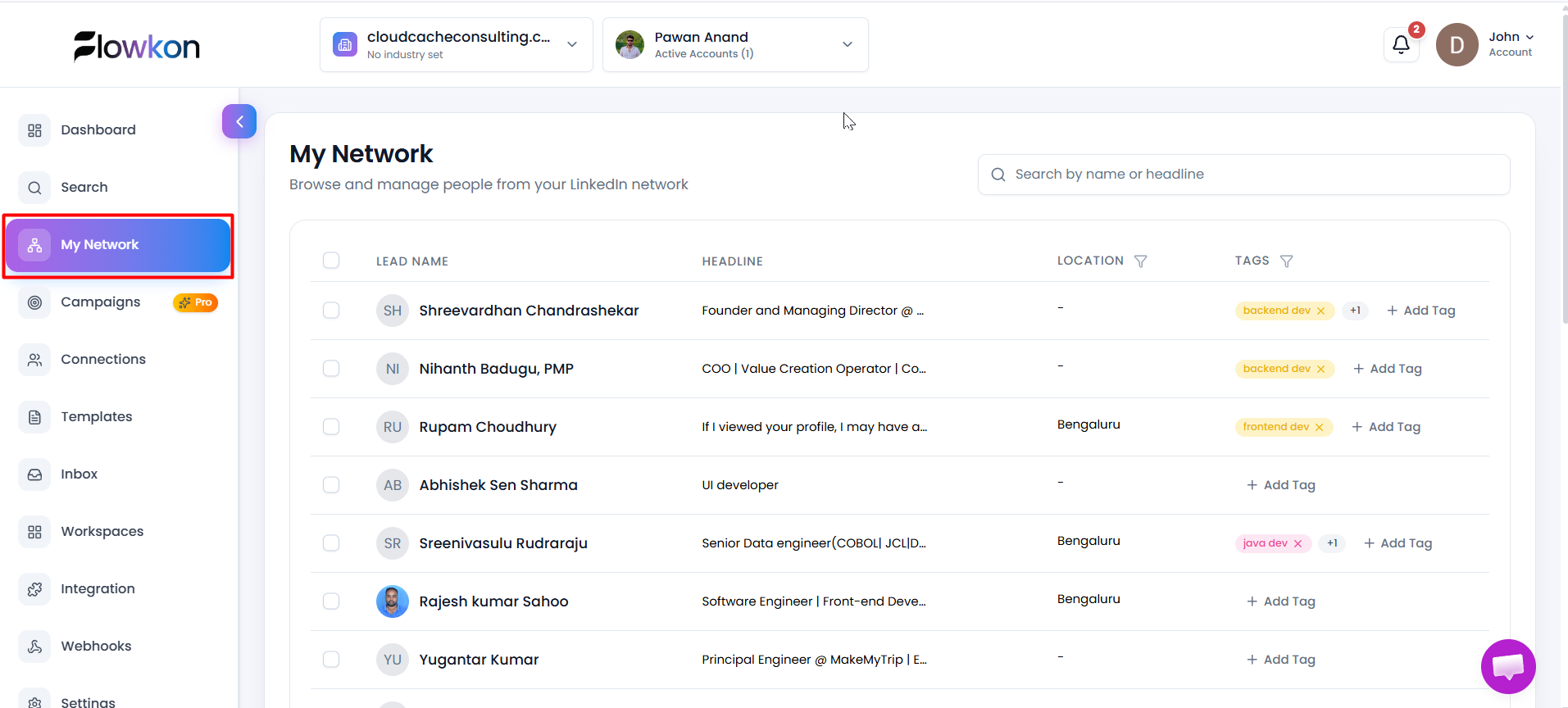
- Navigate to the left sidebar.
- Click My Network.
The page will display all synced 1st-degree LinkedIn connections associated with your connected LinkedIn account.
Search for Contacts
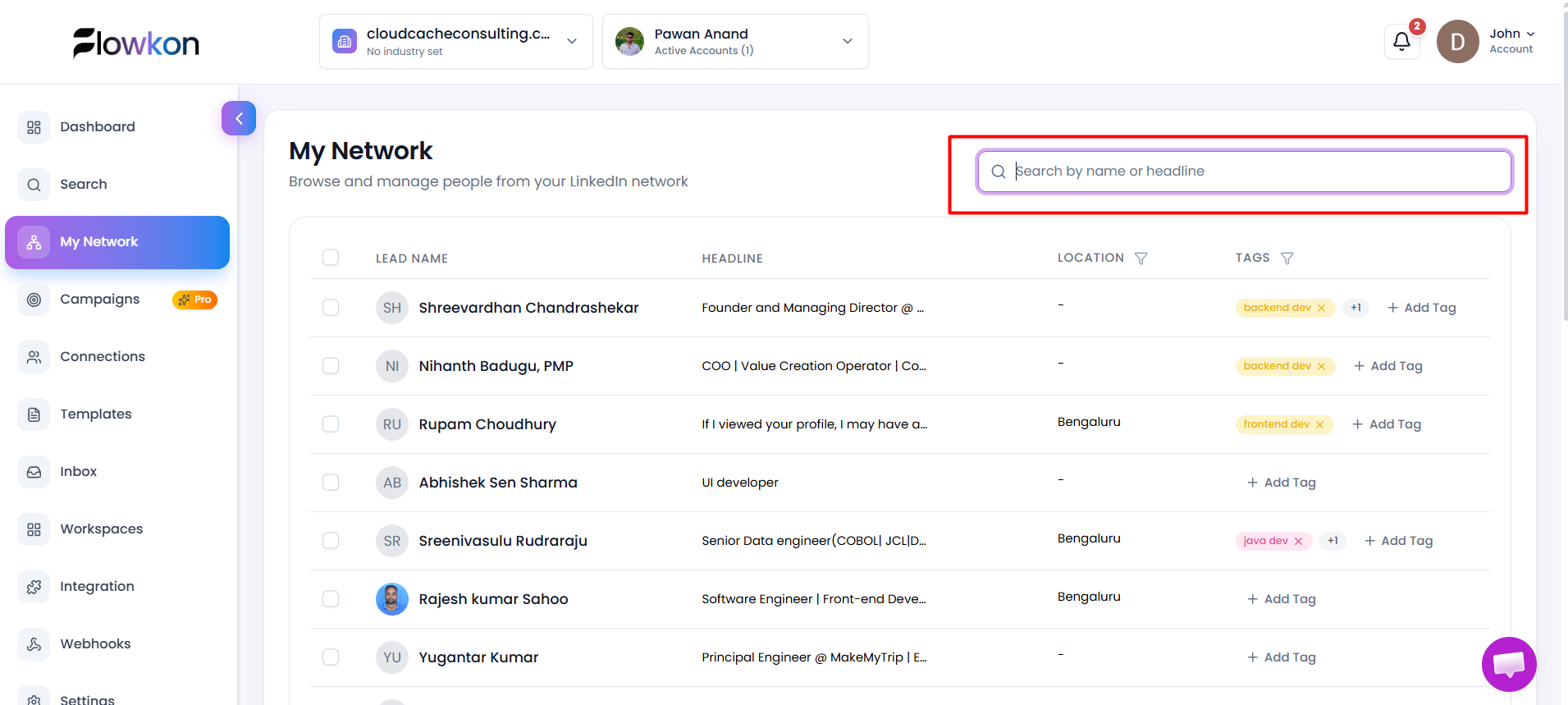
Use the search bar at the top of the page to quickly find specific contacts.
You can search using:
- Contact name
- LinkedIn headline
Results update automatically as you type.
Filter by Location
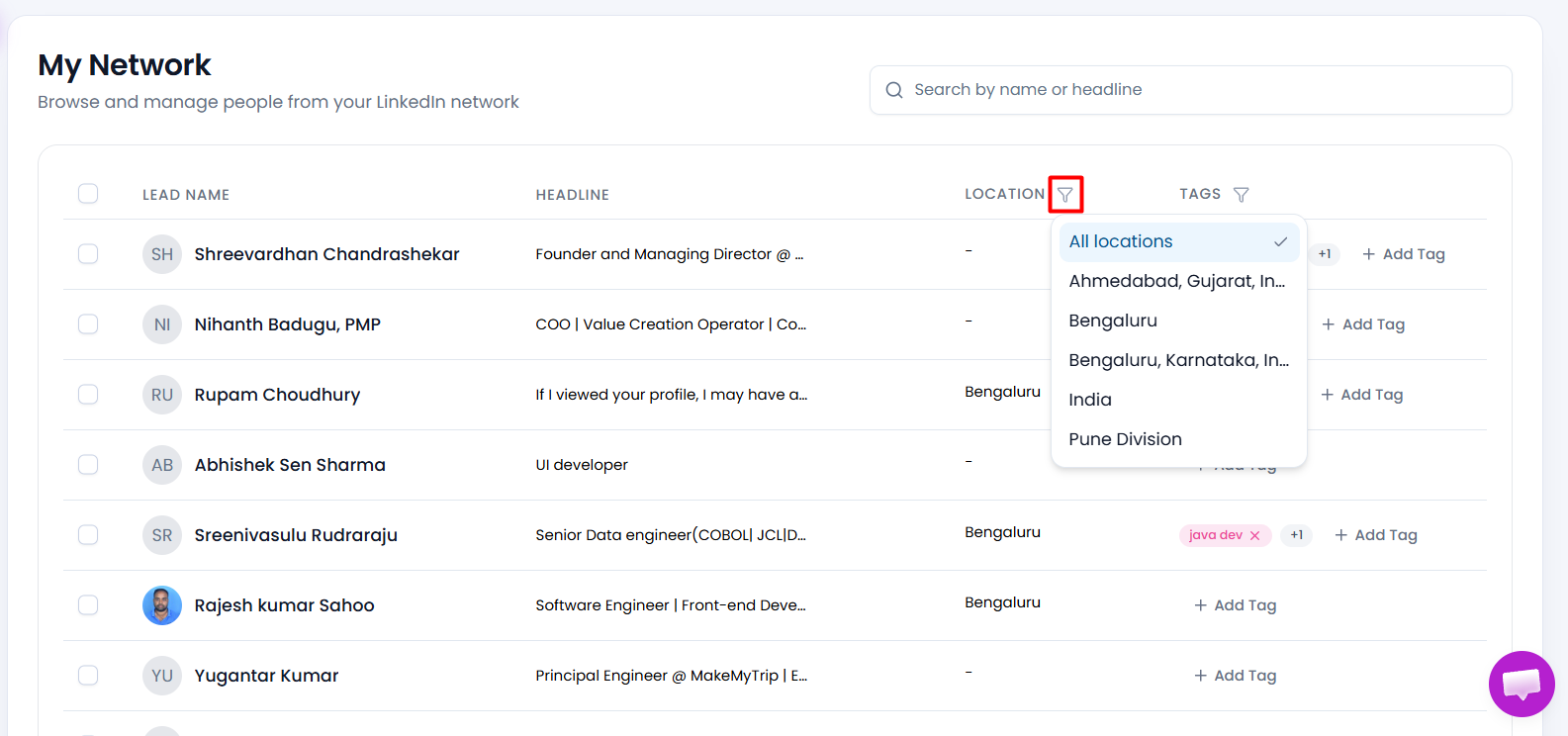
To narrow down your network by geographic region:
- Click the filter icon in the Location column.
- Select any location from the list.
- The table will immediately display matching contacts.
Location filters are useful when creating region-specific outreach campaigns.
Filter by Tags
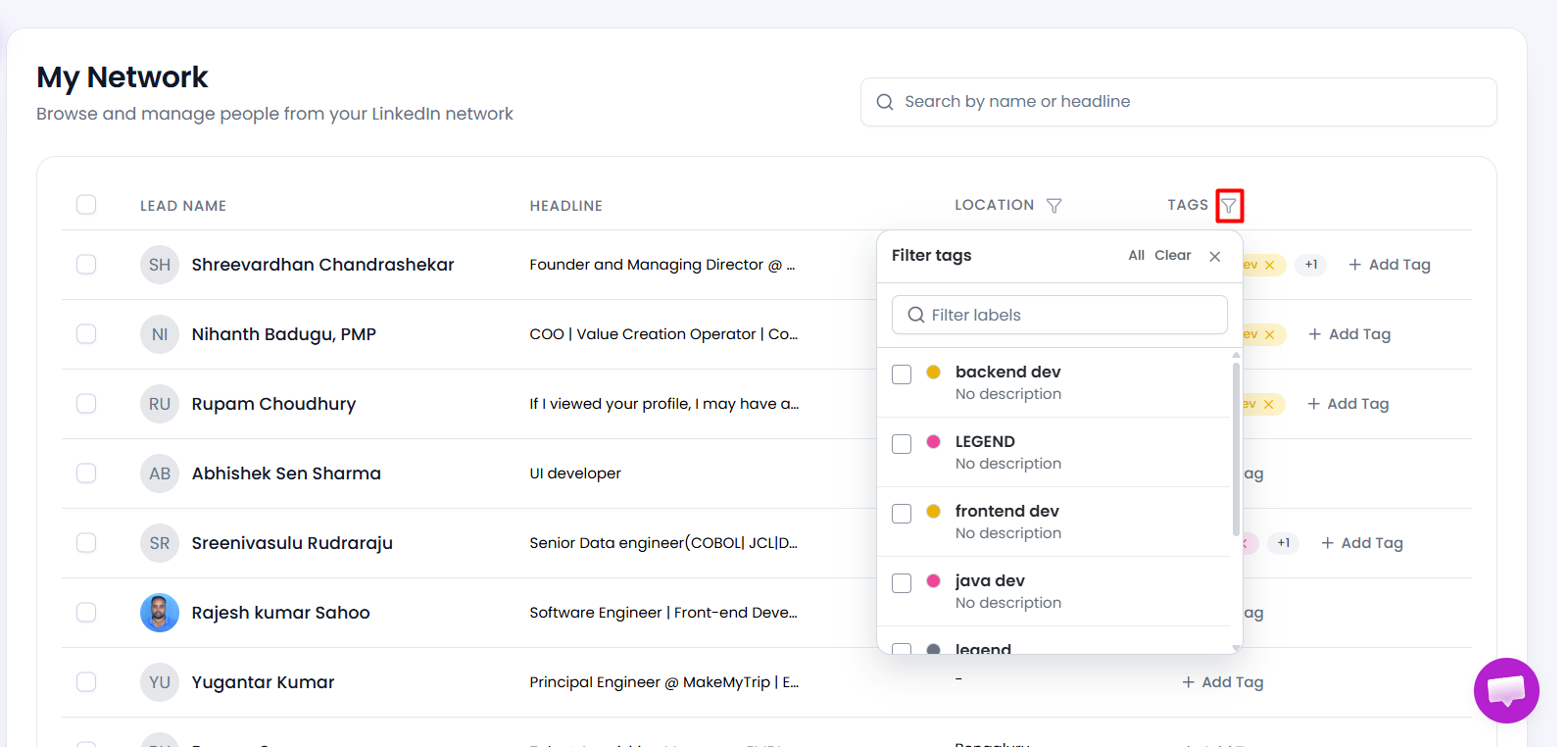
Tags help organize your contacts into meaningful groups.
To filter contacts by tag:
- Click the filter icon in the Tags column.
- Select one or more tags.
- Only contacts matching the selected tags will be displayed.
Understanding Contact Information
Each contact record includes important profile details, such as:
- Profile picture
- Full name
- LinkedIn headline
- Location
- Assigned tags
If a contact is currently part of an active campaign, an In Running Campaign badge will appear beneath their name.

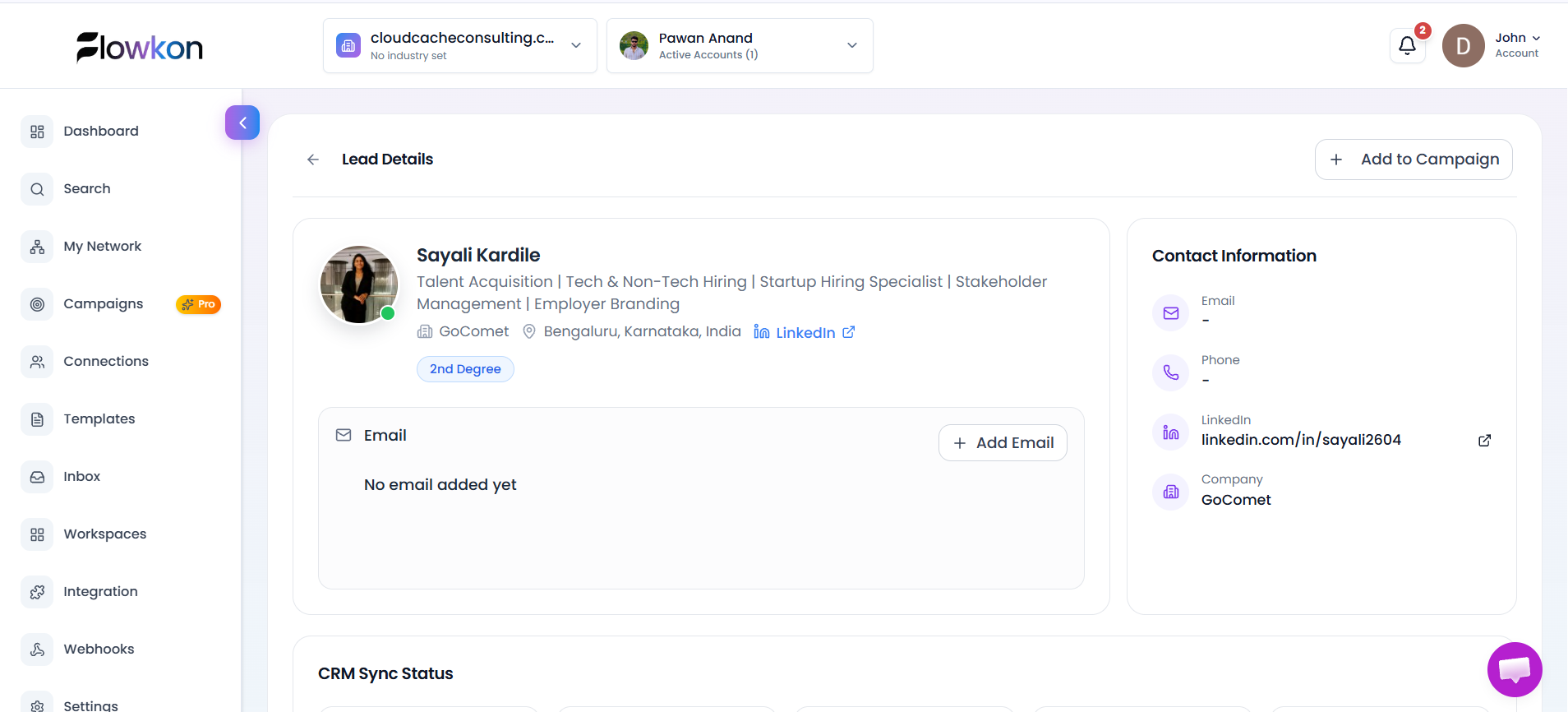
Open a Contact Profile
To view additional information about a contact:
- Click the contact's name.
- The contact profile page will open.
From the profile page, you can review lead details and manage the contact individually.
Manage Tags
Tags make it easier to segment and organize your network.
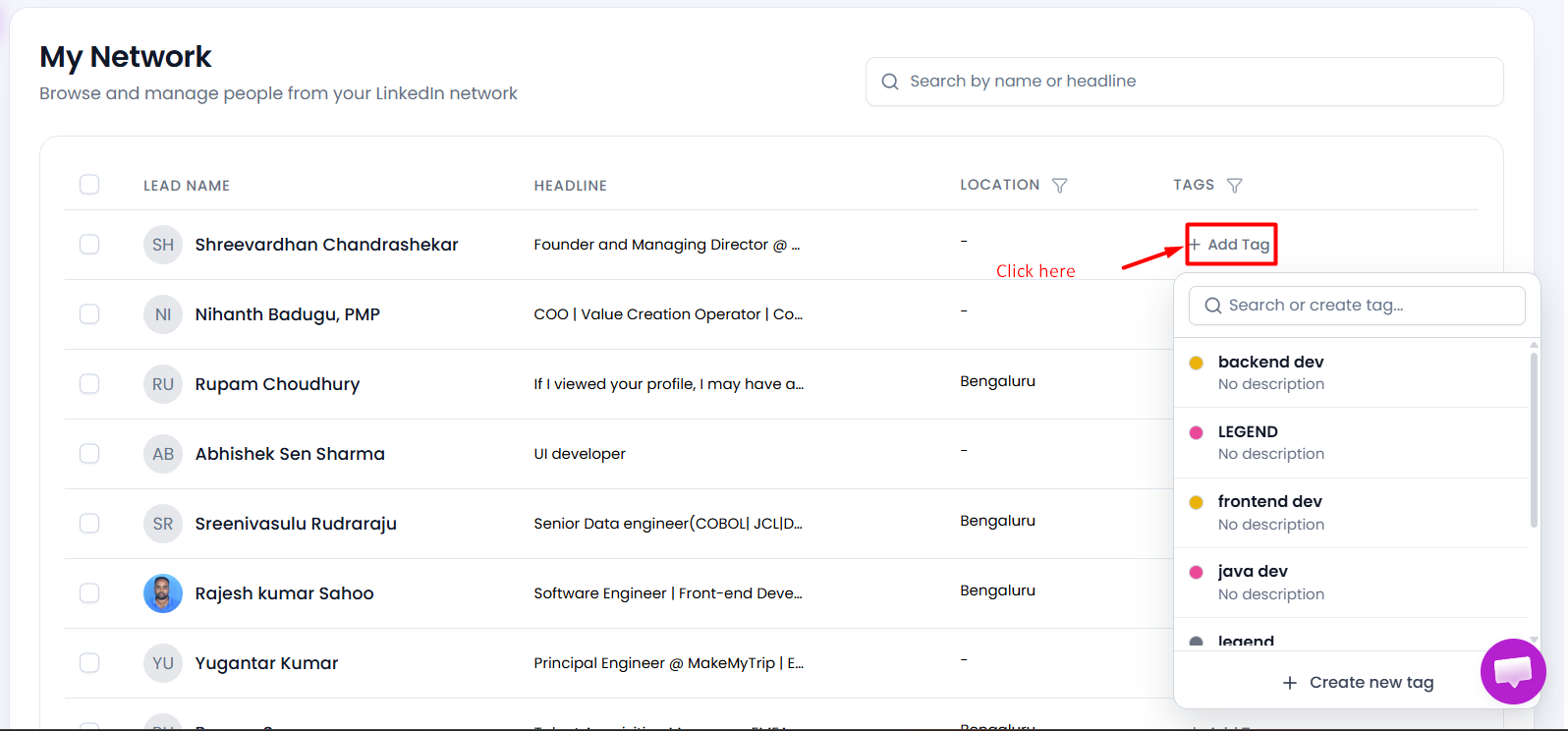
Add or Remove Tags for a Single Contact
To manage tags for an individual contact:
- Click the + Tag button in the Tags column.
- Select the tag you want to assign.
- To remove a tag, click the × icon next to the tag.
Add Tags to Multiple Contacts
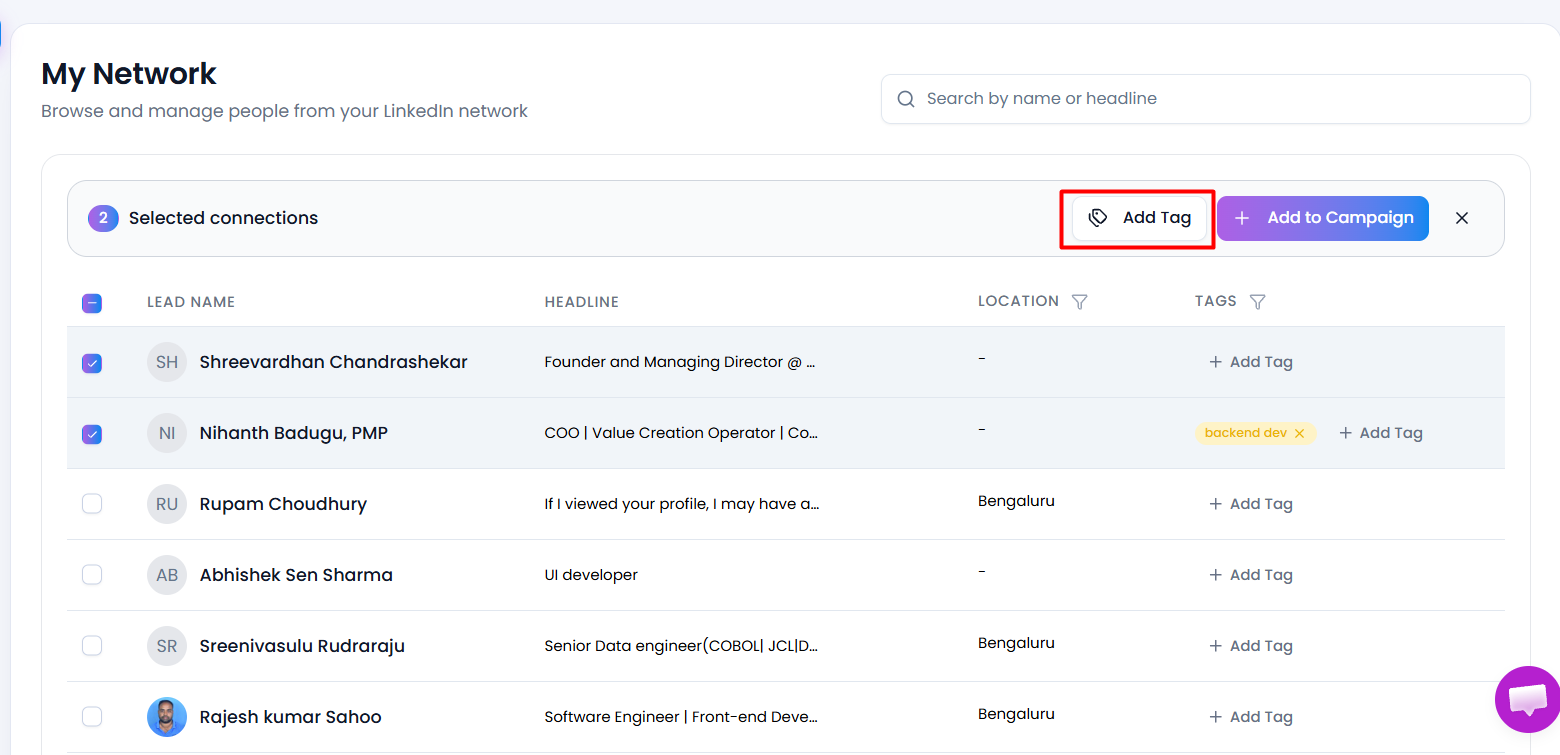
To assign tags in bulk:
- Select one or more contacts using the checkboxes.
- Click Add Tag above the table.
- Choose the desired tag.
- Confirm your selection.
The tag will be applied to all selected contacts.
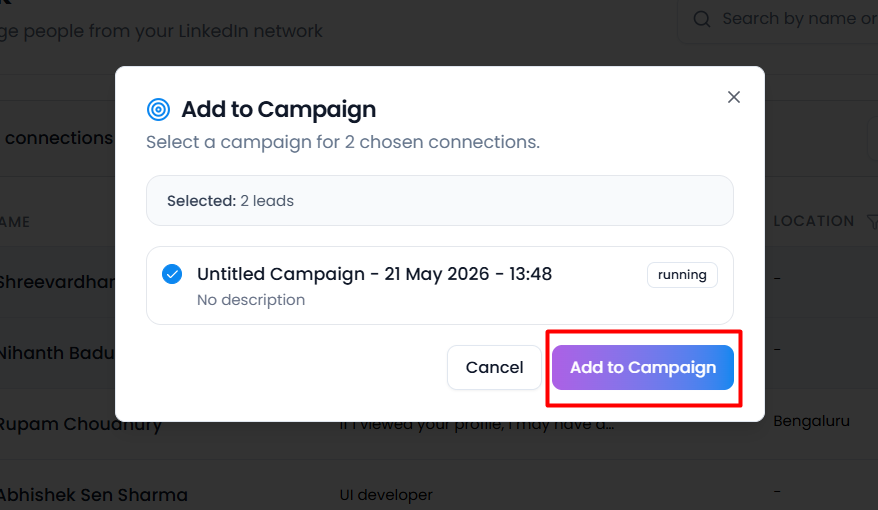
Add Contacts to a Campaign
You can add contacts directly to an outreach campaign from the My Network page.
To add contacts:
- Select one or more contacts.
- Click Add to Campaign.
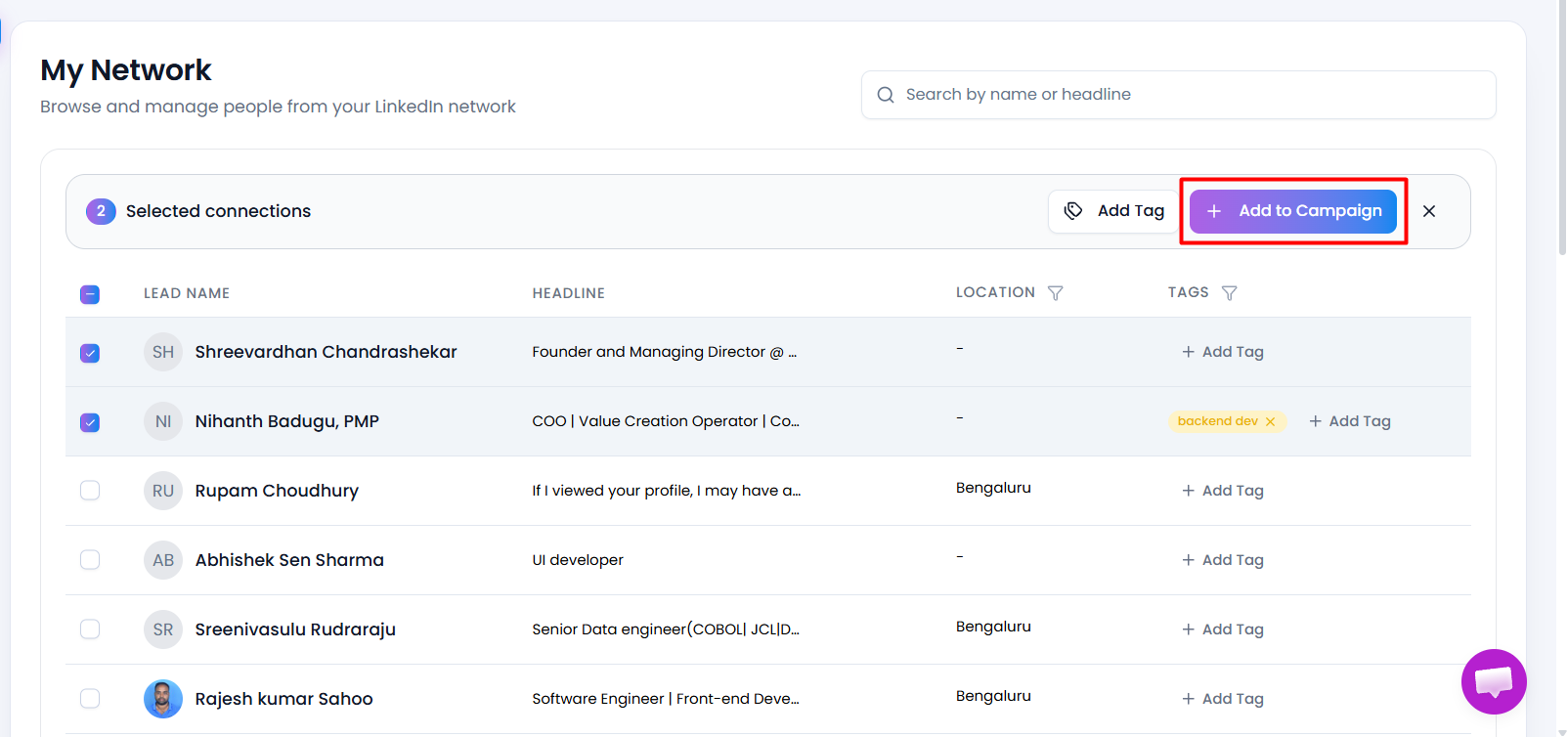
- Choose the campaign from the list.
- Click Add to Campaign to confirm.
Important
Contacts that are already enrolled in an active campaign cannot be added again.
These contacts will display an In Running Campaign label and cannot be selected for another active campaign.
How Does My Network Connection Loading Work ?
Flowkon does not load your entire LinkedIn network at once.
Instead, your LinkedIn connections are fetched page by page as you browse through the network.
This approach:
- Improves page performance
- Reduces loading times
- Allows smoother navigation through large LinkedIn networks
As you move through pages, additional connections are automatically synced and displayed.